Configuring a Duplicate Test
A Duplicate Test identifies elements that may be duplicated within the selected models.
Unlike Hard Clash and Soft Clash tests, a Duplicate Test uses a single Selection. BIMWorkplace checks the elements included in that selection to identify duplicates based on their identity and geometry.
For example, you can use a Duplicate Test to identify repeated structural elements or duplicated objects in an architectural model.
Before you start
Before configuring a Duplicate Test:
- Create or open a Clash Test with Duplicate selected as the Clash Test type.
- Make sure the models you want to check are available in the selected Coordination Space.
- Identify the models or element categories you want to include in the check.
For information about creating a Clash Test, see Creating a Clash Test.
Defining the Selection
A Duplicate Test uses a single Selection to define which elements will be checked.
You can include elements from one or more models and use selection conditions to restrict the check to specific categories or properties.
To configure the Selection:
- Locate the Selection section in the Clash Test configuration.
- Select the model you want to check.
- If necessary, add more selection sources to include elements from other models.
- Optionally, configure conditions to select only the elements relevant to the test.
- Preview the Selection to confirm that the correct elements are included.
For example, you can select structural columns from a structural model instead of checking every element in the model.
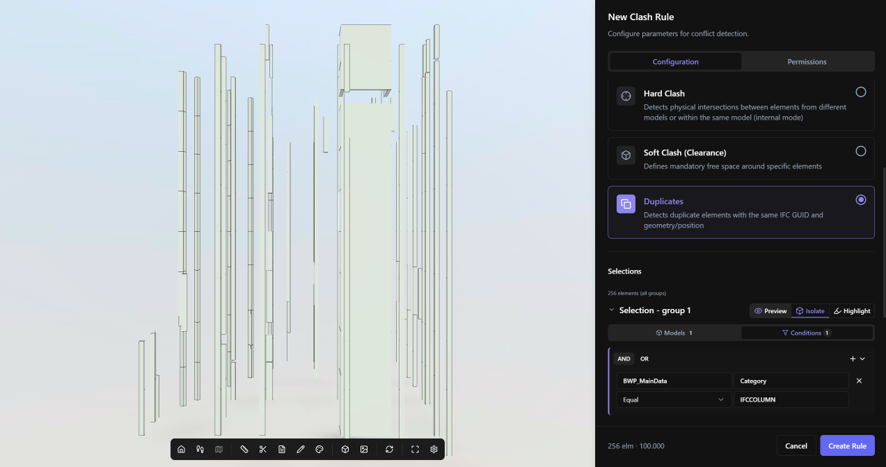
For detailed information about selecting models, adding conditions, and combining selection criteria, see Model and Condition Selection.
How duplicate elements are identified
BIMWorkplace evaluates the elements included in the Selection to identify potential duplicates.
The Duplicate Test uses IFC GUID and geometry/position information to detect elements that may represent duplicated objects.
Unlike a Hard Clash test, a Duplicate Test is not intended to identify every physical intersection between elements. Its purpose is to identify duplicated elements within the selected scope.
For example, two structural elements may occupy the same location because one was unintentionally copied during modeling. A Duplicate Test can help identify this type of issue.
The test only evaluates elements included in the configured Selection. Elements excluded by the selected models or conditions are not checked.
Previewing the Selection
Before saving the Duplicate Test, preview the Selection to verify that it includes the intended elements.
Use the preview to:
- Confirm that the correct models and elements are included.
- Check the number of selected elements.
- Identify conditions that include too many or too few elements.
- Adjust the Selection if necessary.
If the Selection exceeds the number of elements allowed for a Clash Test, reduce its scope or divide the check into multiple tests.
For more information about previewing selections, see Model and Condition Selection.
Saving the configuration
Before saving the Duplicate Test, make sure that:
- Rule Name is defined.
- At least one model is included in the Selection.
- The Selection contains the elements you want to check.
- Any selection conditions are configured correctly.
- The Selection preview has been reviewed.
- A Default Assignee and Priority have been selected, if needed.
Save the Clash Test when the configuration is complete.
Example: Identifying duplicated structural columns
Suppose you want to check whether a structural model contains duplicated columns.
You can configure the Duplicate Test as follows:
- Rule Name: Duplicate Structural Columns
- Clash Test type: Duplicate
- Selection: Structural model
- Condition: Category = Columns
With this configuration, BIMWorkplace checks the selected structural columns for potential duplicates.
If duplicated elements are identified, you can review the results to determine whether they represent modeling errors that need to be corrected.
After saving the configuration, run the test from the Clash Tests page and review the detected conditions in Clash Results.
Related articles
Este artigo foi útil?