Coordination Space
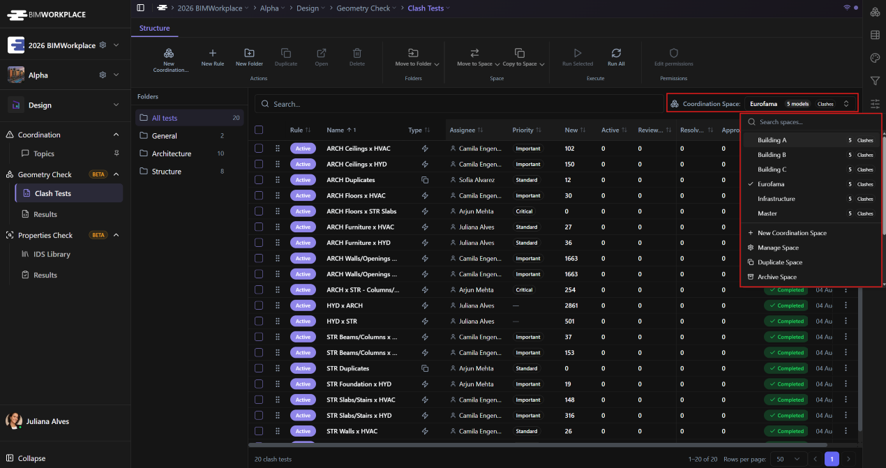
A Coordination Space defines the scope of a clash detection or IDS workflow. It allows you to select the models that will participate in a specific coordination process before creating any Clash Tests or IDS analyses.
Every Clash Test and IDS analysis belongs to a Coordination Space and can only analyze the models included in that space.
For this reason, creating a Coordination Space is the first step before configuring clash detection rules or IDS requirements.
Why use a Coordination Space?
Large BIM projects often contain many federated models. However, not every coordination activity needs to include all of them. A Coordination Space allows you to define a smaller working scope by selecting only the models relevant to a particular coordination objective. This makes coordination more organized, improves performance, and allows different teams or project areas to work independently. For example, although a project may contain the federated models for an entire residential development, you may want to coordinate each building separately.
Example
A residential development may include the following models:
- Building A
- Building B
- Building C
- Site Infrastructure
Instead of running every Clash Test or IDS analysis against all project models, you can create separate Coordination Spaces for each area.
Each Coordination Space contains only the models required for that coordination activity.
Creating a Coordination Space
- Open the Design module.
- Go to Clash Tests or IDS Library.
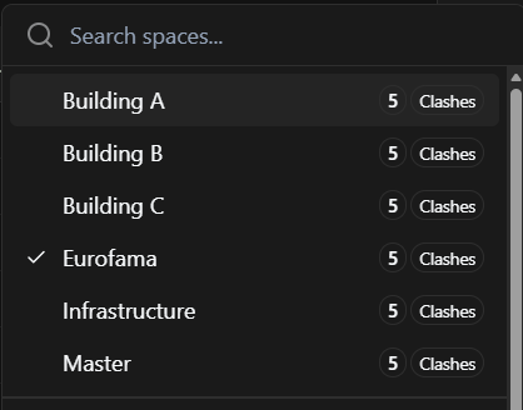
- Click New Coordination Space.
- Enter a name for the Coordination Space.
- Select its Purpose: o Clashes o IDS (Requirements)
- Select the models that will participate in the coordination.
- Choose how each model version will be managed: o Latest Version – Always uses the most recent version available in the CDE. o Pinned Version – Locks the Coordination Space to a specific model version.
- Save the Coordination Space.
Note: All selected models must already be available in the CDE.
Once the Coordination Space has been created, you can begin creating Clash Tests or IDS analyses within it.
Managing Coordination Spaces
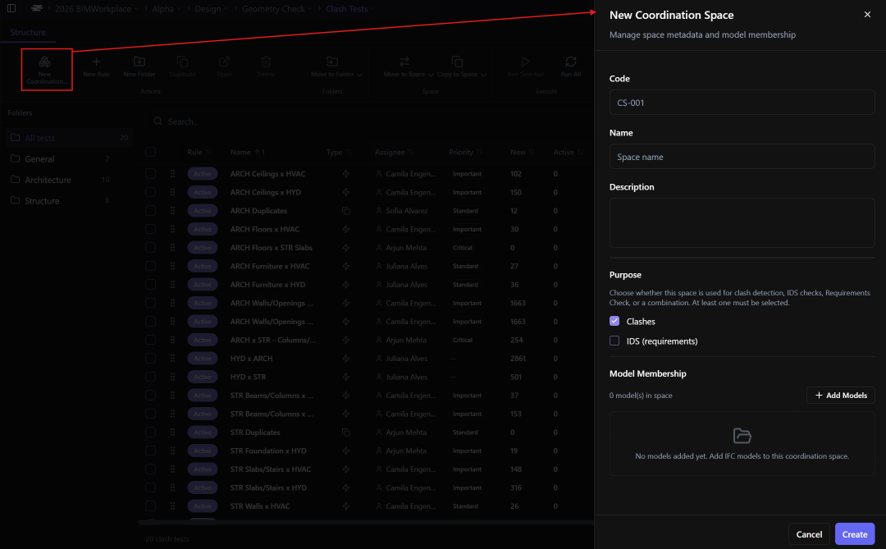
Click the name of the current Coordination Space below the ribbon to open the management menu. From there, you can:
- Create a New Coordination Space.
- Manage the Coordination Space name, description, purpose, and selected models.
- Duplicate the current Coordination Space.
- Archive the Coordination Space to hide it without deleting it.
- Delete the Coordination Space permanently.
Best practices
- Create one Coordination Space for each coordination objective.
- Include only the models required for that workflow. Although individual Clash Tests and IDS analyses can further restrict which models are analyzed, the Coordination Space defines the overall scope.
- Use descriptive names that clearly identify the coordination scope, such as Building A, Tower 2, or MEP Coordination.
- Use Pinned Versions when you need repeatable or auditable coordination results, and Latest Version when working with continuously evolving models.
Related articles
Este artigo foi útil?