Approval Flows
Use Approval Flows in Project Settings to create reusable workflows for reviewing and approving documents in the CDE.
An approval flow defines who can start a review, which participants are responsible for each step, how decisions are collected, and what happens to documents when the process is completed.
For example, you can create an approval flow where the engineering team reviews submitted documents before a Project Manager gives final approval.
Once configured, an active approval flow can be selected when creating a Review in Review & Approval.
Before you start
Make sure that:
- Your Workplace includes the CDE module.
- You have access to Project Settings > Approval Flows.
- You have the required Approval workflows permission. Read access allows you to view existing workflows, while Total access allows you to create, edit, and manage them.
- The members, roles, teams, or companies you want to include are available in the project.
Creating an approval flow
- Open Project Settings.
- Select Approval Flows.
- Click New template.
- Complete the configuration steps described below.
The configuration is organized into five sections: General, Steps & Participants, Outcome mapping, Completion Actions, and Summary.
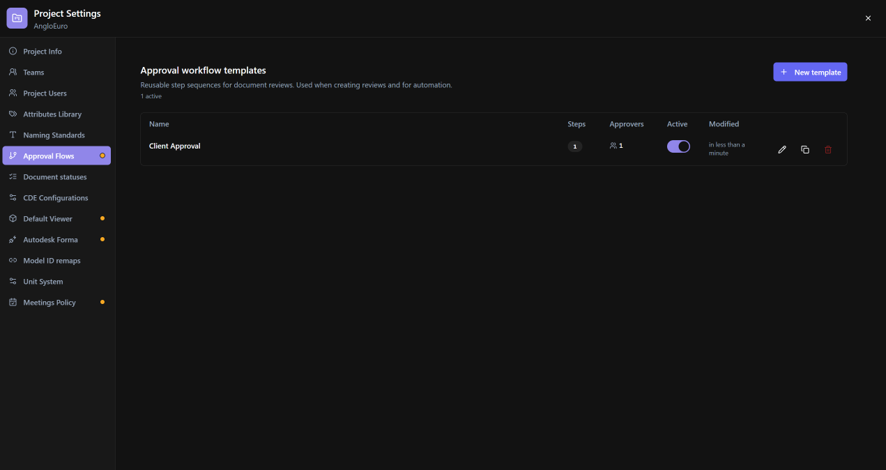
1. General
In General, define the basic information and availability of the approval flow.
- Enter a Name that helps users identify the workflow when creating a Review.
- Optionally, enter a Description explaining when the workflow should be used.
- Select a Catalog template type to define the initial workflow structure.
- Set the Lifecycle status.
- Enable Public if you want the approval flow to be available to other projects within the same Workplace.
- Select the Authorized initiators who can start reviews using this workflow.
- Configure the editing permissions for initiators under More options, if needed.
Catalog template type
The catalog provides predefined workflow structures containing one to six steps, including options for group approval.
Selecting a template type automatically creates the initial steps. You can adjust their configuration afterward.
Lifecycle status
- Active — The template is available for use when creating new reviews.
- Inactive — The template is not available for new reviews.
Public
When Public is enabled, the approval flow becomes available to other projects within the same Workplace.
When disabled, it is available only in the current project.
Initiator permissions
Under More options, you can control whether initiators are allowed to edit the Review or change its approvers while it is in Draft.
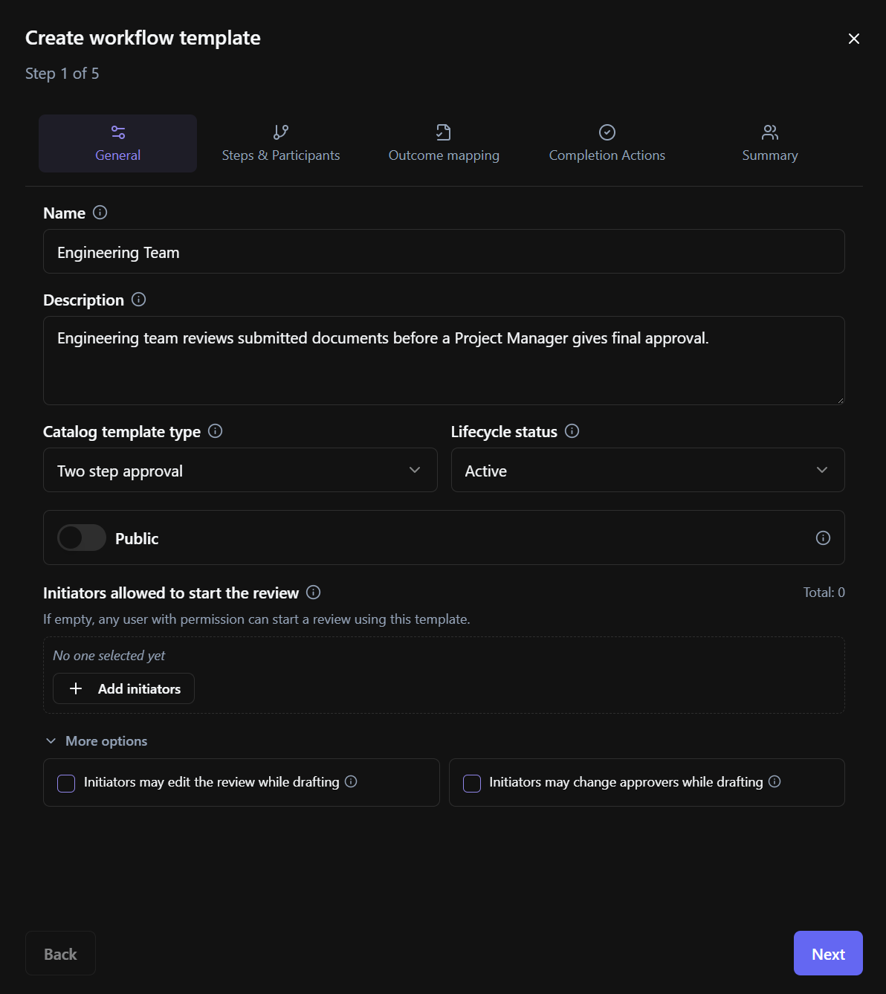
2. Steps & Participants
In Steps & Participants, define how the review progresses and who participates in each step.
An approval flow can contain up to six steps.
There are two types of steps:
- Review — Used to evaluate documents before final approval.
- Final Approval — The last step, where the final approval decision is made.
The final step must be Final Approval. All preceding steps are Review steps.
Configuring a step
For each step:
- Review the steps created automatically based on the Catalog template type selected in General. Use Add Step to add a step, or click the trash can icon to remove one.
- Select the Reviewer mode:
- Single — One reviewer is responsible for completing the step.
- Group — Multiple reviewers can participate in the step.
- Define the allowed review time, if required.
- Add Key reviewers.
- Optionally, add Optional reviewers.
- Configure the Key reviewer rule, when applicable.
- Configure any additional permissions or restrictions for the step.
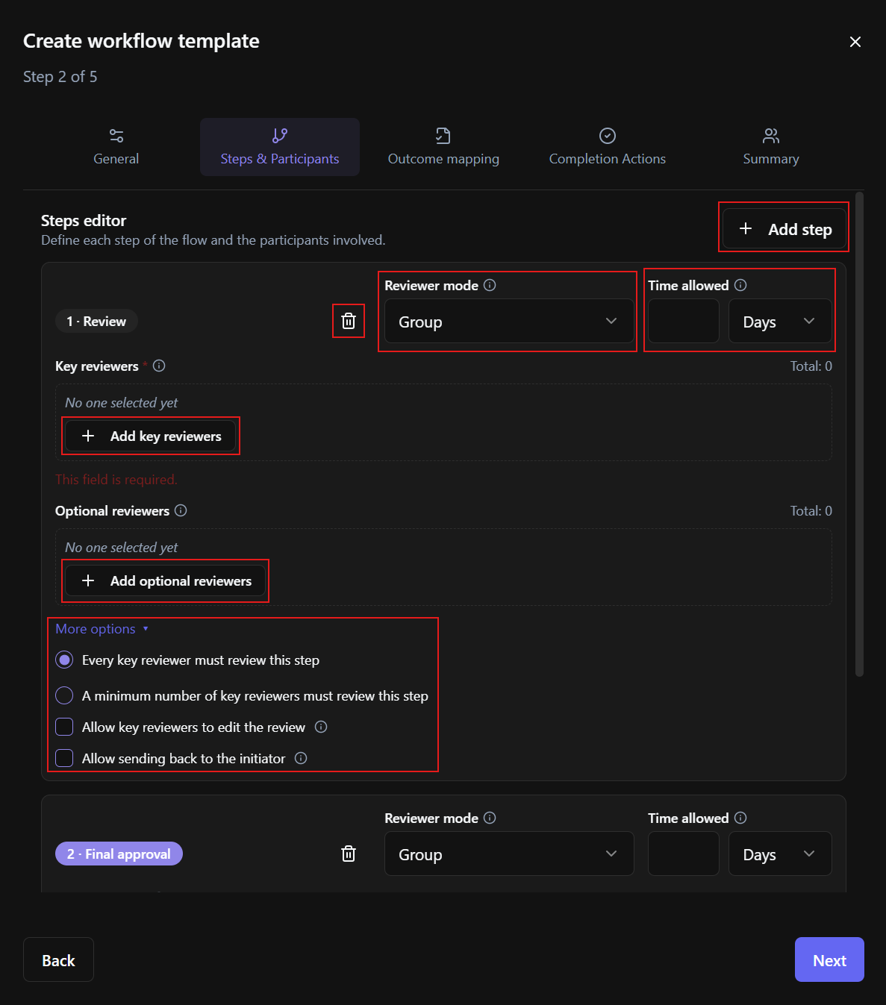
Reviewer mode and decision rules
The Reviewer mode determines whether the step is configured for a single reviewer or a group of reviewers.
For group reviews, the Key reviewer rule determines how many key reviewers must participate before the step's review requirement is satisfied.
Available rules include:
- Every key reviewer must review — All key reviewers must submit their decisions.
- Minimum number of key reviewers — A specified minimum number of key reviewers must submit their decisions.
The step also includes execution and decision-consolidation settings that determine how participant responses are processed.
Review deadlines
You can define the time allowed for each step using:
- Calendar days — Includes weekends and non-working days.
- Business days — Uses business days when calculating the allowed review period.
You can also configure a maximum number of participants when required.
Selecting participants
Participants can be assigned using different types of entities:
- Members — Individual project users.
- Roles — Participants associated with a project role.
- Teams — Members of a project team.
- Companies — Participants associated with a Workplace company.
This allows you to configure workflows without always selecting each reviewer individually.
Key reviewers and Optional reviewers
Each step can include two categories of reviewers:
Key reviewers are the participants whose decisions are required according to the configured review rule.
Optional reviewers can participate in the review without being counted toward the required key reviewer decisions.
Additional step permissions
Depending on the step configuration, you can enable:
- Allow sending back to the initiator — Allows the review to be returned to the initiator.
- Allow key reviewers to edit the review — Allows key reviewers to modify the Review when applicable.
Configure these options according to the responsibilities of the participants in each step.
3. Outcome mapping
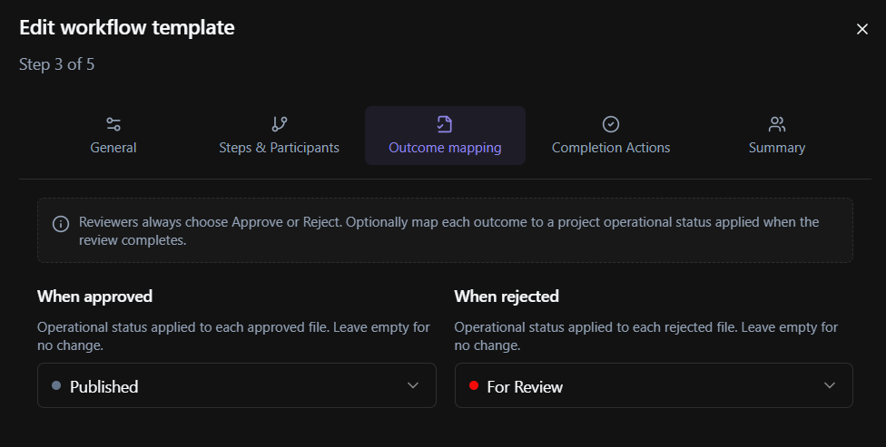
Use Outcome mapping to define which document status should be applied based on the review outcome.
- Select the document status to apply when a document is Approved.
- Select the document status to apply when a document is Rejected.
- Continue to the next configuration step.
The available statuses depend on those configured in Project Settings > Document Statuses.
For example, you can configure approved documents to receive an approved status and rejected documents to receive a status indicating that changes are required.
For more information about configuring document statuses, see Document Statuses.
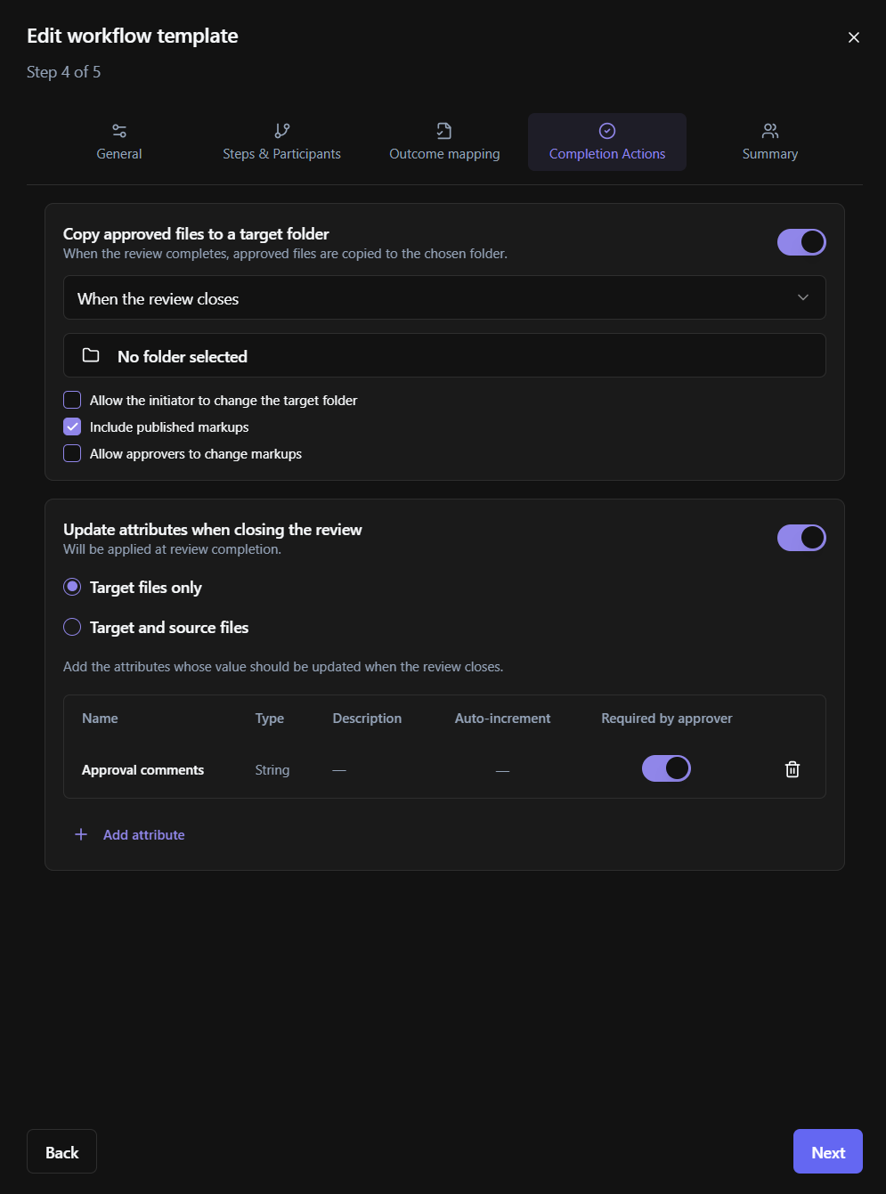
4. Completion Actions
Use Completion Actions to define what BIMWorkplace should do with approved documents when the approval flow is completed.
Completion Actions are executed at the end of the approval flow and apply only to approved documents. Rejected documents are excluded.
You can configure the following actions.
Copy approved files
Enable Copy approved files to copy approved documents to a selected destination folder.
For example, you can use this option to copy approved deliverables into a folder intended for released project documentation.
Select the destination folder using the available folder selector.
Update attributes
Enable Update attributes to apply configured custom attribute changes to approved documents when the approval flow is completed.
This helps maintain consistent document information after the review process.
Important: If a Review contains multiple documents, Completion Actions apply only to those that have been approved. Documents with rejected outcomes are excluded.
5. Summary
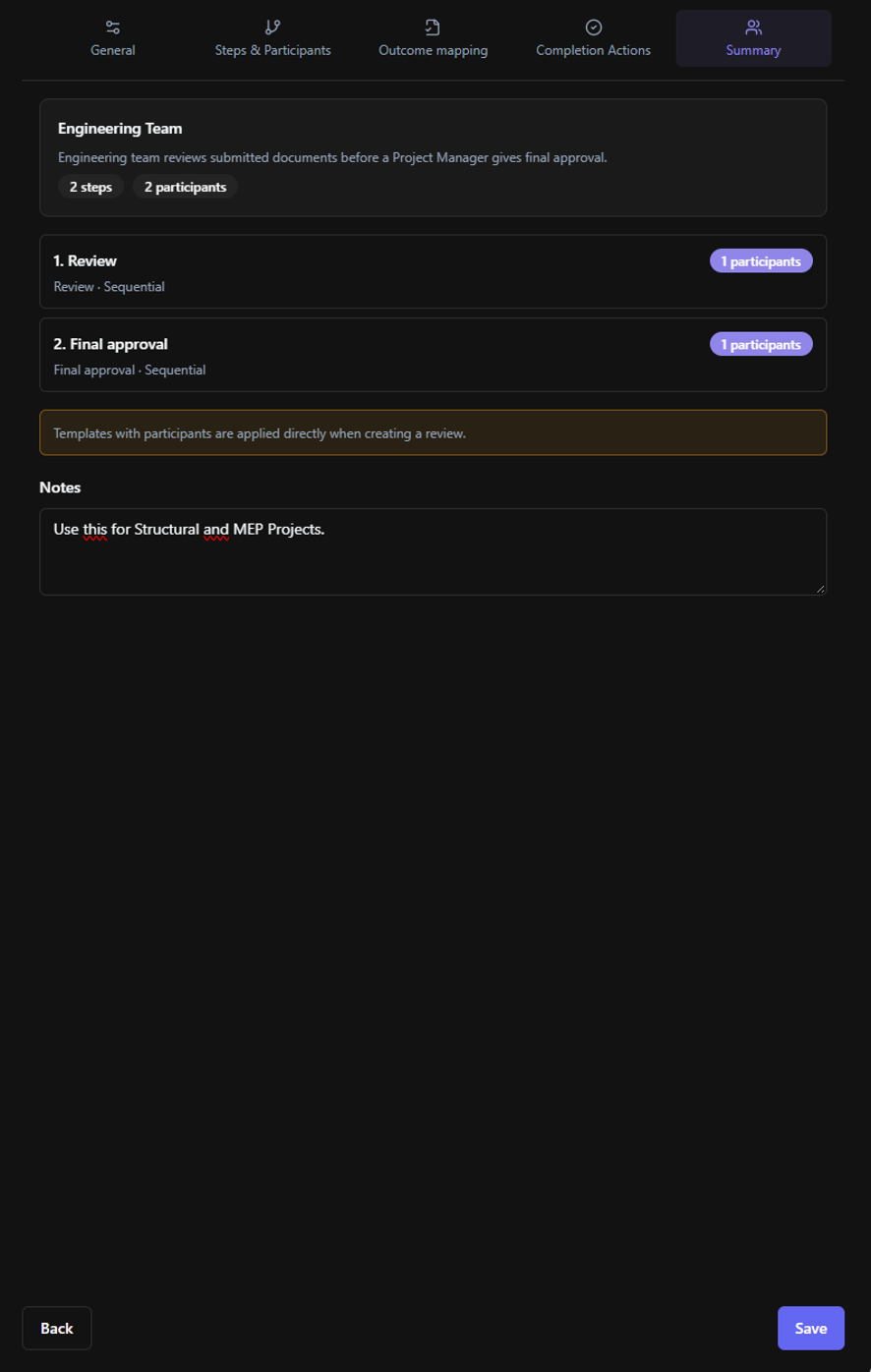
In Summary, review the approval flow before saving it.
Check that the steps match the intended approval process.
Optionally, add Notes to provide additional information about the workflow.
Save the approval flow when the configuration is complete.
If the workflow is ready for use, make sure its Lifecycle status is set to Active.
Managing existing approval flows
Return to Project Settings > Approval Flows to manage previously created workflows.
Depending on your permissions, you can use the available actions to:
- Edit an existing approval flow.
- Duplicate a workflow to create another based on its configuration.
- Activate or deactivate a workflow to control its availability for new reviews.
- Delete a workflow that is no longer required.
Tip: Duplicating an approval flow can be useful when creating similar approval processes for different disciplines or types of deliverables.
Using an approval flow in the CDE
Once an approval flow is Active, it can be selected when creating a Review in CDE > Review & Approval.
The selected workflow provides the configured review steps, participants, decision rules, outcome mapping, and Completion Actions.
For example, a workflow configured with an engineering review followed by final approval will guide the documents through those stages.
For instructions on creating and managing individual reviews, see Review & Approval.
Troubleshooting
The approval flow does not appear when creating a Review
Check that its Lifecycle status is Active and that it is available in the relevant project. Approval flows created in another project must be Public to be available across the Workplace.
I cannot create or edit an approval flow
Check your Approval workflows permission in Project Settings. Read access allows you to view configurations, but managing them requires Total access.
I cannot save an approval flow
Make sure the workflow has valid steps, that required participants are configured, and that Final Approval is the last step.
Completion Actions were not applied to a document
Check whether the approval flow has completed and whether the document was approved. Completion Actions do not apply to rejected documents.
Este artigo foi útil?