My User
Use My User in User Settings to manage your personal account information, update your password, customize your interface preferences, and review the licenses associated with your account.
These settings are personal to your account. You can access them regardless of which Workplace or Project you are currently using.
Accessing User Settings
- Click your user avatar to open the user menu.
- Select User Settings.
- Open My User.
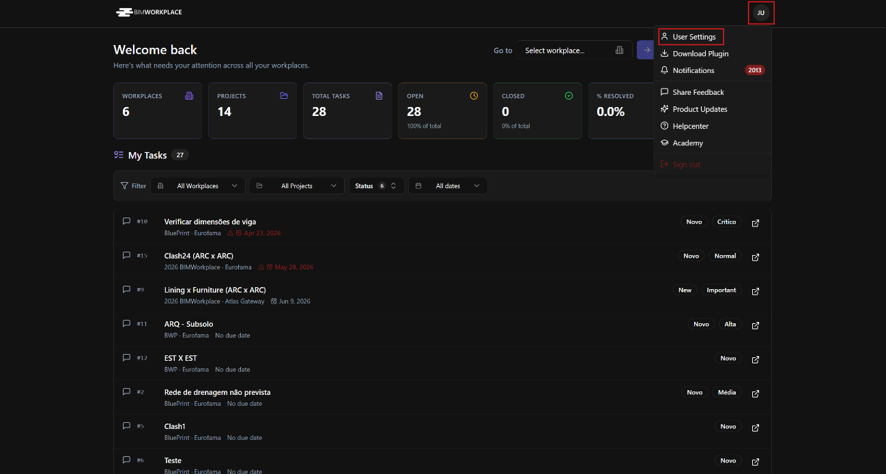
User Settings in the Home Page menu.
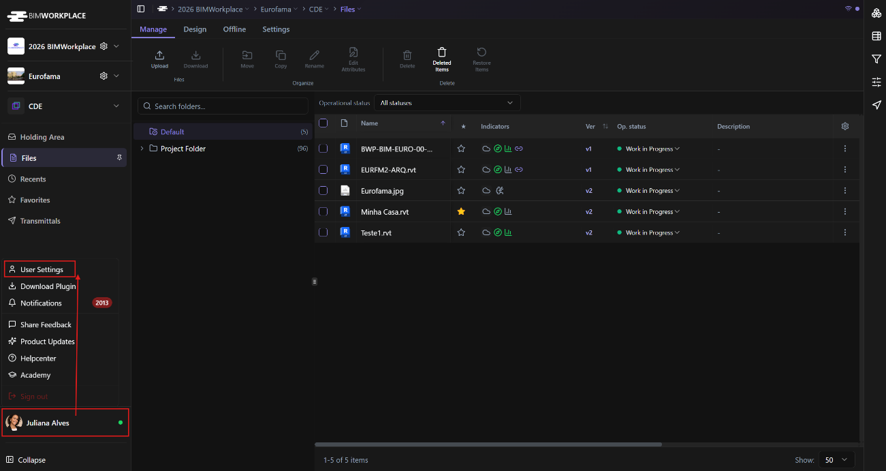
Accessing User Settings.
Managing your profile and preferences
In My Account, you can review and update your personal information and interface preferences.
Depending on the information available in your profile, these include:
- Profile photo: Upload or change your avatar. Supported formats include PNG, JPG, WEBP, and GIF, with a maximum file size of 5 MB.
- First name, Last name, and Email: Review your account identification details.
- Phone, Company, My Role, and Main Economic Sector: Complete your professional profile.
- Personal blog / web: Add an optional website.
- Language: Choose your preferred interface language.
- Time zone and time format: Set your time preferences.
- Theme: Choose the Light or Dark interface.
- Primary / Accent color: Customize the interface colors.
To update your profile:
- Open User Settings > My User.
- Change the information or preferences you want to update.
- Click Save to save your changes. Remember to save after uploading a new profile photo.
Your selected language is applied across the BIMWorkplace interface.
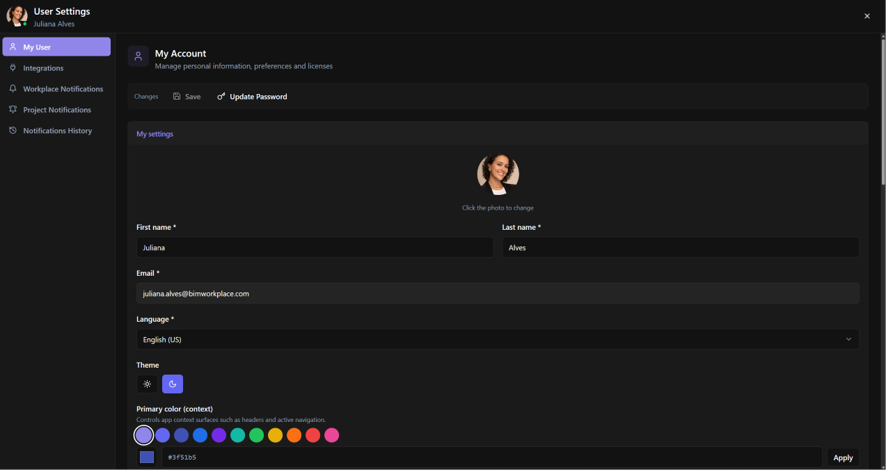
My Account settings.
Updating your password
To change your account password:
- In My Account, select Update Password.
- Enter and confirm your new password.
- Enter your current password.
- Save the changes.
After updating your password, use the new password the next time you sign in to BIMWorkplace.
If you sign in through an external authentication provider, password management may be handled by that provider instead.
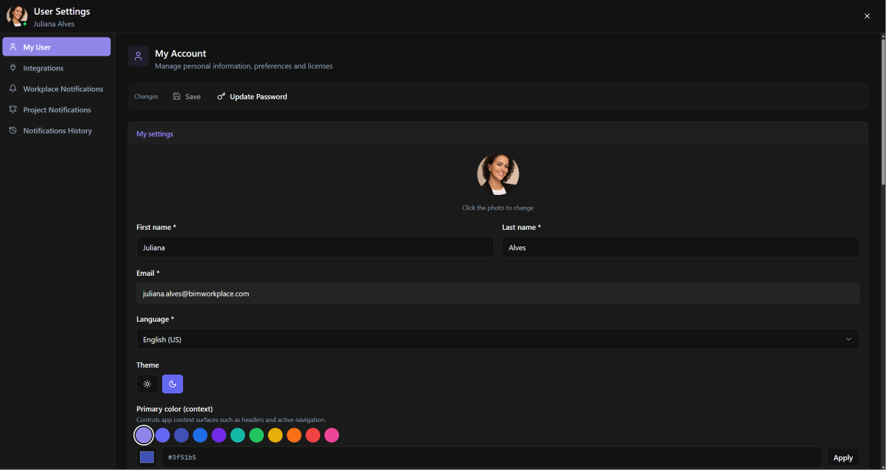
Updating your password.
Viewing your account information
The My Numbers area provides an overview of the Workplaces and Projects associated with your account.
Use it to review your participation across BIMWorkplace.
Managing License Relations
In License Relations, you can review the module licenses associated with your account and their Workplace relationships.
You can:
- View the licenses linked to your account.
- Check which Workplaces are associated with your licenses.
- Expand license categories to review their relationships.
- Delete a license relation for a Workplace you no longer need.
Important: Deleting a license relation affects your license access in the corresponding Workplace immediately. Review the Workplace and module before removing a relation.
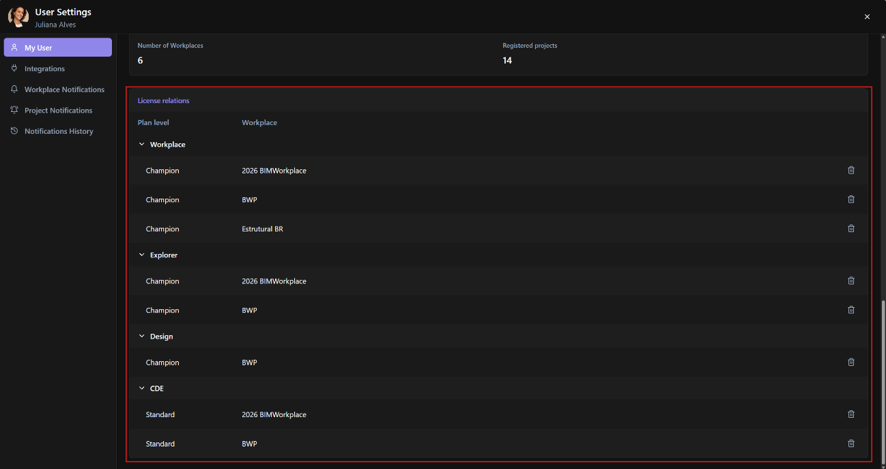
License Relations.
How licenses and permissions work
BIMWorkplace uses a shared license system across Workplaces.
You need an active license for each module you want to use. A single active module license can be shared across multiple Workplaces and Projects where you have been granted access.
For example, if you already have an active Explorer license associated with one Workplace and are invited to another, you do not need a second Explorer license just because you are working in a different Workplace.
However, a license does not automatically grant access to all content. Your ability to access a Workplace, Project, folder, topic, model, or other information also depends on the permissions assigned to you.
If you cannot access a module or particular content, check both your license relationships and your access permissions.
Related articles
- Integrations — Manage connections associated with your account.
- Workplace Subscription — Learn about Workplace subscriptions and licenses.
Este artigo foi útil?