Model and Condition Selection
Use Selection to define which model elements BIMWorkplace will analyze when running checks in the Design module.
You can select models and views, apply conditions to filter elements, and preview the selection before running a check.
The same selection controls are used in several Design functionalities, including:
- Clash Detection, to define which elements participate in clash tests.
- IDS, to select the model elements that will be validated against an IDS.
Although the selection process is similar, the number and purpose of selections depend on the functionality you are using.
Before you start
Before configuring a Selection:
- Open the relevant functionality in the Design module.
- Select a Coordination Space containing the models you want to analyze.
- Create a new Clash Test or IDS configuration, or open an existing one for editing.
- Make sure the required models and views are available in the selected Coordination Space.
For more information about managing the models available for checks, see Coordination Spaces.
Understanding the Selection editor
The Selection editor allows you to define which elements will be included in a check.
It contains two main tabs:
- Models: Select the models and views containing the elements you want to analyze.
- Conditions: Define criteria to include only elements that match specific properties or classifications.
You can use both tabs together to create more precise selections.
For example, you can select a structural model in Models and configure a condition to include only columns in Conditions.
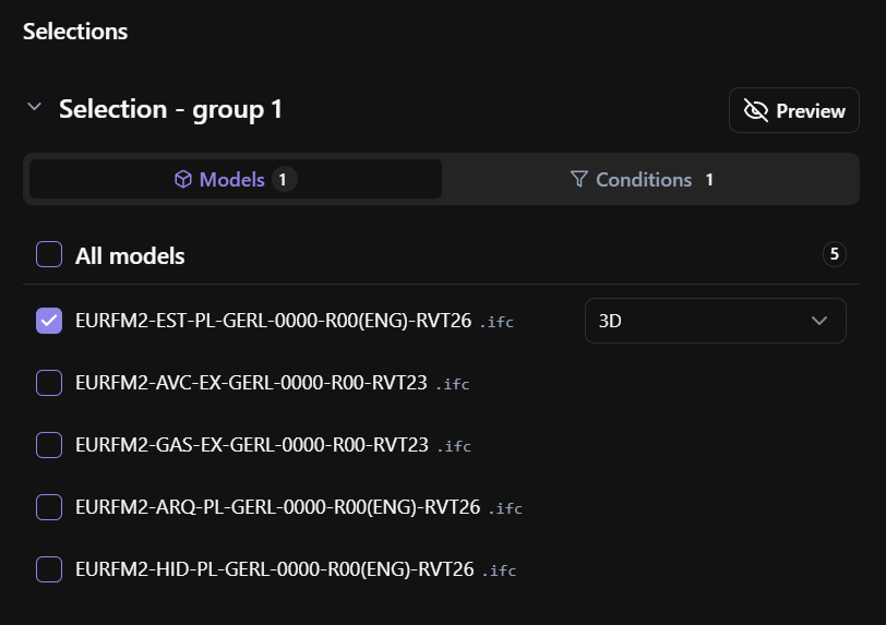
Selecting models and views
Use the Models tab to choose the models that will participate in the selection.
- Select the Models tab.
- Select the checkbox next to each model you want to include.
- Alternatively, select All models to include every available model in the Coordination Space.
- For each selected model, choose the view you want to use.
- Review the selected models before continuing.
Only models available in the selected Coordination Space can be included.
The selected views determine which elements are available for the check.
Filtering elements with conditions
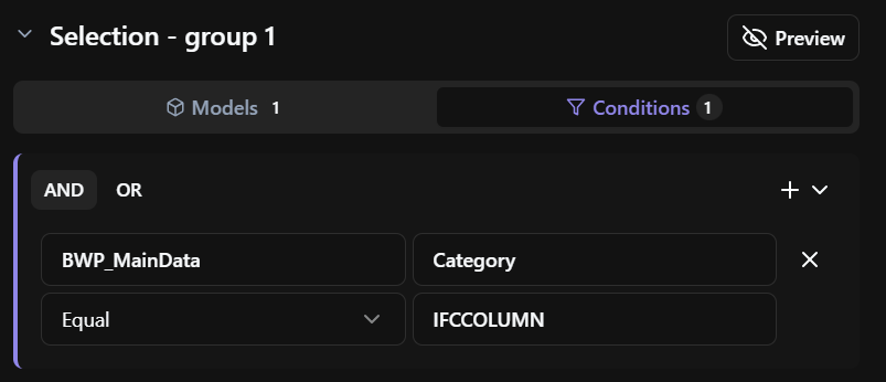
Conditions are optional. Use the Conditions tab when you need to restrict the selection to elements that meet specific criteria.
For example, instead of selecting every element in a structural model, you can create a condition to include only structural columns.
To configure conditions:
- Open the Conditions tab.
- Select the property or classification you want to evaluate.
- Choose the appropriate comparison operator.
- Enter or select the value to match.
- Add more conditions if needed.
Conditions are evaluated against the elements available from the selected models and views.
Combining conditions with AND and OR
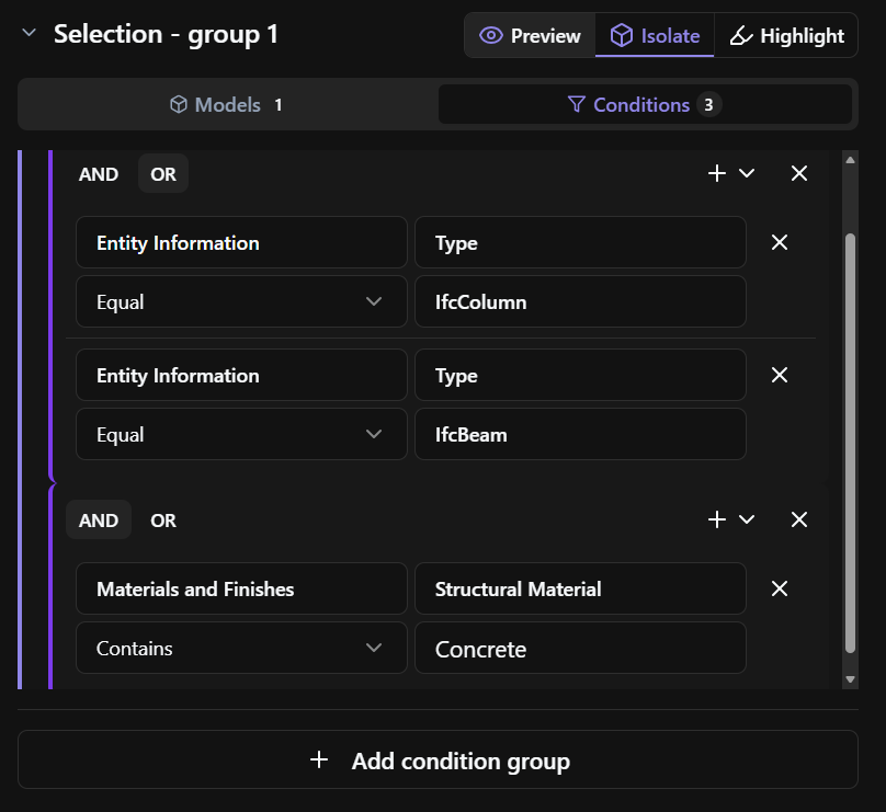
When a selection contains multiple conditions, you can combine them using AND or OR.
- AND: An element must satisfy all conditions in the group.
- OR: An element must satisfy at least one condition in the group.
For example:
Using AND
To select concrete structural columns:
- Category = Columns
- Material = Concrete
- Operator = AND
Only elements that satisfy both conditions are included.
Using OR
To select columns or beams:
- Category = Columns
- Category = Beams
- Operator = OR
Elements that satisfy either condition are included.
You can also create nested condition groups to combine more complex criteria.
For example, you can select elements that belong to a particular category and satisfy one of several property values.
Previewing selected elements
Use Preview to verify which elements are included in the Selection before running a check.
The preview helps you confirm that the selected models, views, and conditions produce the expected results.
To preview a Selection:
- Open the preview for the Selection you want to check.
- Review the selected elements in the viewer.
- Check the number of elements included.
- Adjust Models or Conditions if needed.
- Review the preview as it updates automatically to reflect your changes.
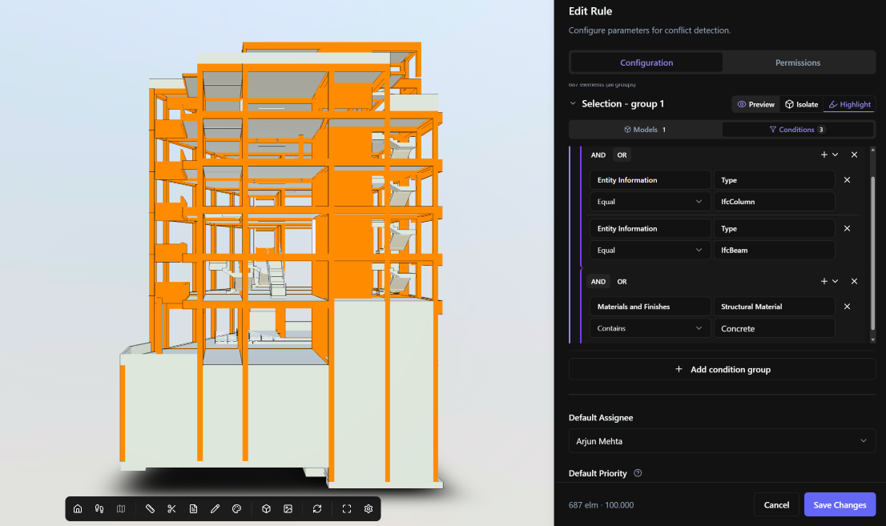
Previewing a Selection does not run the check. It only allows you to verify which elements will be included.
Using Selections in different Design functionalities
The same selection controls are used across different checks, but their purpose and configuration may vary.
Clash Detection
In Clash Detection, selections determine which elements participate in a Clash Test.
The available selections depend on the test type:
| Clash Test type | Selections | Purpose |
|---|---|---|
| Hard Clash | Selection A and Selection B | Compare elements between two selections. When Internal Clash is enabled, only one selection is required. |
| Soft Clash (Clearance) | Target, Required, Disallowed | Define the elements whose free space is evaluated and the elements that must be inside or outside that space. |
| Duplicate | Selection | Identify potential duplicates within the selected elements. |
Clash Tests also allow multiple selection groups within a single Selection.
Use Add condition group to include additional groups with their own models, views, and conditions.
These groups are combined using OR, meaning that an element can be included if it matches any of the configured groups.
You can configure up to 8 condition groups within each Selection.
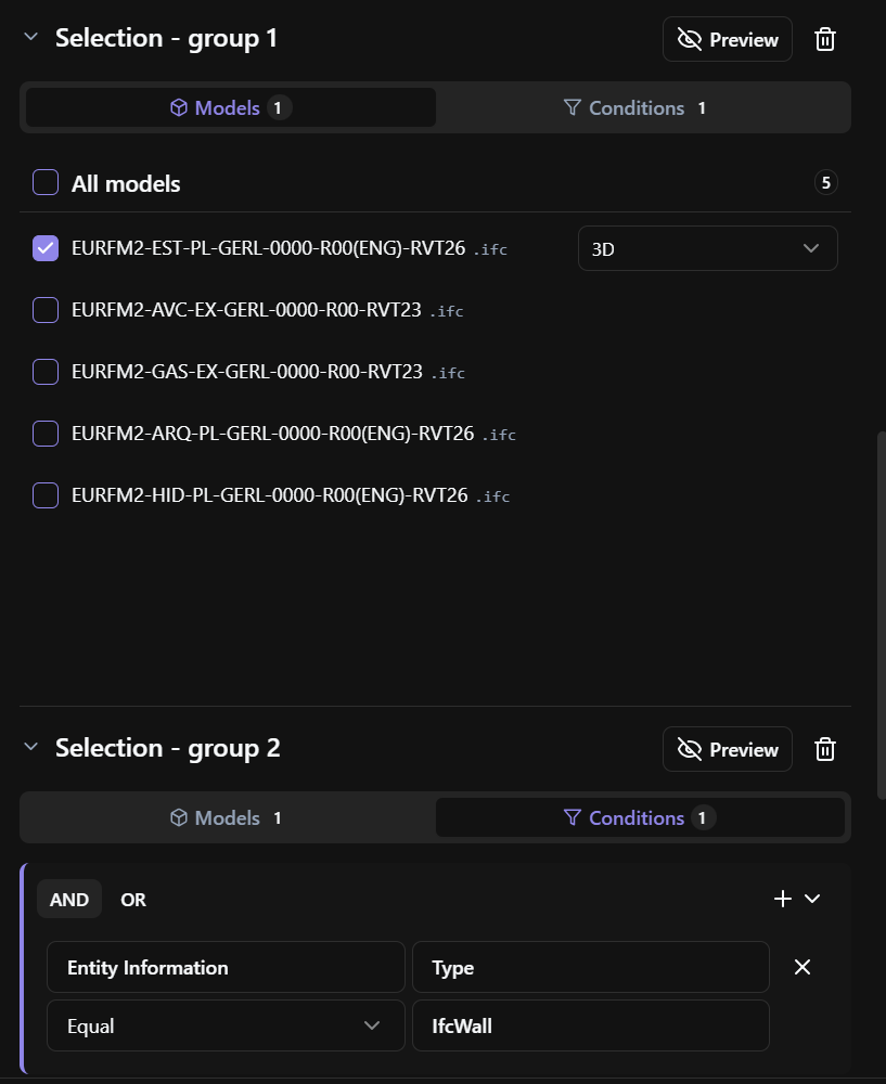
For more information, see Creating a Clash Test and the configuration articles for each Clash Test type.
IDS
In IDS, the Selection determines which model elements are included when executing an IDS validation.
Use Models to select the models and views to check, and Conditions to restrict the selection when necessary.
The available models may depend on the target platform selected for the IDS, such as IFC or native Revit.
The Selection determines the scope of the validation. The IDS specifications define which information requirements are checked against the applicable elements.
For more information, see IDS Library.
Selection limits and validation
Before saving a configuration, make sure that:
- The required models and views are selected.
- Any configured conditions identify the intended elements.
- The Selection preview shows the expected results.
- Any required selection groups are configured.
- The number of selected elements is within the limits allowed for the check.
If a Selection includes too many elements, you can reduce its scope by selecting fewer models, choosing more specific views, or adding conditions.
If no elements are selected, review the selected models, views, and conditions to identify why the Selection is empty.
BIMWorkplace may prevent a configuration from being saved if a required Selection is missing or invalid.
The available limits and validation requirements depend on the functionality being configured.
Related articles
Cet article vous a-t-il été utile ?