Coordination in the CDE
The Coordination tab in the Files page provides tools for reviewing file history, collaborating with project members, managing model versions, opening models in the 3D Viewer, sharing information, and preparing models for federation.
These tools support the coordination workflow throughout the project lifecycle.
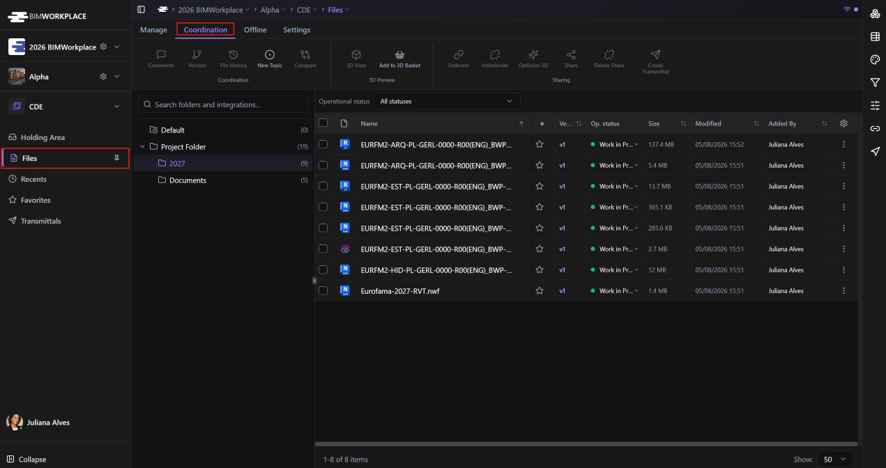
Coordination
Comments
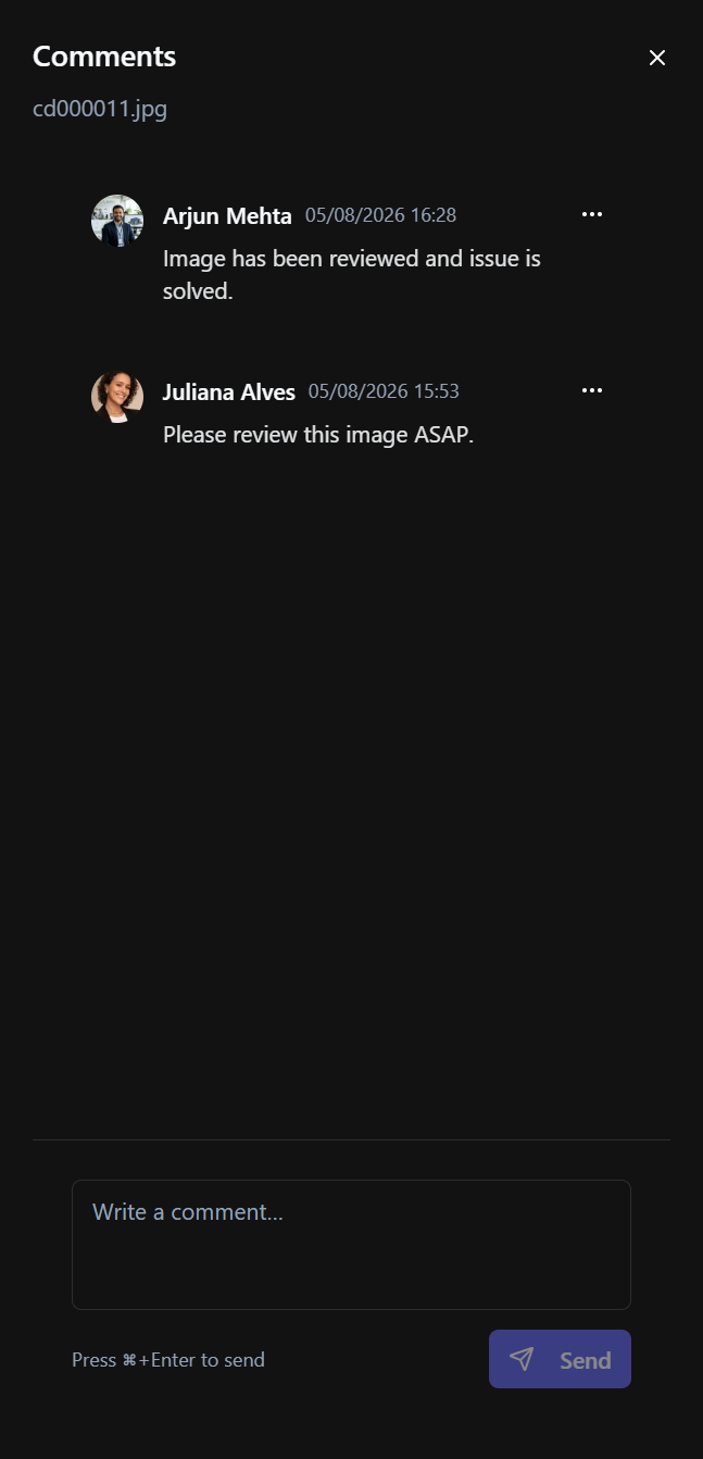
Use Comments to discuss a file directly within the CDE. Comments remain associated with the selected file, making it easy for project members to track discussions and decisions. Typical uses include:
- Requesting document revisions.
- Clarifying design decisions.
- Recording coordination notes.
- Communicating with other project members.
Version
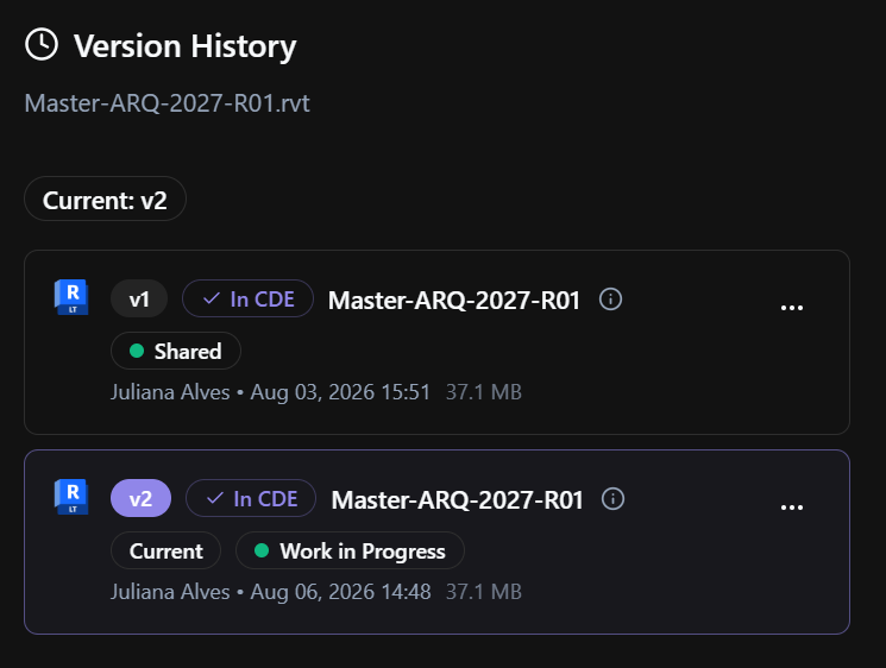
The Version command opens the version history of the selected file. From here you can:
- View all available versions.
- Download previous versions.
- Make an older version the current version.
- View version attributes.
- Delete versions (if permitted).
Version History provides complete traceability of document revisions throughout the project.
See the Version Control in the CDE article for more information.
File History
File History displays the activity history of the selected file. Depending on the project configuration, the history may include actions such as:
- Uploads
- Downloads
- Attribute changes
- File moves
- Renames
- Version updates This provides an audit trail for document management activities.
New Topic
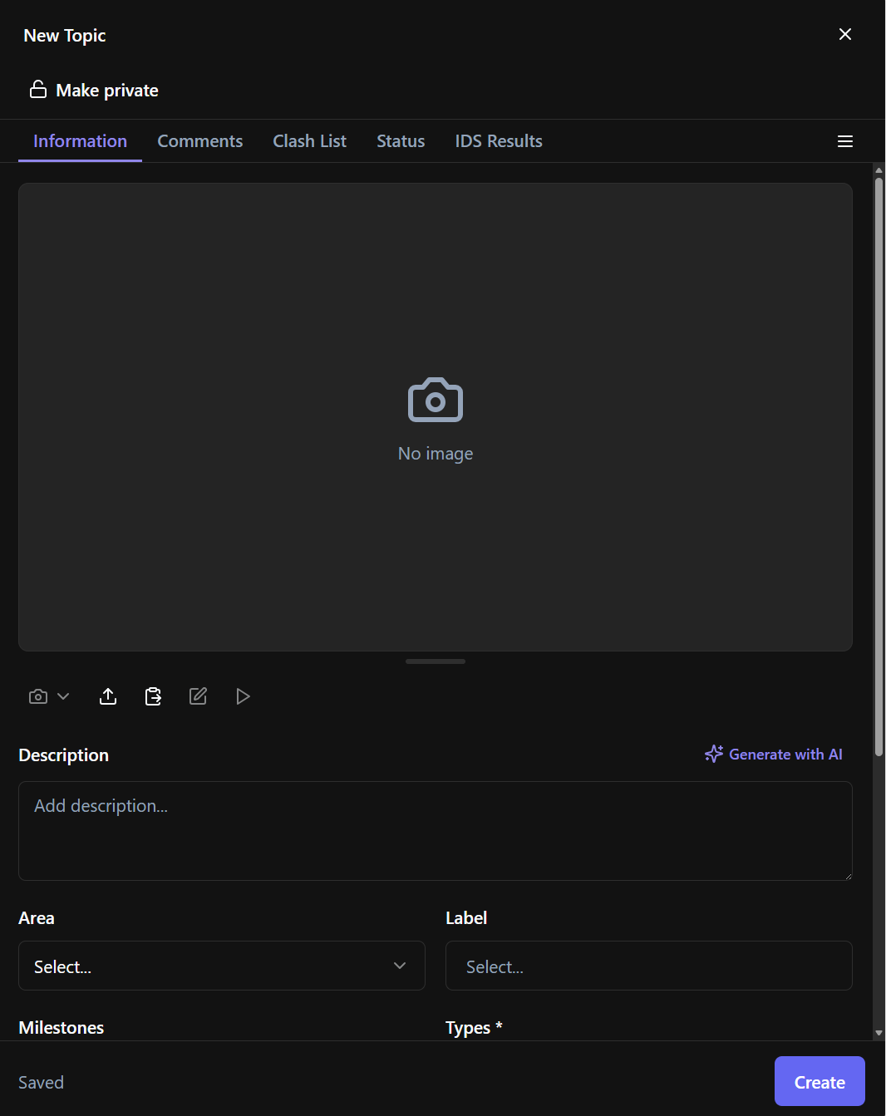
Create a new Topic directly within the CDE.
Once created, the Topic can be assigned, tracked, and managed from the Topics page in the Design module.
See the Creating a New Topic article for more information.
3D Preview
The 3D Preview group provides quick access to model visualization tools.
3D View
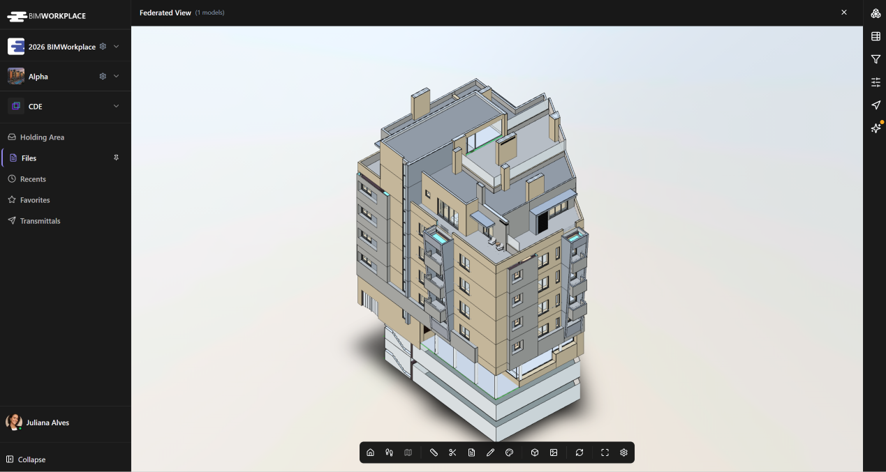
Opens the selected BIM model in the BIMWorkplace 3D Viewer.
From there you can inspect the model, navigate its geometry, and access model information, without federating.
Check out the Model Viewer section for more information.
Add to 3D Basket
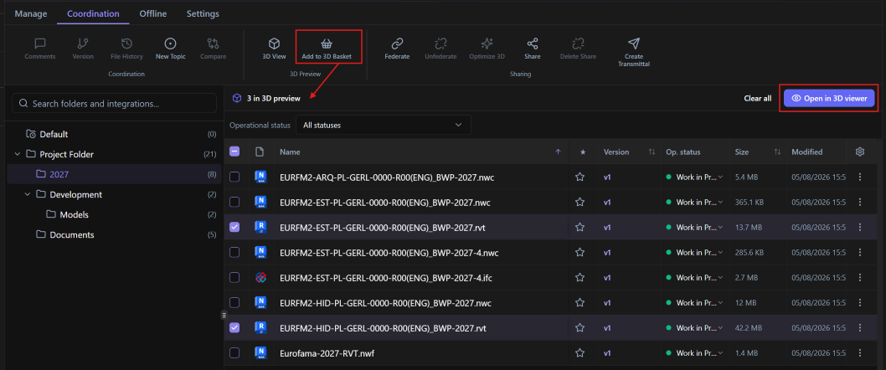
Adds the selected model to the 3D Basket.
The 3D Basket allows you to collect multiple models before opening them together in the 3D Viewer, making it easy to assemble temporary federated views without changing the project's permanent federation.
Sharing
The Sharing group contains tools for preparing models for coordination and sharing project information.
Federate
Adds the selected model to the project's federated model. Once federated, the model becomes available for use in the other features, such as Design topics, Model Explorer and Build references.
Unfederate
Removes the selected model from the federated model without deleting it from the CDE.
The file remains stored in the project but is no longer included in federation-based workflows.

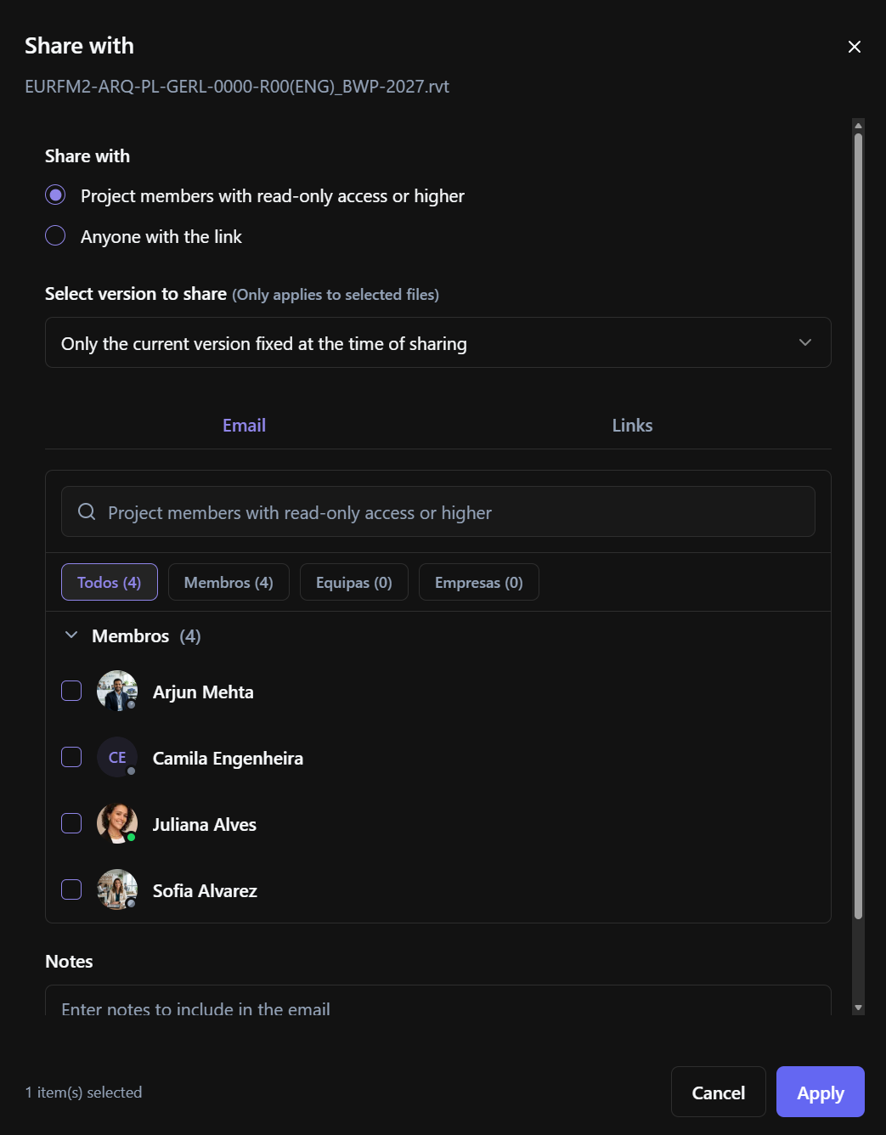
Share
Share the selected documents either by e-mail or with a secure link. You can choose whether the recipient should access:
- The latest available version.
- Only the current version. Depending on the configuration, you can also:
- Set an expiration date.
- Generate QR codes.
- Share with project members or external users.
Delete Share
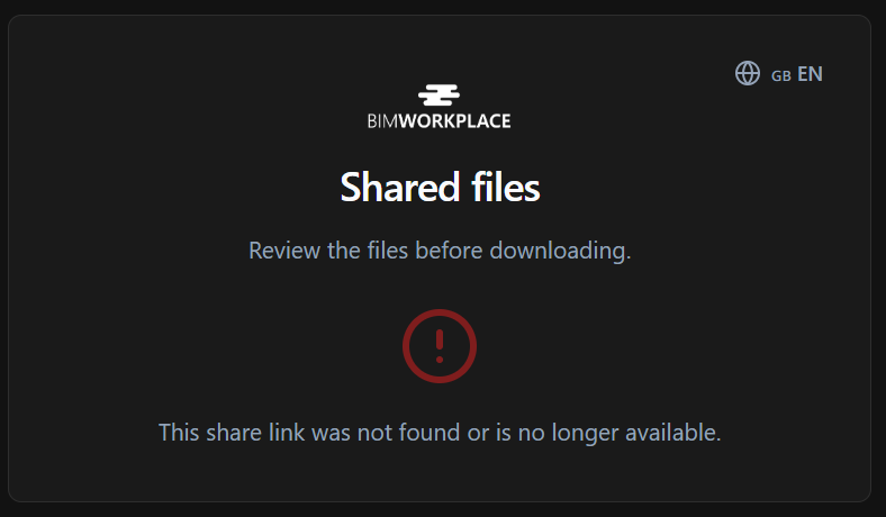
Removes an existing public sharing link.
After deletion, previously shared links will no longer provide access to the shared file.
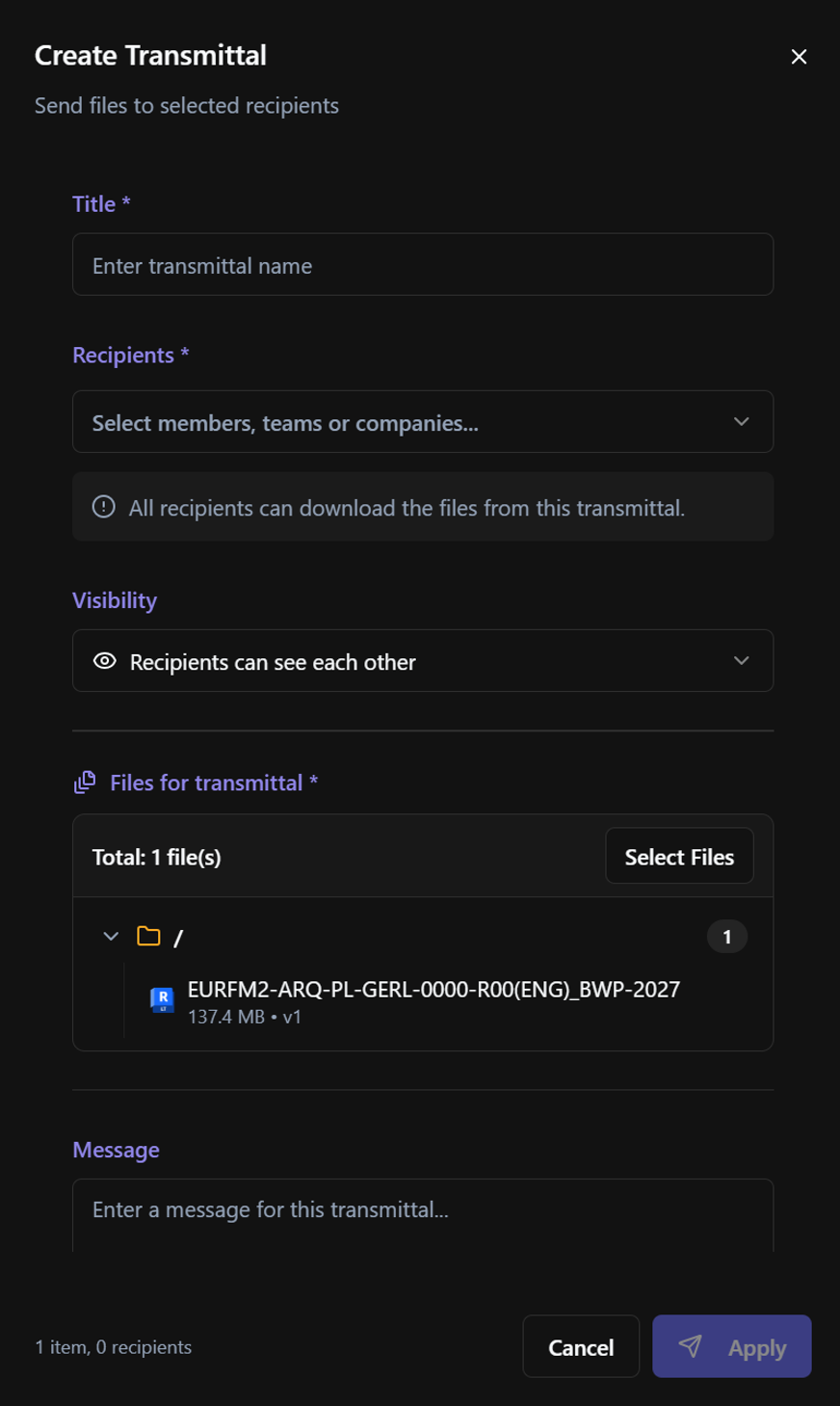
Create Transmittal
Creates a Transmittal containing the selected files.
Transmittals provide a formal method for distributing project documentation while maintaining a record of what was sent, when it was sent, and to whom.
For more information, see the Transmittals article.
Best practices
- Use Comments for project discussions instead of external communication channels whenever possible.
- Keep version history intact by uploading new versions instead of replacing files.
- Use Add to 3D Basket when reviewing multiple models together.
- Federate only the models required for project coordination.
- Use Optimize 3D after uploading large BIM models to improve viewer performance.
- Use Transmittals when issuing documents formally to project participants.
Related articles
Este artigo foi útil?