Project Users
Use Project Users in Project Settings to manage who belongs to a project, assign Project Roles and Teams, and control whether users can access the project.
You can add users who already belong to the Workplace, update their project assignments, manage multiple users at once, and deactivate or remove users who no longer need access.
Before you start
Make sure that:
- You have access to Project Settings > Project Users and the required permissions to manage project users.
- The users you want to add already belong to the Workplace.
- The appropriate Project Roles are available.
- Any Teams you want to assign have already been created in Project Settings.
A user must belong to the Workplace before they can be added to a project. To add someone who is not yet a Workplace member, use Workplace Users first.
Project Roles are configured in Project Permissions, under Workplace Settings.
Adding users to a project
- Open Project Settings.
- Select Project Users.
- Click New.
- Under Users, search for and select the users you want to add. You can select multiple users.
- Under Project Role, select the role to assign. This field is required.
- Under Team member, optionally select one or more Teams.
- Use Active to define whether the users should have active project membership.
- Click Apply.
The selected users are added to the project with the same Project Role, Team assignments, and Active status.
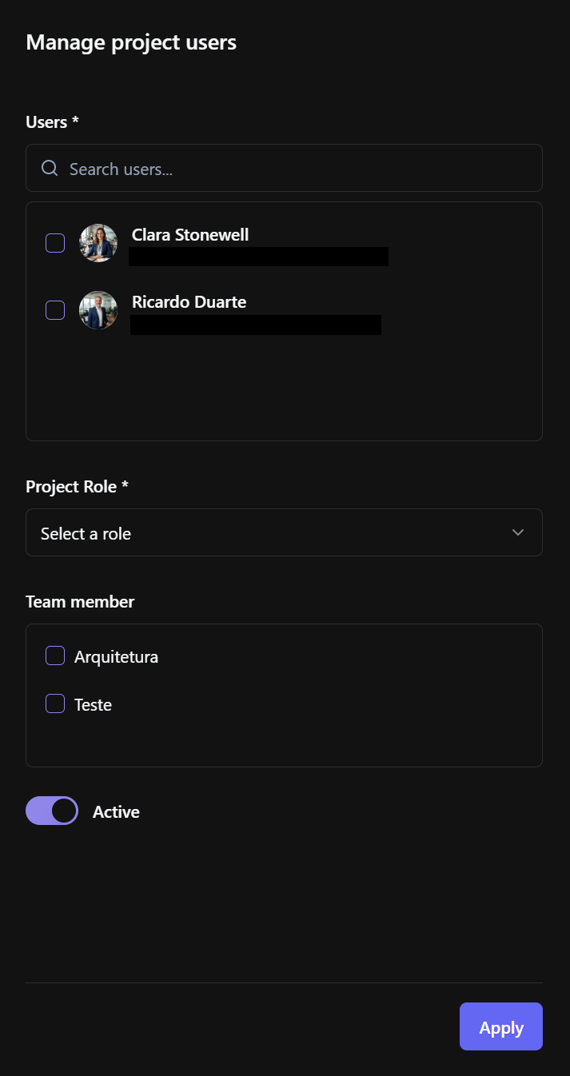
Note: Users who already belong to the project are excluded from the available selection. If you cannot find a user, check whether they already belong to the project or have been added to the Workplace.
Managing Project Roles and Teams
Each project user has a Project Role, which determines their permissions within the project.
Users can also belong to one or more Teams, which help organize project members and may be used when assigning permissions or responsibilities.
To change a user's Project Role or Teams:
- Locate the user in the table.
- In the Project Role column, select the appropriate role.
- In the Teams column, add or remove Team assignments as needed.
Changes made in these columns are saved directly.
Important: Changing a Project Role or Team assignment may affect which project features and information the user can access.
If you change your own Project Role to one that no longer allows access to Project Users, BIMWorkplace displays a confirmation before applying the change. After confirmation, you may lose access to this settings page.
For more information, see Project Permissions and Teams.
Assigning Project Roles and Teams in batch
Use Assign Batch when you need to update the same Project Role or Team assignments for several users.
- Select the users you want to update.
- Click Assign Batch.
- Under Project roles, select the role to assign to the selected users, if needed.
- Under Teams, select the Team assignments you want to apply.
- When finished, click outside the panel to close it.

Important: Changes are applied as you make selections. There is no separate Apply button.
When assigning a Project Role in batch, the selected role is applied to all selected users. Team selections are also applied to the selected users, so review the assignments carefully before making changes.
Activating and deactivating project users
Use Active to temporarily enable or disable a user's project membership without removing their assignments.
To change a user's status:
- Locate the user in the table.
- Use the Active switch to activate or deactivate the user.
When you deactivate a user:
- The user loses access to the project.
- The user remains in the Project Users list.
- Their Project Role and Team assignments are preserved.
- You can reactivate the user later without configuring those assignments again.
Deactivating a user in a project does not remove them from the Workplace or affect their membership in other projects.
Note: A user who is inactive in the Workplace cannot be reactivated in the project until their Workplace membership is active.
Removing users from a project
Remove users when they no longer need to belong to the project.
- Select the users you want to remove.
- Click Delete.
Removing a user:
- Removes their membership from the current project.
- Removes the Project Role and Team assignments associated with that membership.
- Prevents the user from accessing the project through that membership.
- Does not remove the user from the Workplace.
If the user needs access again, add them to the project and assign their Project Role and Teams.
Important: Removing a user is different from deactivating them. Deactivation preserves their project assignments, while removal deletes the project membership.
The Project Owner cannot be deactivated or removed from the project. The Workplace Automation Bot, when configured, is also protected from these operations.
Understanding the user information
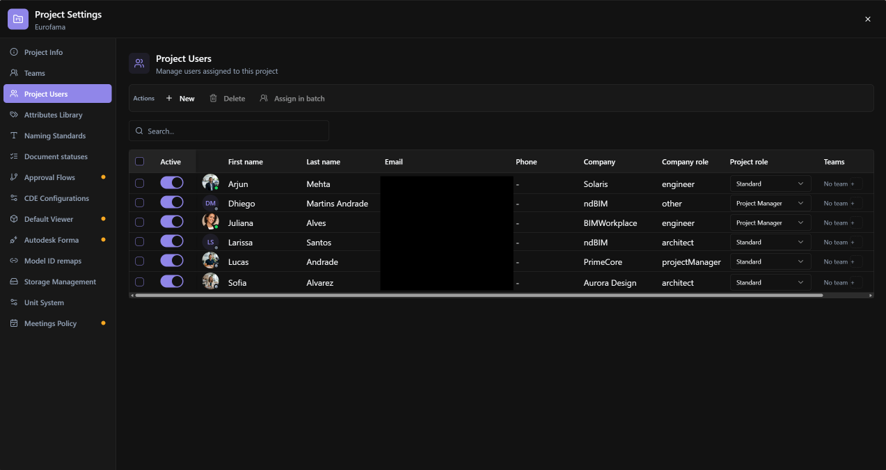
The Project Users table displays information about each member, including:
- Active — Indicates whether the user's project membership is active.
- First Name / Last Name — Identifies the user.
- Email — Shows the user's email address.
- Phone — Shows the user's phone number, when available.
- Company — Shows the user's company in the Workplace.
- Company Role — Shows the user's role within their company.
- Project Role — Defines the user's role and permissions in the project.
- Teams — Shows the Teams assigned to the user in the project.
Personal information is managed through each user's User Settings. Project Roles are created and configured at the Workplace level under Project Permissions.
Related articles
- User Settings — Manage your personal user information.
- Workplace Users — Manage users who belong to the Workplace.
- Teams — Create and manage project Teams.
- Project Permissions — Configure Project Roles and their permissions.
- Roles and Permissions — Understand how roles and permissions control access to BIMWorkplace.
Este artigo foi útil?