Conectando BIMWorkplace a Autodesk Forma
Conecte su cuenta de Autodesk a BIMWorkplace para usar contenido de Autodesk Forma (anteriormente Autodesk Construction Cloud) con proyectos de BIMWorkplace.
La conexión está asociada a su cuenta de usuario de BIMWorkplace. Conectar Autodesk autoriza a BIMWorkplace a acceder a Autodesk Forma, pero no conecta automáticamente un proyecto de Forma a un proyecto de BIMWorkplace.
Antes de empezar
Asegúrese de que:
- Tenga una cuenta de Autodesk.
- Su cuenta de Autodesk tenga acceso a los proyectos y contenido de Autodesk Forma que necesita conectar.
Para conectar un proyecto específico de Autodesk Forma a un proyecto de BIMWorkplace, primero debe completar la conexión de Autodesk descrita en este artículo.
Conectando su cuenta de Autodesk
- Abra el menú de su avatar y seleccione User Settings (Configuración de usuario).
- Abra Integrations (Integraciones).
- Expanda CDE Services (Servicios CDE).
- Busque Autodesk ACC y seleccione Connect (Conectar).
- Inicie sesión en su cuenta de Autodesk en la ventana de autorización.
- Revise el acceso solicitado y autorice a BIMWorkplace.
- Vuelva a BIMWorkplace y confirme que Autodesk ACC se muestra como conectado.
Nota: BIMWorkplace actualmente muestra Autodesk ACC en esta área de la interfaz. Este es el nombre anterior asociado con Autodesk Forma.
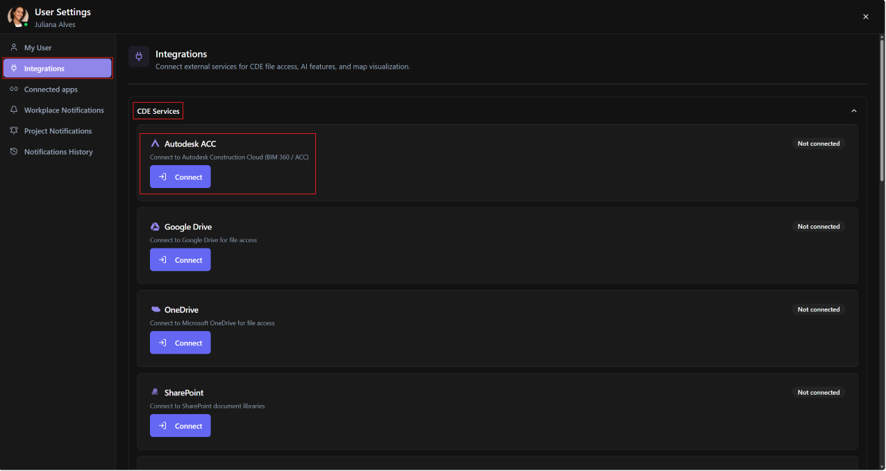
Su cuenta de Autodesk ya está conectada a BIMWorkplace.
Conectar su cuenta de Autodesk no hace que un proyecto de Autodesk Forma esté disponible automáticamente en un proyecto de BIMWorkplace. El proyecto de Forma también debe conectarse a nivel de proyecto.
Siguiente paso: conectando un proyecto de Autodesk Forma
Después de conectar su cuenta de Autodesk, configure qué proyecto de Autodesk Forma debe asociarse con el proyecto BIMWorkplace relevante.
Esta configuración se gestiona en Project Settings > Autodesk ACC (Configuración del proyecto > Autodesk ACC).
Para obtener instrucciones, consulte Connecting a Project to Autodesk Forma (Conectando un proyecto a Autodesk Forma).
Desconectando Autodesk Forma
Para eliminar su conexión de Autodesk:
- Abra User Settings > Integrations (Configuración de usuario > Integraciones).
- Expanda CDE Services (Servicios CDE).
- Busque Autodesk ACC.
- Seleccione Disconnect (Desconectar).
Desconectar revoca la conexión de Autodesk utilizada por BIMWorkplace. Las funciones que dependen de esta conexión podrían dejar de acceder al contenido de Autodesk Forma hasta que Autodesk se conecte de nuevo.
Los archivos que se copiaron previamente de Autodesk Forma al CDE de BIMWorkplace no se eliminan al desconectar Autodesk. Estos archivos se almacenan en el CDE de BIMWorkplace y son independientes de la conexión original de Autodesk.
Solución de problemas
La ventana de autorización de Autodesk no se abre
Verifique si su navegador está bloqueando las ventanas emergentes para BIMWorkplace, luego seleccione Connect (Conectar) nuevamente.
El proyecto de Autodesk Forma que necesito no está disponible después de conectarme
Conectar su cuenta de Autodesk es solo el primer paso. El proyecto de Autodesk Forma también debe estar asociado al proyecto BIMWorkplace.
Al configurar la conexión del proyecto, solo se pueden seleccionar los proyectos disponibles para la cuenta de Autodesk conectada.
BIMWorkplace ya no puede acceder a Autodesk Forma
La autorización de Autodesk puede haber expirado, sido revocada, o ya no proporciona el acceso requerido por la integración.
Vuelva a conectar su cuenta de Autodesk. Si el problema se relaciona con una conexión de proyecto existente, consulte Project Settings > Autodesk ACC (Configuración del proyecto > Autodesk ACC).
Was this article helpful?