Share
Use Share in the CDE to share files or folders with project members or external users.
You can send content by email or generate links to share directly. Depending on the sharing method, recipients may need to sign in to BIMWorkplace or may access the content without an account.
You can also choose whether recipients access the latest available version or a specific version of each file.
Before you start
Make sure that:
- You have access to the files or folders you want to share in the CDE.
- You have the required permissions to share content.
- For internal sharing, the intended recipients are members of the project.
Important: Sharing content with project members does not grant additional access permissions. Recipients must have at least Read Only permission to access the shared content.
To share
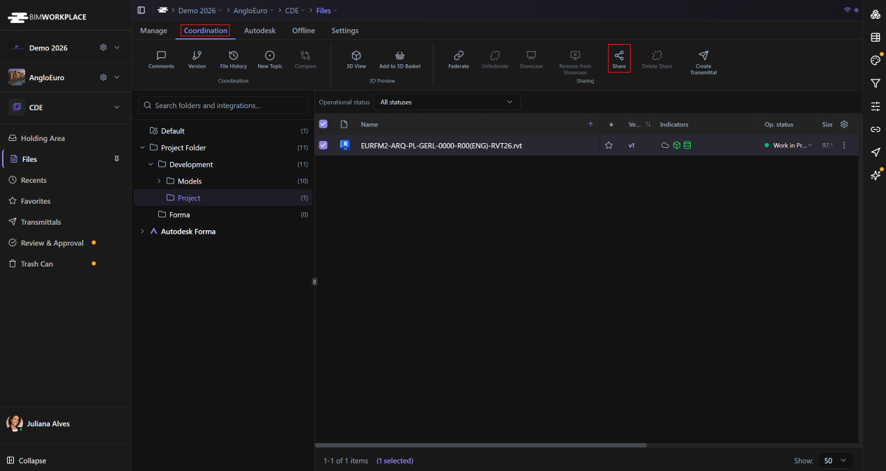
- Open CDE > Files.
- Select one or more files, folders, or a combination of both.
- Click Share in the Coordination section of the Ribbon.
- The sharing panel opens, showing the selected content.
Choosing who can access the shared content
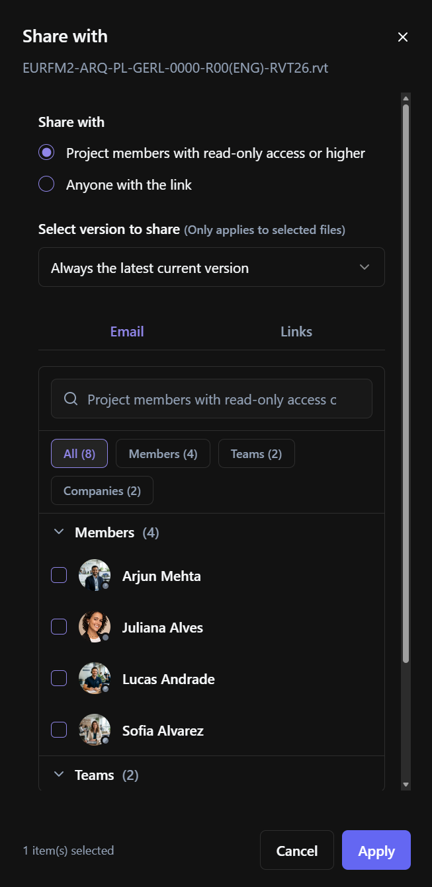
In the Share panel, select one of the following options.
Project Members
Use Project Members to share content with users who already belong to the project.
Recipients must sign in to BIMWorkplace and have the necessary permissions to access the shared content.
To share with project members:
- Select Project Members.
- In the Email tab, select one or more project Members, Teams, or Companies.
- Optionally, enter a message in Notes.
- Select the file version to share, as explained below.
- Click Apply.
BIMWorkplace sends a sharing notification to the selected recipients.
Important: Recipients must have at least Read Only permission for the shared folder to access its content.
Anyone with the Link
Use Anyone with the Link to share content with people inside or outside the project without requiring them to sign in to BIMWorkplace.
You can send shared content by email or generate public links to distribute directly.
Important: Anyone with a valid public link can access the shared content. Only distribute these links to the intended recipients.
Sending shared content by email
- Select Anyone with the Link.
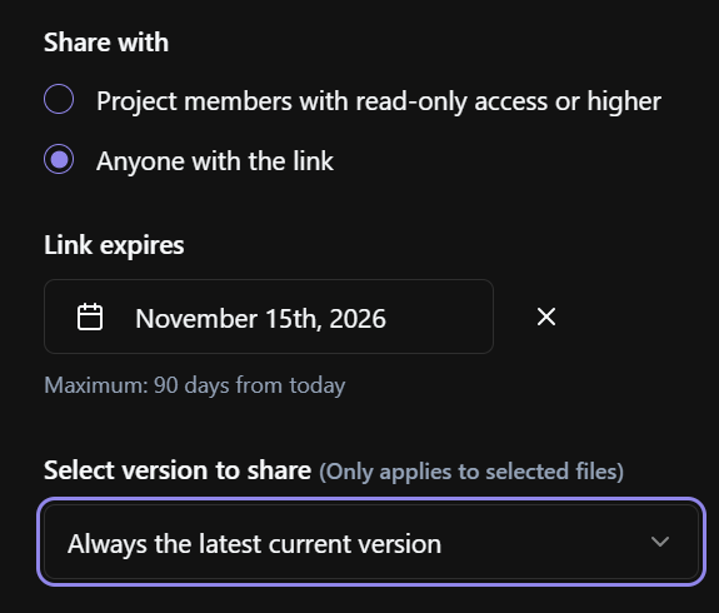
- Set the link expiration date, if needed.
- Select the file version to share, as explained below.
- In the Email tab, enter the recipient's email address and click + to add it.
- Repeat for additional recipients, if necessary.
- Optionally, enter an email Subject and Notes.
- Click Apply.
BIMWorkplace creates the public links and sends a sharing notification to the specified email addresses.
The generated links are also available in the Links tab.
Setting a link expiration date
For public sharing, use Link Expires to define when the shared links should stop being available.
The expiration date is initially set to 30 days from the creation date. You can select another date within the maximum period allowed by the project's CDE configuration.
The interface displays the maximum permitted period.
You can also clear the selected expiration date.
Selecting which file version to share
Choose how recipients should access shared files.
Always the latest current version
Recipients access the latest available version. When a new version becomes available, the shared content is updated automatically.
Choose this option when recipients should always access updated information.
Only the current version fixed at the time of sharing
Recipients access the version available when the share is created. Future versions do not change the shared content.
Choose this option when recipients must access a specific version, such as a document issued for review or reference.
Important: If a fixed version is deleted, its shared link will no longer provide access to that version. When attempting to download it, the recipient receives the message "Link not found".
Generating and copying public links
To generate public links without sending an email:
- Select Anyone with the Link.
- Choose the version to share and configure the expiration date, if needed.
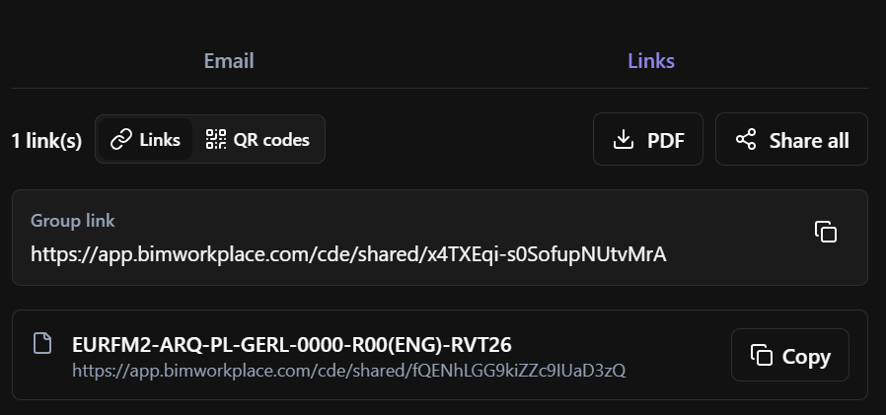
- Open the Links tab.
BIMWorkplace generates links for the selected content.
Depending on the selected items, the panel may display:
- Individual links: Separate links for the shared files or folders.
- Group link: A single link for accessing the shared items together.
Use Copy to copy an individual link or the group link.
Use Share all to copy the generated links together.
You can then paste the links into an email, message, or another communication channel.
Important: Opening the Links tab can generate public links immediately. You do not need to send an email to create them.
Using QR codes
Public links can also be displayed as QR codes.
This is useful when recipients need to open shared documents on a mobile device, such as when accessing drawings or reference information on a construction site.
In the Links tab, select QR codes to display the QR codes associated with the generated links.
Use PDF to download a document containing the QR codes.
The PDF can be distributed digitally or printed for convenient access to the shared content.
Removing public access
Use Delete Share to revoke public links associated with shared files or folders.
- In CDE > Files, select the files or folders whose public links you want to remove. Publicly shared items are identified by a globe icon in the Indicators column.
- Click Delete Share in the Ribbon.
BIMWorkplace removes all public sharing links associated with the selected items. Existing public links will no longer provide access to those items.
Important: Deleting a share does not delete the original files or folders from the CDE. It only removes their public sharing links.
Important considerations
- Internal sharing: Recipients must be project members and have at least Read Only permission for the shared folder.
- Public sharing: Anyone with a valid public link can access the shared content without signing in.
- Fixed versions: If a shared fixed version is deleted, attempts to download it return "Link not found".
- Link expiration: Public links stop working when their configured expiration date is reached.
- Revoking access: Delete Share removes all public links associated with the selected files or folders.
For formal document distribution that requires a record of recipients, delivery status, and related actions, use Transmittals instead.
Was this article helpful?