Managing CDE Folder Permissions
The BIMWorkplace CDE allows Project Managers to control who can view, download, upload, edit, or manage documents inside project folders.
By configuring permissions correctly, you ensure that each user, team, or company has the appropriate level of access while reducing the risk of unintended changes, unauthorized downloads, or document mismanagement.
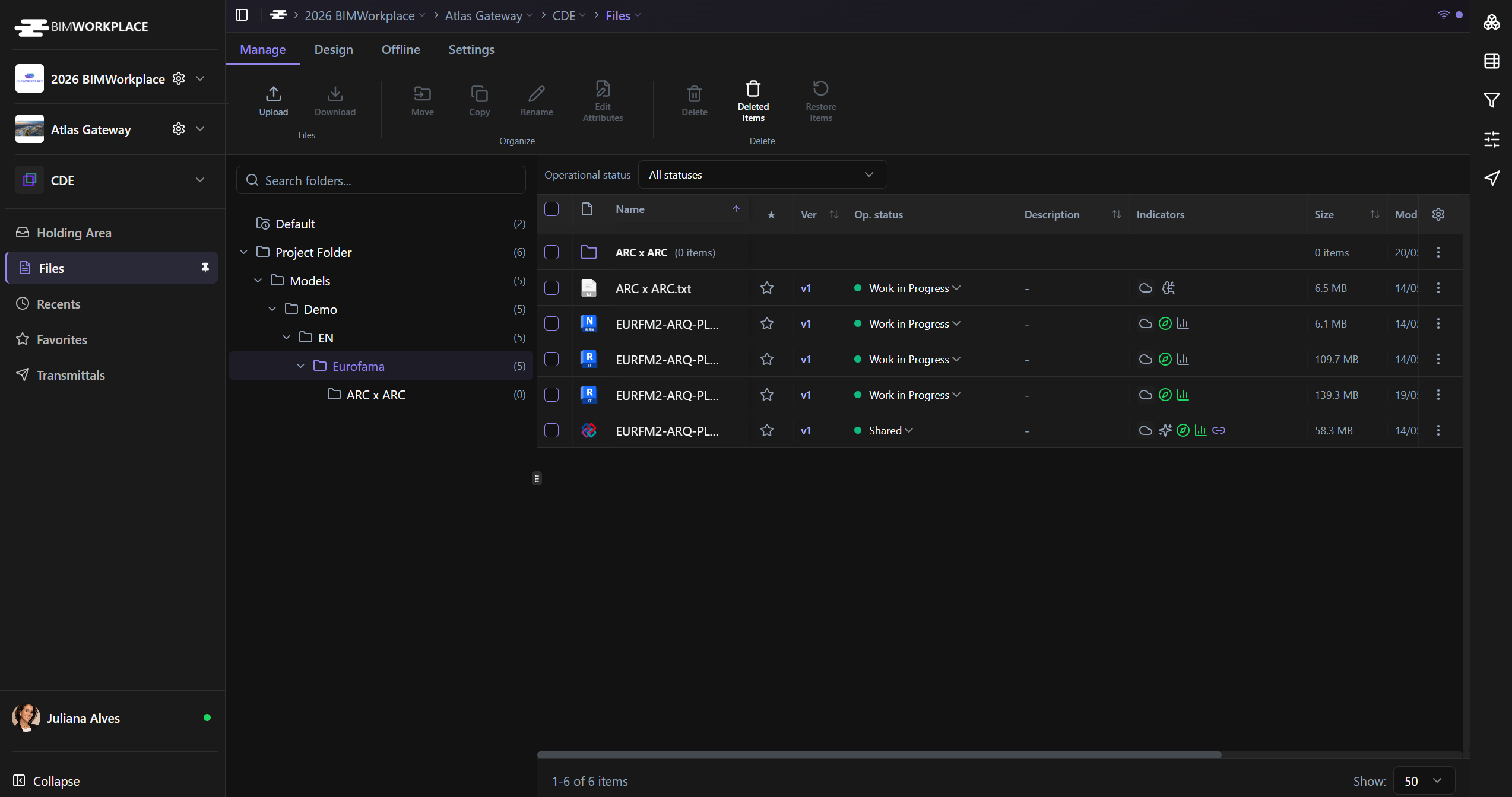
Accessing folder permissions
To manage permissions for a folder:
In the CDE folder tree, right-click the folder you want to manage.
Select Permissions.
The permissions panel will open, showing the users, teams, or companies with access to that folder.
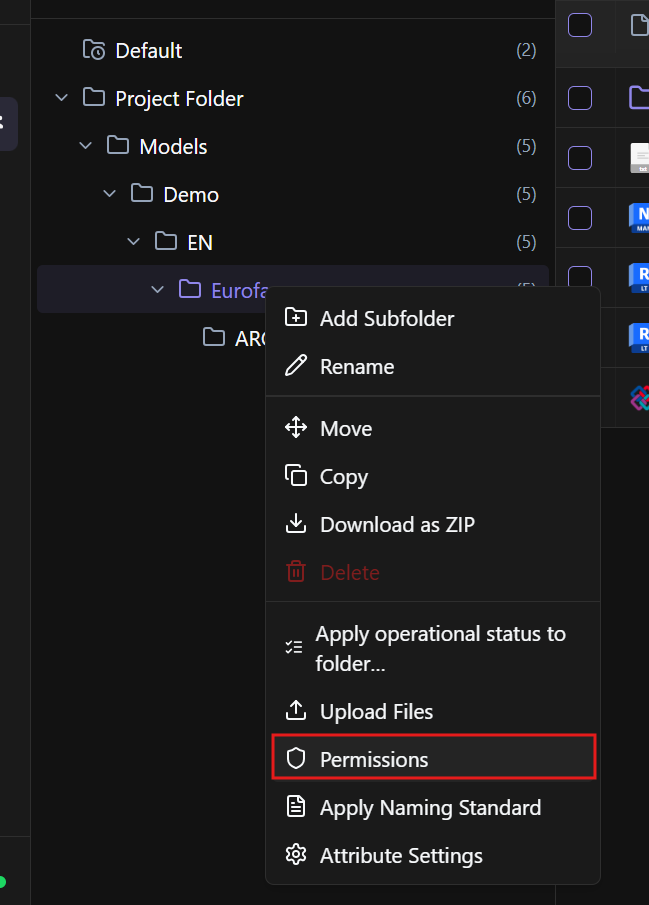
Available permission levels
BIMWorkplace CDE supports different permission levels depending on what each user, team, or company needs to do.
Read Only
Allows users to view files in the folder.
Users with this permission cannot download, upload, edit, or delete files.
Read + Download
Allows users to view and download files.
This is useful when users need access to project documents but should not change the folder contents.
Read + Download + Upload
Allows users to view, download, and upload files.
Users with this permission cannot edit or delete existing files.
View + Download + Upload + Edit
Allows users to view, download, upload, and edit files.
Users with this permission cannot delete files or manage folder permissions.
Full Administrative Control
Gives full control over files and permissions in the folder.
Use this level only for users responsible for managing the folder structure, permissions, and document control.
Assigning permissions
To assign permissions:
Open the folder permissions panel.
Click Add.
Select the user, team, or company you want to add.
Choose the desired permission level.
Click Add selected.
The changes take effect immediately.
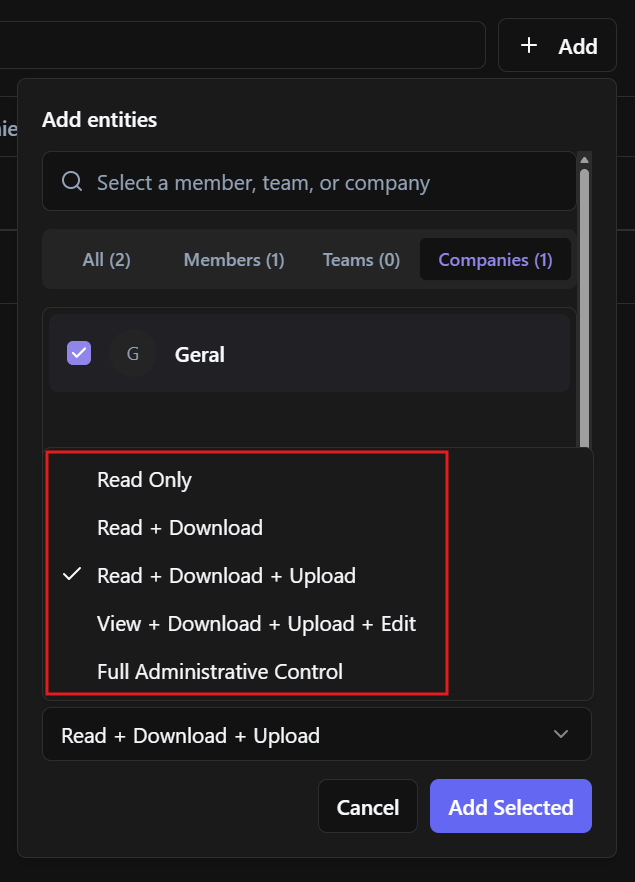
Using teams and companies
For efficient permission management, assign permissions to teams or companies whenever possible.
This allows all members of that group to inherit the same access level, instead of configuring permissions user by user.
For example, a design team may have upload and edit permissions in its own discipline folder, while other teams may only have read or download access.
Understanding permission inheritance
After permissions are assigned to users, teams, or companies, they are inherited by subfolders.
In subfolders, inherited permissions can only be increased, not lowered.
For example, if a user has Read Only permission in a parent folder, you can increase that user’s access in a subfolder to Read + Download + Upload. However, you cannot lower that inherited permission to None in the subfolder.
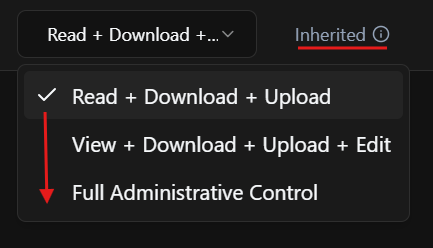
If a permission was increased in a subfolder, click Reset to return that user, team, or company to the permission level inherited from the parent folder.
If no permission is granted in the parent folder, the inherited permission is None. In that case, clicking Reset removes the user, team, or company from the subfolder permissions list.
Use this behavior carefully when structuring folders. If a folder contains sensitive information, avoid assigning broad permissions at the parent folder level.

Best practices
Limit edit and administrative permissions to responsible team members.
Use Read Only for stakeholders who only need visibility.
Use Read + Download when users need access to documents but should not change folder contents.
Assign permissions by team or company to simplify management.
Keep the folder structure clear so permissions are easier to control.
Review permissions regularly, especially when users join or leave the project.
Was this article helpful?