Review & Approval
UI: Review & Approval
Audience: Project initiators, reviewers, and approvers
Purpose
Create and execute document reviews with a workflow (steps, reviewers, approve/reject), aligned with Approval Flows.
Relevance
Governance: nothing moves forward without the right step. It can start from files, a Transmittal, or a Topic. Without clear reviews, the CDE does not distinguish between “under review” and “approved for use”.
Usage example
The manager creates a review from 3 plans, chooses the Technical review → Final approval workflow, and starts the flow. In the Review step, the reviewer claims the step (Single mode) and submits the participant decision. When the flow reaches Final approval, the approver decides file by file. If any file is REJECT, the final approval closes as rejected; if all are APPROVE, the step concludes and completion actions (attributes / destination folder) are applied according to the template.
Who can use it
Initiators, reviewers, and approvers with a role in the flow (and corresponding CDE / project permissions).
Screen anatomy
- Active reviews / Archived reviews lists.
- Manage / Reports / View ribbon.
- Create Wizard (Scope → … → Summary).
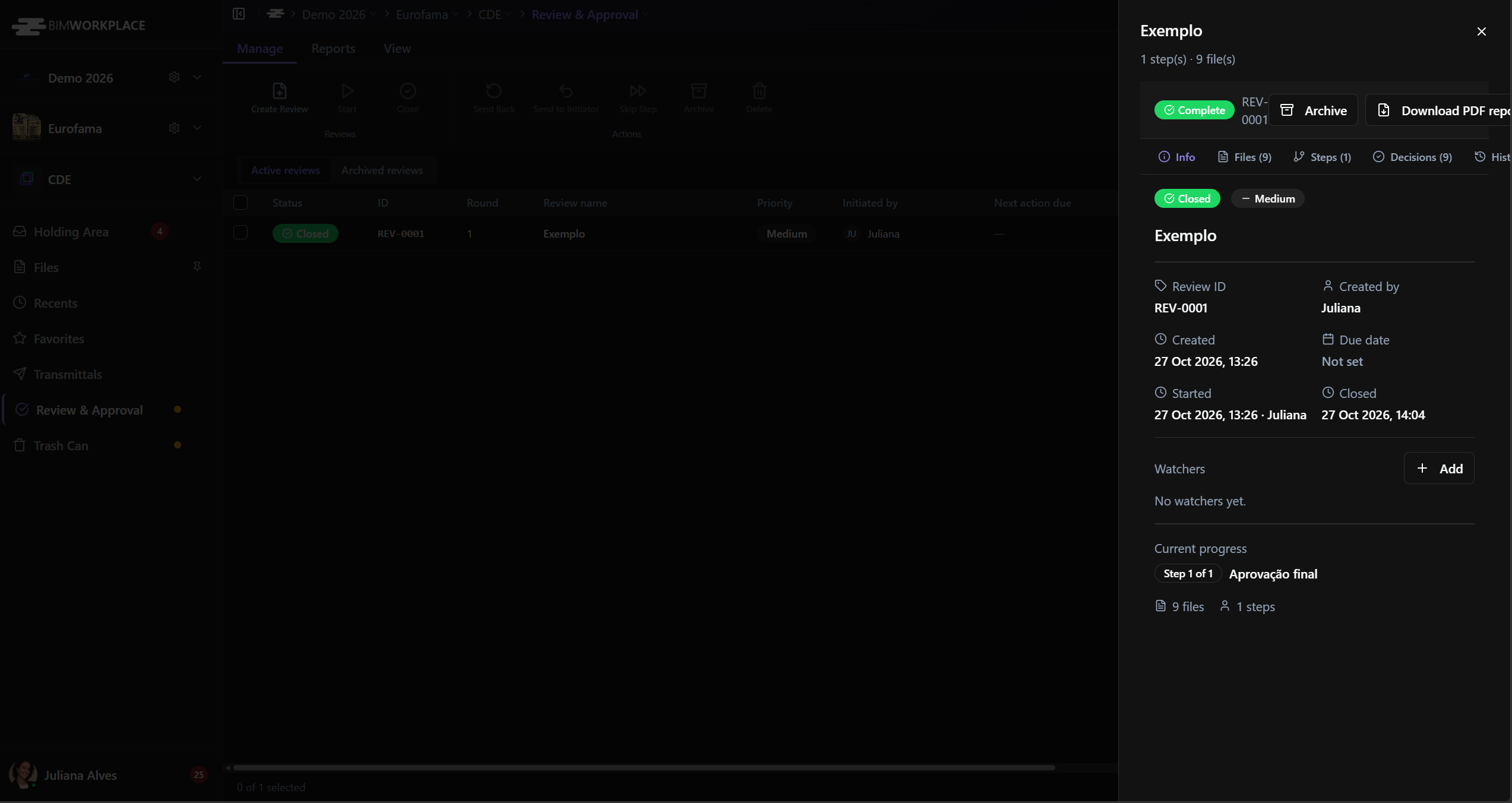
- Detail (sheet): Information · Files · Steps · Decisions · History tabs.
Options and fields
Ribbon
| Group | Actions |
|---|---|
| Manage | Create Review · Start · Close · Send Back · Send to Initiator · Skip Step · Archive · Delete |
| Reports | Export CSV · Export Report PDF |
| View | Filters · Columns · Compare Versions |
List columns / filters
Status · ID · Round · Review name · Priority · Initiated by · Next action due · Created on · Files · Progress · Total steps · Current step · Workflow · Next action by · Finished on · Approved · Rejected · Actions.
Filters: Search · Status · Priority · Initiated by · Created on · Next action due · Finished on · Total steps · Current step · Workflow.
Statuses: Draft · Active · Processing · Sent back · Returned · Closed · Archived · Cancelled.
Priorities: Low · Medium · High · Critical.
Create wizard
Steps: Scope · Files · Workflow · Reviewers · Details · Summary.
| Field | Function |
|---|---|
| Scope | Documents/files · Transmittal · Topic |
| Approval workflow | Project flow (template) |
| Review name / Title · Description · Priority · Due date | Review identity |
| Reviewer(s) & Approver(s) | Who decides at each step |
| Step name · Type (Sequential / Parallel / Consolidation) | Structure |
| Reviewer mode (Single / Group) | One reviewer at a time vs. group |
| Rule (All must decide / Any one / Majority) | Quorum in group steps |
| Action upon completion · Copy approved files to · Update attributes when approved | Post-approval |
| Linked references · Completion target folder | Refs and destination |
| Save as draft · Create & start | Publish |
Detail / tabs
| Tab | Content |
|---|---|
| Information | Review ID · Created by · Created · Due · Started · Closed · Progress · Round · Completion target folder · Watchers |
| Files | List of files; APPROVE/REJECT decisions only in final approval; Transmit… · Open · Download |
| Steps | Workflow steps, participants, step status, Submit decision (review steps) |
| Decisions | Participant decisions + per-file decisions (see section below) |
| History | Timeline of actions (start, claim, decisions, skip, close…) |
Step badges: Not Started · Waiting · In Review · Completed · Skipped · Rejected.
File badges: APPROVE · REJECT (and project status codes, if mapped).
Frequent actions in the detail header: Start · Close · Claim step · Download PDF · Create transmittal · menu (Skip step · Recall · Cancel…).
Transmit… in the file detail may show “Transmittal is not available yet.” in some states, only after the review is eligible (typically closed/approved according to rules).
How the execution flow works
This section describes the expected behavior in the app, useful for users and QA.
Two types of steps
| Step type | What the reviewer does | Where in the UI |
|---|---|---|
| Review (intermediate) | Decides on the step as a participant (approve / reject the step) | Steps tab (and summary in Decisions) |
| Final approval | Decides file by file (APPROVE / REJECT) | Files tab |
The same review can have several review steps and one final approval step at the end of the template.
Claim step
- Only appears when the active step is in Single mode (one reviewer at a time).
- Used to reserve the step for yourself.
- It does not “release models/files” at any stage: in Review stages, the claim does not activate APPROVE/REJECT in the Files tab.
- In Final approval (Single), the claim is normally required before you can decide on the files.
Active Review stage
- Open the review → Steps tab.
- If the mode is Single → Claim step.
- Submit decision of the participant in that step.
- In the Files tab, it is normal to see a message that you do not have permission to decide on these files, file-by-file decisions only exist in final approval.
Active Final Approval stage
- The step must be In review (not “Not started”).
- If Single → Claim step.
- In the Files tab, decide on each file (APPROVE / REJECT), one by one or in bulk when the UI allows.
- Each file decision saves immediately, there is no draft + “submit package at the end” button.
- While the final step is still active, you can change a file's decision (re-decide the same file).
- When the last file receives a decision, the system automatically consolidates:
- All APPROVE → final step Completed (and the flow continues / closes according to the template).
- Any REJECT → final step Rejected and the review moves to the corresponding return/closed state (Sent back / completed rejected in the UI). There is no extra “confirm package outcome” screen.
After closing
- You can no longer change file decisions.
- The “no permission” message in the Files tab is expected.
- The Change button in the Decisions tab may still appear and only navigates to Files, where the system blocks it. This does not mean the business rule is wrong.
How to read the Decisions tab
There are two types of decisions in the same tab:
- Participant decisions — cards per person/step (Review type stages), with an Approved/Rejected badge.
- Per-file decisions — listed per file, with the name of the person who decided (final approval).
Important:
- In Final approval, the approver does not create an “Approved/Rejected participant” card in the same style as the review stage, they only decide on files. Therefore, it may seem like the final user's decision is “missing” from the participant counters.
- The counters at the top (X approved / Y rejected) count only participant decisions, not the APPROVE/REJECT of the files. You may see
1 approved / 0 rejectedat the top and still have aREJECTfile in the list, this is current UI behavior and does not prove the REJECT was ignored.
Quick checklist (expected)
| Situation | Expected result |
|---|---|
| Files tab in Review stage | Message saying no permission to decide on files |
| Claim in Review stage | Reserves the step; does not release file APPROVE/REJECT |
| Entering Final approval + claim (Single) | Now able to decide on files |
| Changing a file decision before all are decided | Allowed |
| Last file with 1 REJECT (even with others APPROVE) | Final step Rejected; flow closes without extra manual confirmation |
| All files APPROVE | Final step completed / proceeds |
| After closing, trying to change a file | Blocked |
| Decisions tab: final approver | Appears in per-file decisions, not as a second participant card from step 1 |
How to use
Open
- CDE → Review & Approval.
- Open an item in Active reviews (or Archived reviews).
Create and start
- Create Review.
- Go through the wizard (Scope → Files → Workflow → Reviewers → Details → Summary).
- Create & start (or Save as draft and then Start).
Execute as reviewer (Review step)
- Open the active review detail.
- Steps tab → if Single, Claim step.
- Submit decision of the participant.
- Do not expect to decide on files in this step.
Execute as final approver
- Confirm the current step is Final approval and is In review.
- If Single → Claim step.
- Files tab → APPROVE / REJECT per file.
- Upon completing the last file, the outcome consolidates automatically (see section above).
Close / archive / transmit
- When the flow ends, use Close / Archive according to the status and your permissions.
- Create transmittal may become available in eligible closed reviews.
- Notifications: Project Notifications.
Links
Tips / common errors
- “I cannot decide on files” in the Review stage — expected. Only in Final approval.
- Claim did not unlock the files — confirm if the active step is indeed the final approval (not an intermediate review step).
- I wanted to change the decision after closing — only possible while the final approval is still active; after closing, no.
- In the Decisions tab I only see the user from stage 1 — the final approver counts in per-file decisions; the Approved/Rejected counters at the top ignore files.
- Without a workflow/template in the project, Create is limited — configure Approval Flows.
- Different from Design RFA — RFA.
- Skip Step / Send Back / Recall change the path — use with discretion (Skip marks the step as ignored and moves forward).
Was this article helpful?