Configuring a Soft Clash Test
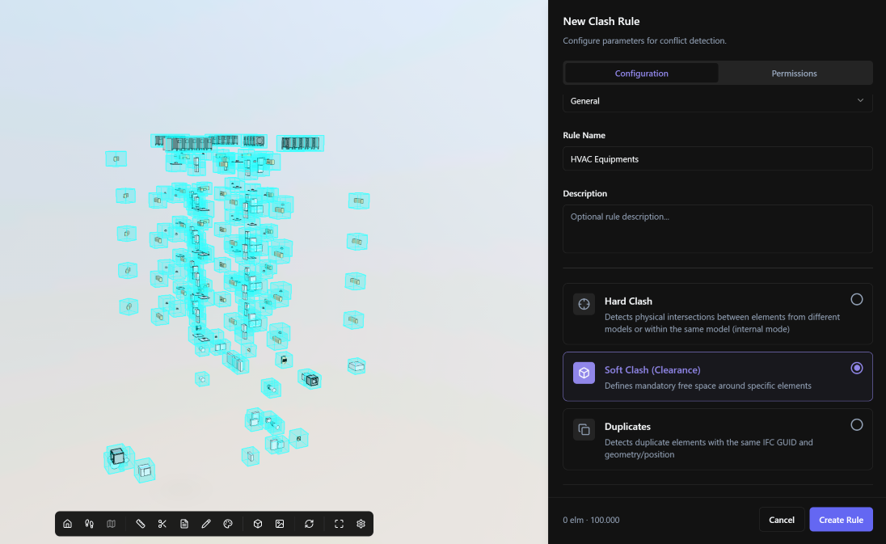
A Soft Clash (Clearance) test checks whether a defined space around selected elements meets specific spatial requirements.
For each Target element, BIMWorkplace creates a Free Space Box. You can then check whether specific elements are required inside this space or must remain outside it.
For example, you can use a Soft Clash test to check whether the space required for equipment access or maintenance is obstructed.
Before you start
Before configuring a Soft Clash test:
- Create or open a Clash Test with Soft Clash (Clearance) selected as the Clash Test type.
- Make sure the required models are available in the selected Coordination Space.
- Identify the elements that require a controlled space.
- Determine which elements should be present inside that space or which elements must not occupy it.
For information about creating a Clash Test, see Creating a Clash Test.
Understanding Target, Required, and Disallowed
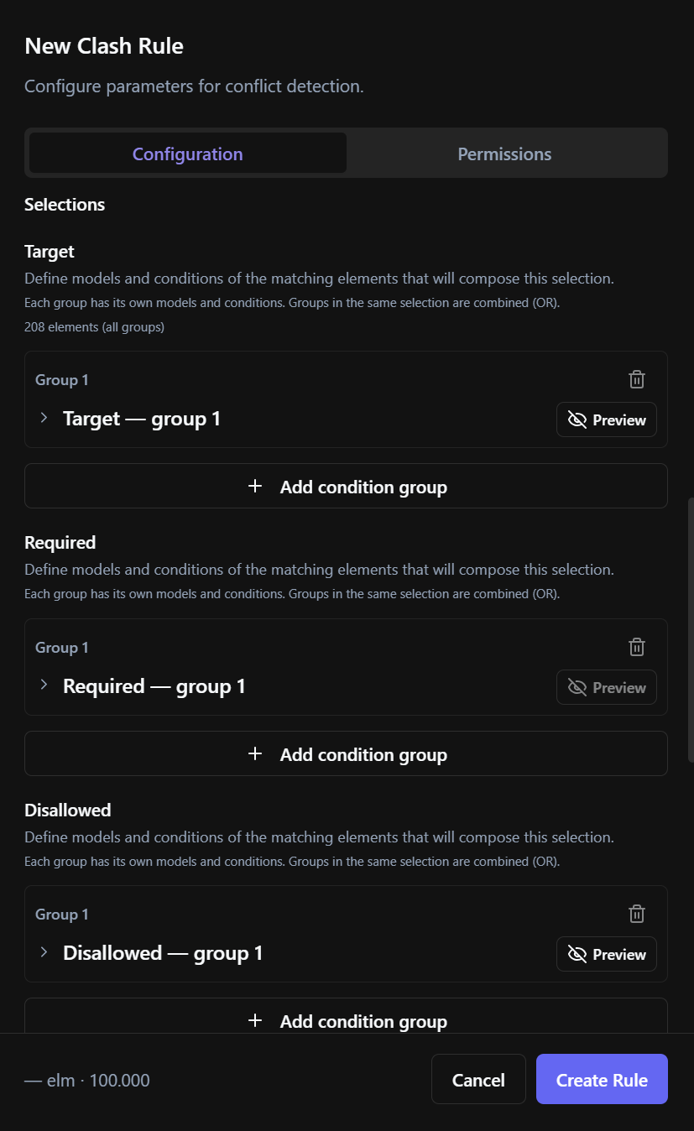
A Soft Clash test uses three types of selections:
- Target defines the elements around which the Free Space Box is created.
- Required defines elements that are expected to be inside the Free Space Box.
- Disallowed defines elements that must not be inside the Free Space Box.
The Target selection is required.
You must also configure at least one Required or Disallowed selection. You can use both when the same test needs to verify both conditions.
For example, if an equipment element requires a clear maintenance area, select the equipment as the Target and the elements that must not occupy that area as Disallowed.
For detailed information about selecting models, adding conditions, and combining selection criteria, see Selecting elements for a Clash Test.
Defining the Target
Use Target to select the elements whose surrounding space you want to evaluate.
BIMWorkplace evaluates a Free Space Box for each Target element included in the selection.
For example, if you select several pieces of HVAC equipment as Targets, the configured Free Space Box is evaluated for each selected equipment element.
Use selection conditions to restrict the Target to only the elements relevant to the test.
Defining Required elements
Use Required when specific elements are expected to be inside the Free Space Box.
A result is generated when an element defined as Required does not meet this spatial condition.
This can be useful when the purpose of the test is not only to keep an area clear, but also to verify that expected elements occupy the defined space.
If your test only needs to verify that a space remains unobstructed, you do not need to configure Required elements.
Defining Disallowed elements
Use Disallowed to define elements that must not occupy the Free Space Box.
A result is generated when a Disallowed element is found inside the defined space.
For example, when checking the maintenance space around HVAC equipment, you can define architectural or structural elements as Disallowed. If one of those elements occupies the Free Space Box, the test identifies the condition as a clash.
If your test only needs to verify the presence of Required elements, you do not need to configure Disallowed elements.
Configuring the Free Space Box
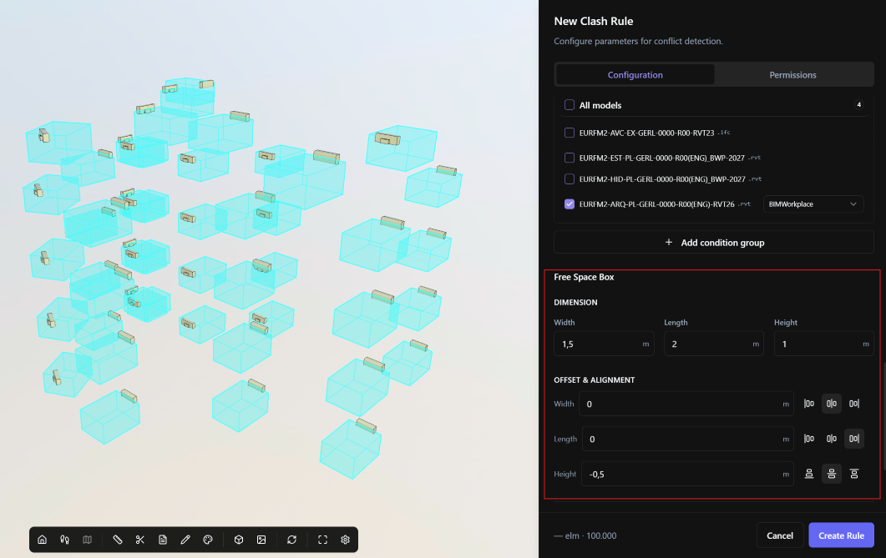
The Free Space Box defines the spatial region evaluated around each Target element.
Configure its dimensions according to the space required for the purpose of the test:
- Width
- Length
- Height
You can also adjust the position of the box relative to the Target using the available alignment and offset controls.
For example, a maintenance area may need to extend mainly in front of a piece of equipment rather than equally in every direction. Configure the dimensions, alignment, and offsets so that the Free Space Box represents the area that needs to be evaluated.
Use dimensions that represent the actual spatial requirement you want to verify.
Previewing the configuration
Preview the selections before saving the Clash Test to confirm that the correct elements are included.
Check the Target, Required, and Disallowed selections that apply to your test.
The preview helps you:
- Confirm that the intended elements are included.
- Check the number of elements in each selection.
- Identify selection criteria that are too broad or too restrictive.
- Confirm that the Free Space Box is positioned correctly in relation to the Target using the Target preview.
If a selection exceeds the number of elements allowed for a Clash Test, reduce its scope or split the check into multiple tests.
For more information about building and previewing selections, see Selecting elements for a Clash Test.
Saving the configuration
Before saving a Soft Clash test, make sure that:
- Rule Name is defined.
- Target is configured.
- At least one Required or Disallowed selection is configured.
- The selections contain the elements you intend to analyze.
- The Free Space Box dimensions and position represent the spatial requirement you want to verify.
Save the Clash Test when the configuration is complete.
Example: Keeping access space in front of equipment
Suppose HVAC equipment requires an unobstructed area in front of it for inspection and maintenance.
You can configure the Soft Clash test as follows:
- Target: HVAC model – Condition: Equipment.
- Disallowed: Architectural and Structural models – select the elements that must not occupy the maintenance area.
- Required: Not configured.
- Free Space Box: Configure the Width, Length, Height, alignment, and offsets to represent the required maintenance area in front of the equipment.
With this configuration, BIMWorkplace evaluates the Free Space Box for each selected equipment element.
If a Disallowed element occupies the defined space, the test identifies the condition as a clash.
After saving the configuration, run the Clash Test from the Clash Tests page and review the detected conditions in Clash Results.
Related articles
- Creating a Clash Test
- Selecting elements for a Clash Test
- Configuring a Hard Clash Test
- Clash Tests
- Clash Results
Was this article helpful?