Share Topics to Microsoft Teams
The Share to Teams feature allows you to send a topic directly to a Microsoft Teams conversation without leaving BIMWorkplace.
Instead of copying links manually, you can share the topic with a few clicks, making it easier to discuss issues with your team while keeping everyone connected to the original BIMWorkplace topic.
Note
Before using this feature, your Microsoft Teams account must be connected to BIMWorkplace. See the article Integrations in the User Settings section.
Sharing a topic
To share a topic:
Open the Design module.
Open the topic you want to share.
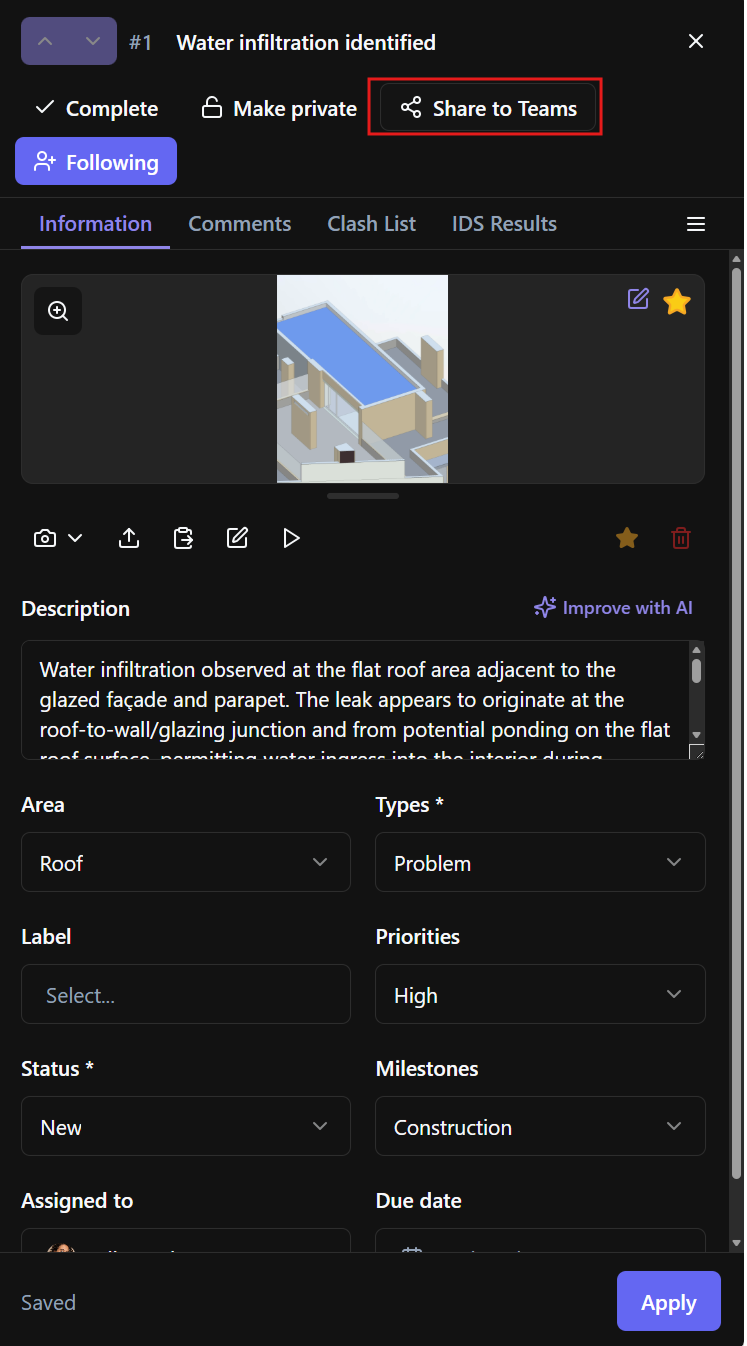
Click Share to Teams.
Select the Microsoft Teams conversation or channel.
Confirm the share.
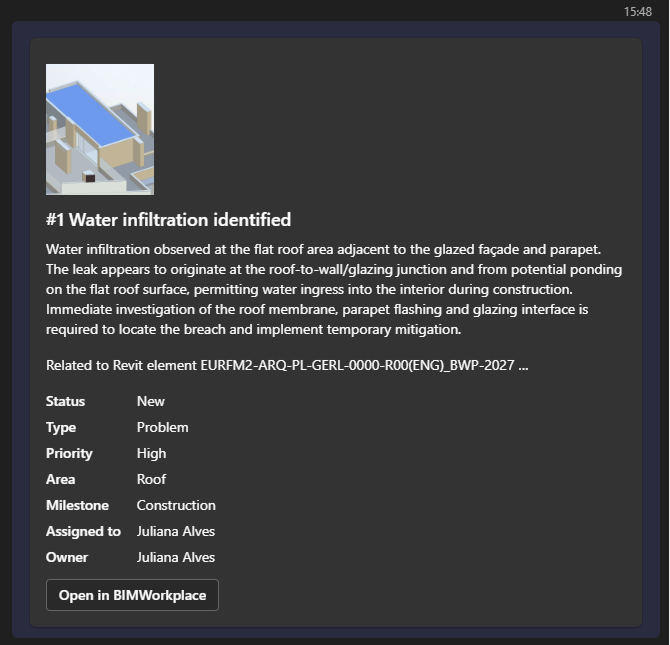
The selected conversation will receive a message containing the topic information and a direct link back to BIMWorkplace.

What is shared
Depending on the topic, the shared message may include:
Image
Title
Topic number
Description
Filled in topic attributes
Direct link to the topic in BIMWorkplace
Recipients can open the topic directly from Microsoft Teams, provided they have permission to access the project.
If Microsoft Teams is not connected
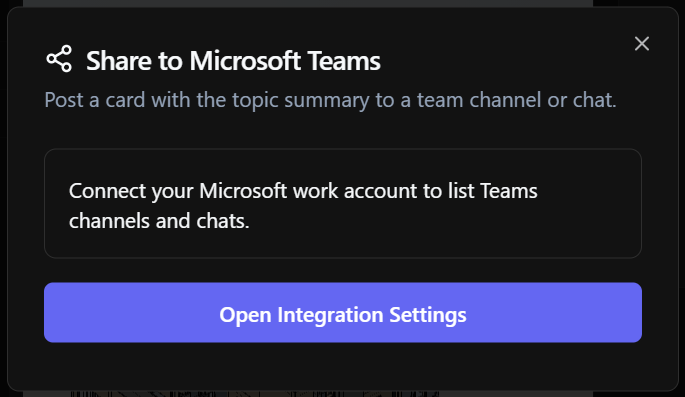
If your Microsoft Teams account has not been connected, BIMWorkplace will prompt you to complete the connection before sharing.
The connection only needs to be completed once for your user account.
For setup instructions, see the article Integrations in the User Settings section.
Permissions
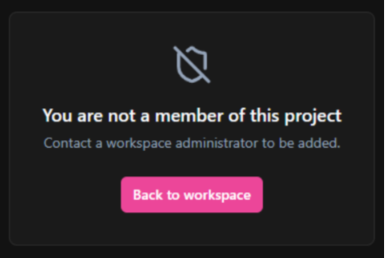
Users who receive the Teams message must still have permission to access the project. If they do not have access, they will not be able to open the topic.
Tips
Share topics during coordination meetings to quickly direct participants to the correct issue.
Use Teams conversations for quick discussion while keeping the official project record inside BIMWorkplace.
Continue updating the topic in BIMWorkplace so all project history remains centralized.
Was this article helpful?