Home Page
The Home page is the first screen you see after logging in to BIMWorkplace.
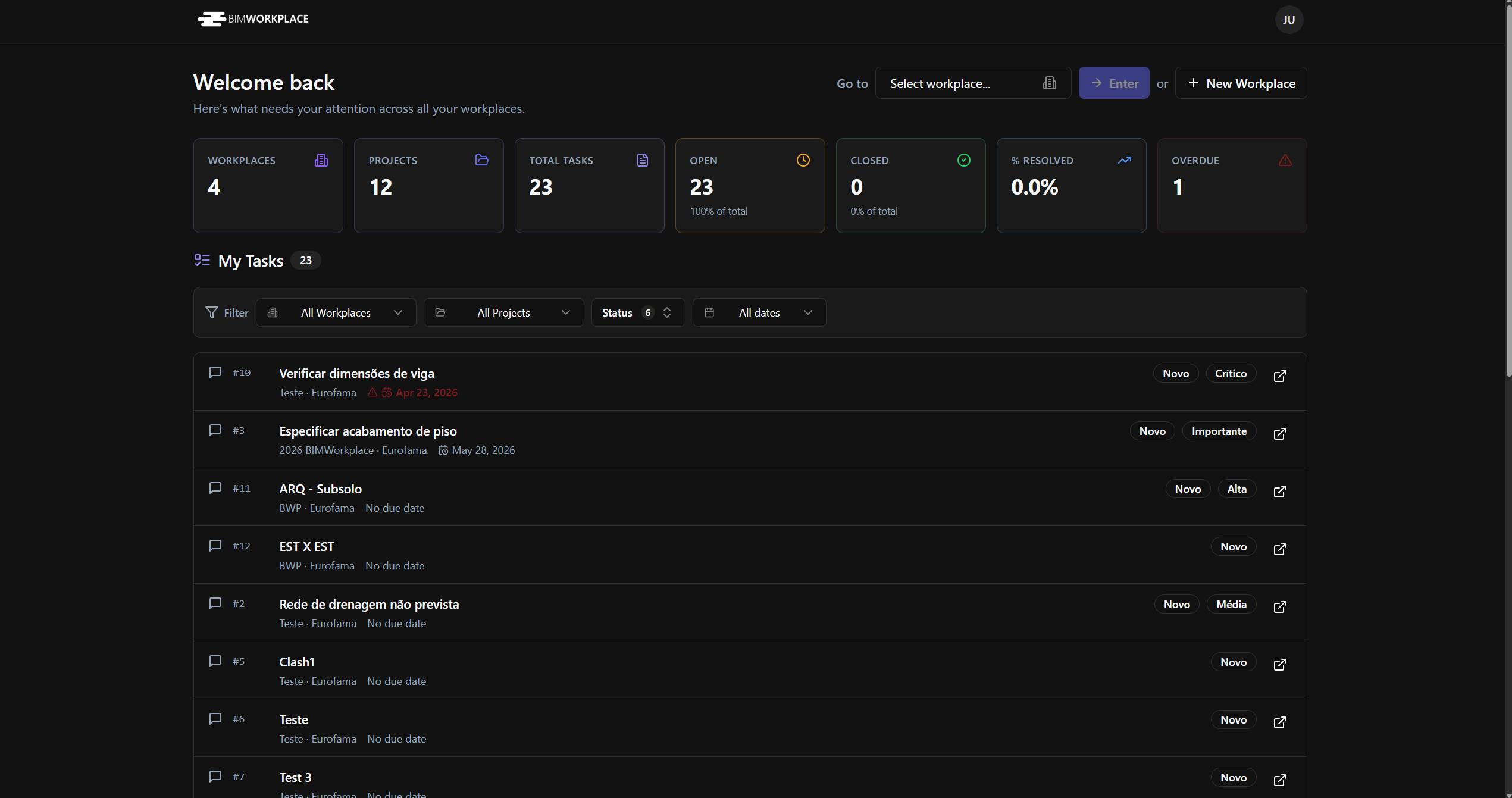
It provides a general overview of your activity across all Workplaces and helps you quickly access the projects, tasks, settings, and tools you need.
What the Home page is used for
Use the Home page to:
• Review summary indicators across your Workplaces
• See Design topics assigned to your user
• Filter your assigned topics by Workplace, project, status, or date
• Enter an existing Workplace
• Create or purchase a new Workplace
• Access User Settings
• Download BIMWorkplace plugins
Workplace overview
At the top of the Home page, BIMWorkplace displays summary cards with key information from your account.
These indicators may include:
• Number of Workplaces
• Number of projects
• Total tasks
• Open tasks
• Closed tasks
• Percentage of resolved tasks
• Overdue tasks
This gives you a quick view of your current activity and pending work across all Workplaces you are part of.
My Tasks
The My Tasks section shows Design topics assigned to your user.
Each task represents a topic from the Design module that requires your attention, such as an issue, clash, RFI, coordination note, or other project item.
From this list, you can review key information such as:
• Topic title
• Topic number
• Workplace and project
• Due date
• Status
• Priority
Clicking a topic opens the Design module in the corresponding project. The topic itself is not opened automatically.
Filtering tasks
You can filter the My Tasks list to focus on specific items.
Available filters include:
• Workplace
• Project
• Status
• Date
Use these filters to quickly find tasks from a specific project, review only open items, check overdue work, and more.
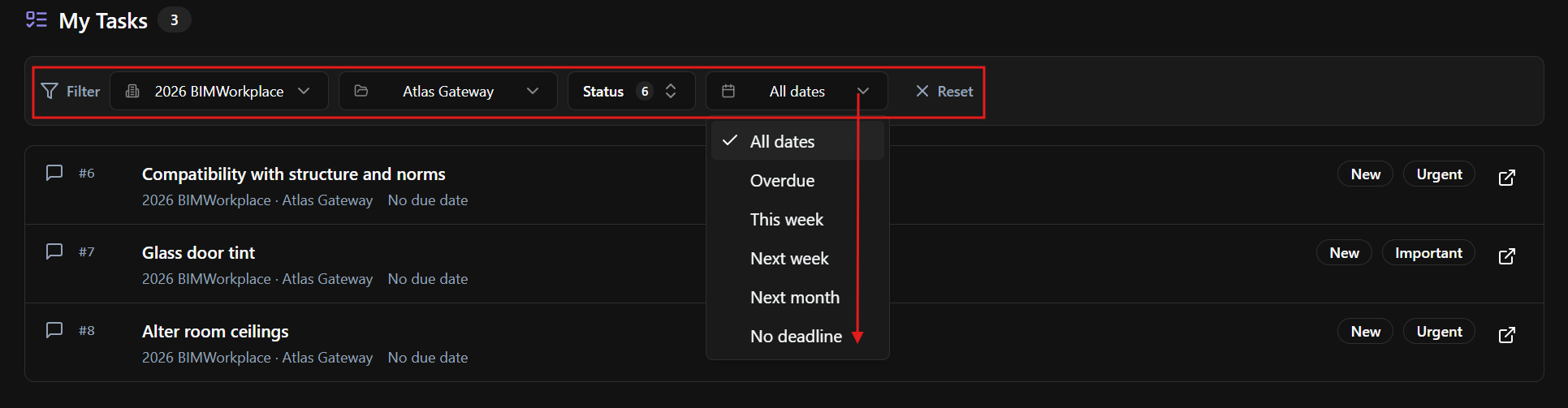
Filters only change the current view. They do not modify the topics themselves.
Entering a Workplace
To access a Workplace:
Use the Select Workplace field.
Choose the Workplace you want to open.
Click Enter.
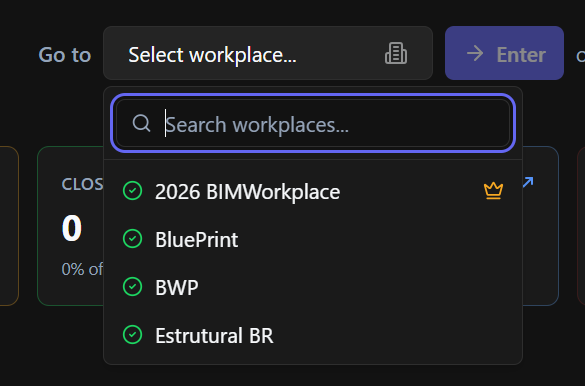
A crown icon next to a Workplace means that you are the owner of that Workplace.
After entering a Workplace, you can access its projects and modules according to your permissions.
Creating a new Workplace
If you need to create or purchase a new Workplace, click New Workplace.
This option starts the process for setting up a new BIMWorkplace environment.
User Settings and plugins
From the Home page, you can access your user menu.
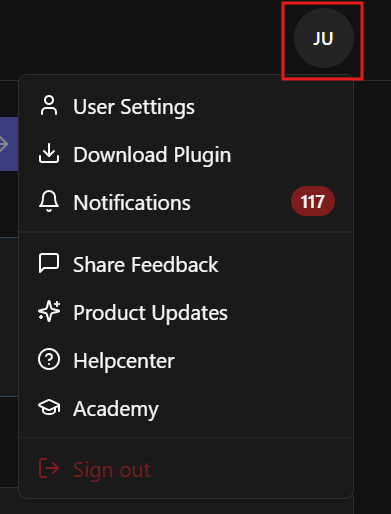
This menu allows you to:
• Open User Settings
• Manage personal preferences
• Access notifications
• Download BIMWorkplace plugins
The plugin download area is used to install the BIMWorkplace plugins for Revit and Navisworks, when those workflows are needed.
Why this matters
The Home page gives you a centralized starting point after login.
It helps you understand what needs attention, access the right Workplace faster, and continue working on assigned Design topics without navigating through each project manually.
Was this article helpful?