Using Dashboards
Use Insights to monitor information from different areas of your project.
Before you start
- Open a project where Insights is available.
- Make sure you have permission to view the dashboard you need.
- Some indicators also depend on your access to the underlying project information.
Open a dashboard
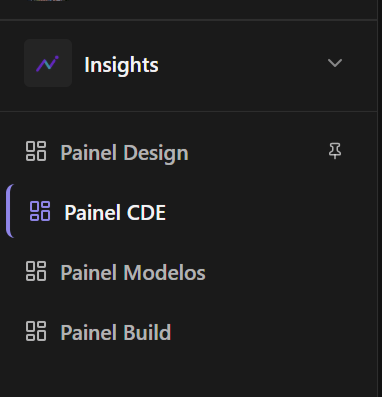
- Open the project and select Insights.
- Choose the relevant dashboard: Design, CDE, Models, or Build.
- Review the KPI cards and charts displayed on the page.
The dashboards have different indicators; they do not all offer the same filters.
Refresh the information
Select Refresh at the top of the dashboard to request updated values. Where available, the Data as of information indicates when the displayed data was computed.
Some indicators may depend on stored historical information, so refreshing the page does not create missing history.
Export a dashboard
If you have the required permission:
- Open the dashboard.
- Select Export.
- Choose PNG or PDF.
The export captures the dashboard view. The Export option may not appear if your role does not have sufficient permission.
Understand missing information
An indicator may be empty or unavailable when there is no matching project data, the metric cannot be calculated, or your permissions do not allow access to its source. Other indicators on the same dashboard may still display successfully.
Related articles
Was this article helpful?