Teams
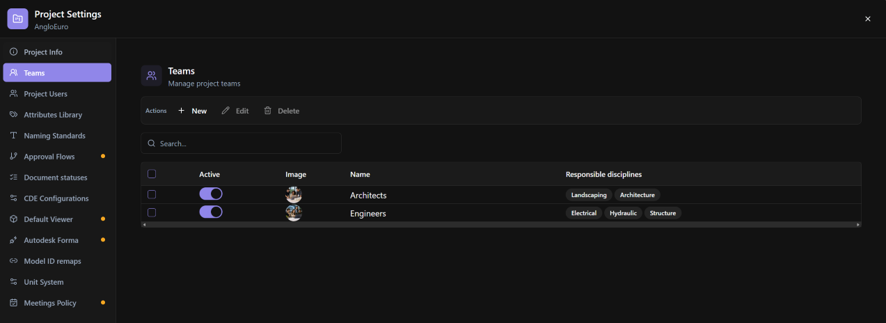
Use Teams in Project Settings to organize project members into groups and define the disciplines each team is responsible for.
Teams can be used throughout BIMWorkplace when assigning users, defining permissions, selecting recipients, and managing discipline responsibilities.
Before you start
Make sure that:
- You have access to Project Settings > Teams.
- You have the required permission to manage project teams.
- The disciplines you want to assign as Responsible disciplines are already available in the project.
Creating a team
- Open Project Settings.
- Select Teams.
- Click New.
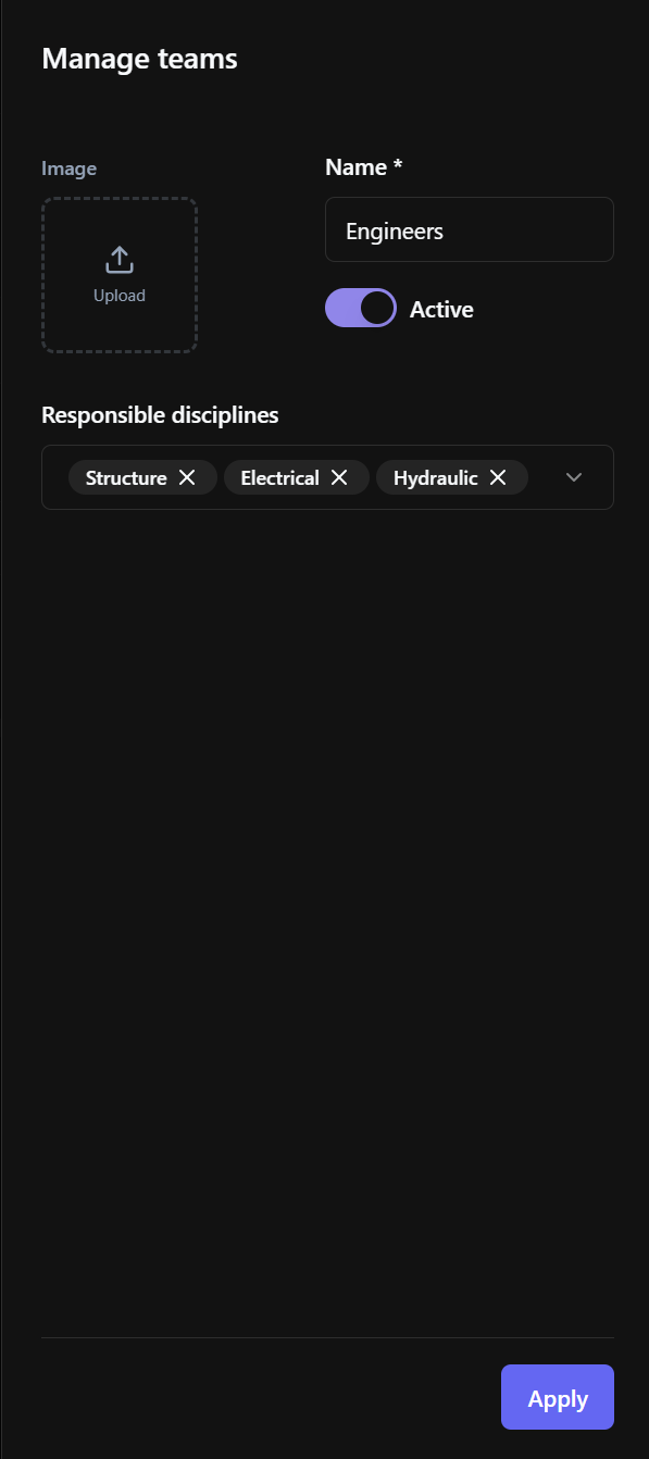
- Enter the team Name.
- Optionally, add an Image for the team.
- Use Active to define whether the team is available for use in the project.
- Under Responsible disciplines, select one or more disciplines the team is responsible for, if needed.
- Click Apply.
The new team is added to the Teams list.
Responsible disciplines
Use Responsible disciplines to associate a team with the disciplines it is responsible for in the project.
This association is also used when managing Topics in Design. When a team is responsible for a discipline, the team is automatically granted access to Topics associated with that discipline.
Team membership is also considered when users update the status of individual disciplines within a Topic.
Changing a team's Responsible disciplines can therefore affect its access to existing Topics associated with those disciplines.
Assigning users to a team
Teams can be assigned to project members from Project Settings > Project Users.
When creating or editing a project user, select the appropriate active team or teams.
For more information, see Project Users.
Editing a team
- Open Project Settings > Teams.
- Select the team you want to change.
- Click Edit.
- Update the required information.
- Click Apply.
You can change the team's Name, Image, Active status, and Responsible disciplines.
Activating or deactivating a team
Use Active to control whether a team is active in the project.
You can change the status directly from the Active column in the Teams table or by editing the team.
When a team is deactivated:
- Permissions granted at team level are removed from the users who belong to that team.
- The team is excluded from selections that only show active teams, such as assigning teams to project users and selecting teams as recipients or assignees.
- The team remains in the project and can be reactivated later.
When the team is reactivated, its team-level permissions are restored to its users.
Deactivating a team may temporarily affect users' access to content or actions they could access through that team.
Deleting teams
Deleting a team permanently removes it from the project.
When a team is deleted, permissions granted at team level are removed from the users who belonged to that team. Unlike deactivating a team, deleting it does not provide the option to restore those permissions by reactivating the team.
To delete one or more teams:
- Open Project Settings > Teams.
- Select the team or teams you want to delete.
- Click Delete.
If the team may be needed again, consider deactivating it instead of deleting it.
Was this article helpful?