Left and Right Panels
BIMWorkplace uses side panels to provide access to navigation options, tools, and additional information without leaving the current page.
The panels are located on the left and right sides of the workspace. The tools available in the right panel depend on the module and page you are using.
Using the left panel
The left panel provides access to navigation options and other tools available on the current page.
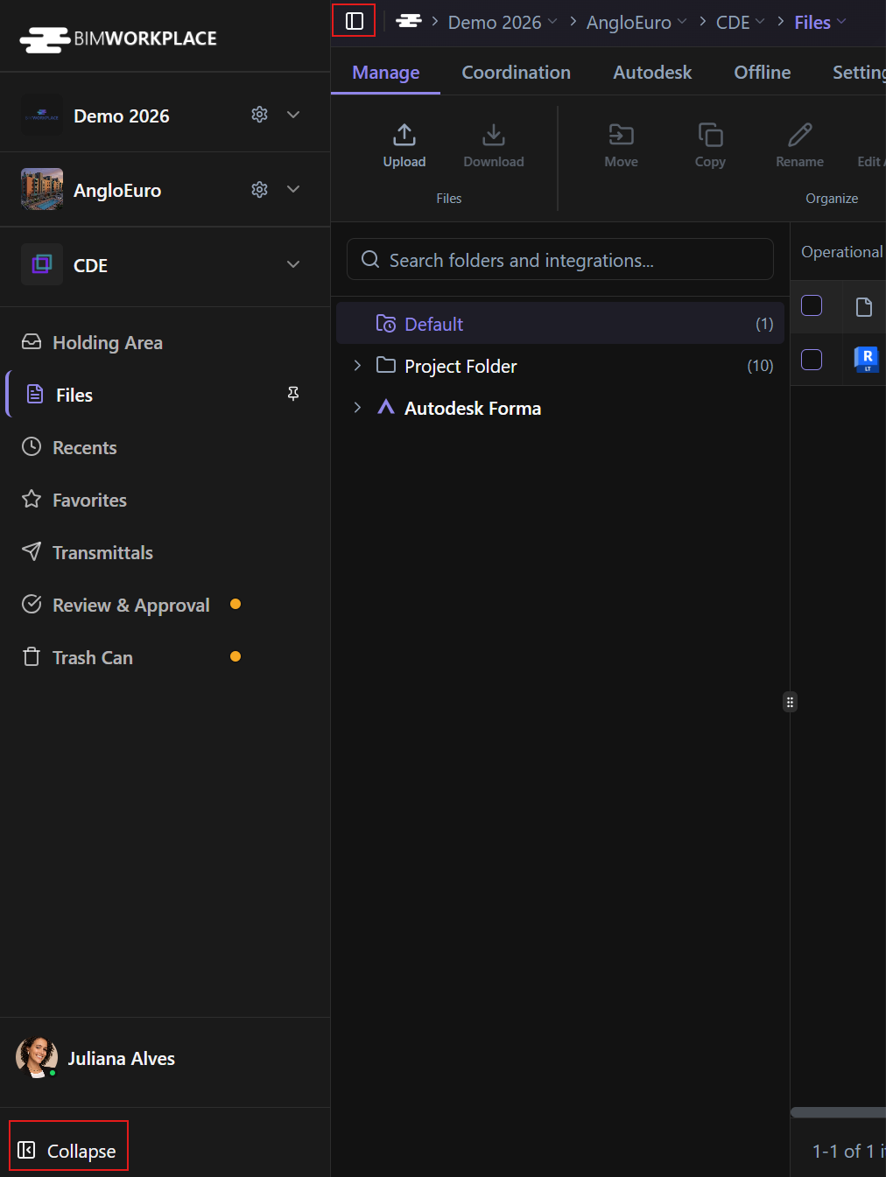
You can collapse the panel to make more space for the main content area or expand it when you need to access its contents.
- Locate the left panel.
- Click the collapse control to hide its contents.
- Click the expand control to display them again.
The left panel has a fixed width and cannot be resized manually.
Navigating with the left panel
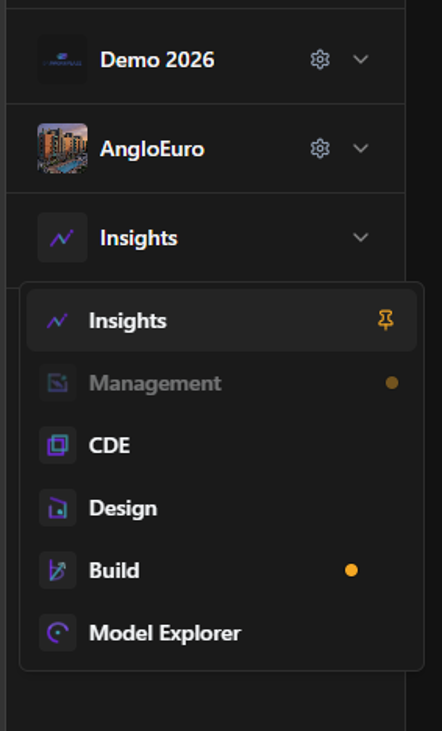
The left panel provides navigation options for the current Workplace, Project, and Module, including the pages available within each module.
The active menu item is highlighted to help you identify your current page.
The available menu items depend on your licenses and access permissions.
To switch between Workplaces, Projects, or Modules, click the corresponding name and select the desired option from the dropdown menu. You can also use the Breadcrumbs.
To set which module opens by default when you enter a project, click the pin icon next to the desired module.
To access Workplace Settings or Project Settings from any page, click the gear icon next to the corresponding Workplace or Project name.
Using the right panel
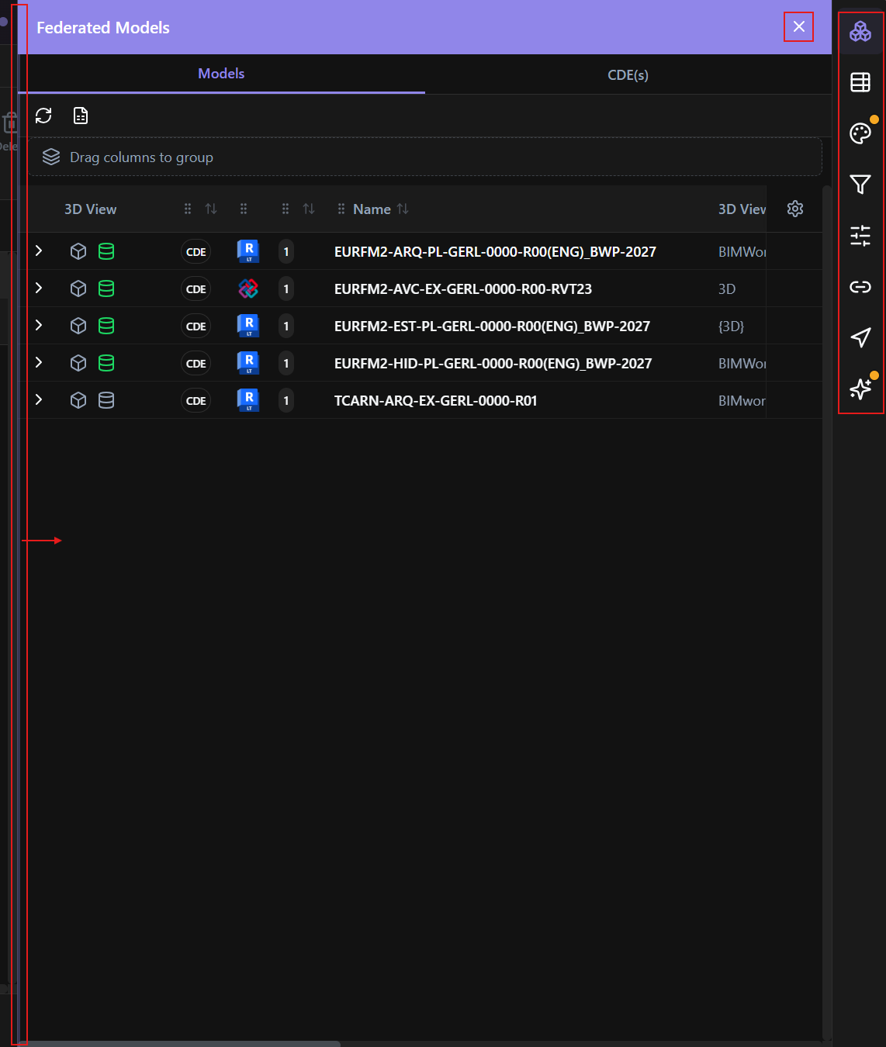
The right panel provides access to additional tools and contextual information, such as filters, properties, or other features available on the current page.
Unlike the left panel, the right panel is collapsed by default.
- Locate the available tools along the right side of the workspace.
- Select the tool you want to use.
- The corresponding panel opens and displays its contents.
- Close the panel when you no longer need it.
You can adjust the width of the right panel by dragging its boundary while it is open.
Available tools and information
The right panel provides different tools depending on the module and page you are using.
These may include filters, model properties, and other contextual information.
Refer to the relevant module articles for instructions on using these tools.
Was this article helpful?