Column Settings
Use Column Settings to customize which columns are displayed in tables throughout BIMWorkplace.
This allows you to focus on the information relevant to your work and hide columns you do not currently need.
For example, you can display additional information, such as creation dates or last update dates, or hide columns to make more space for the information you use most frequently.
Customizing column visibility
- Open the BIMWorkplace page containing the table you want to customize.
- Locate the Column Settings button (gear icon) on the far right of the table headers.
- Click Column Settings to display the available columns.
- Select the columns you want to display and deselect those you want to hide.
- Use the reorder icon next to each column to drag it into your preferred order.
- Review the table to confirm that the columns are displayed as intended.
The table updates to reflect your selections.
To restore the default column configuration, click Reset at the bottom of the Column Settings menu.
Note: In the CDE, Reset restores the column configuration defined by the Attribute Settings of the current folder.
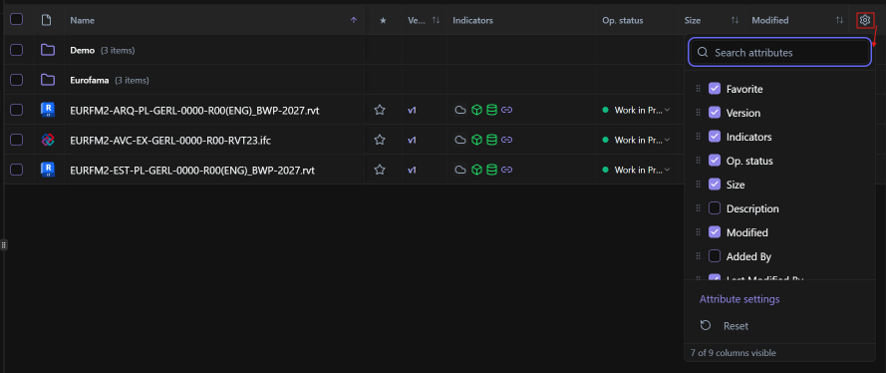
Understanding column visibility
The columns available in Column Settings depend on the table you are using.
Some columns may be hidden by default. You can display them whenever you need to access additional information.
Changes to column visibility and order apply only to the current table and do not affect other tables in BIMWorkplace.
These changes only affect how information is displayed. They do not modify or delete any underlying data.
Was this article helpful?