User Settings
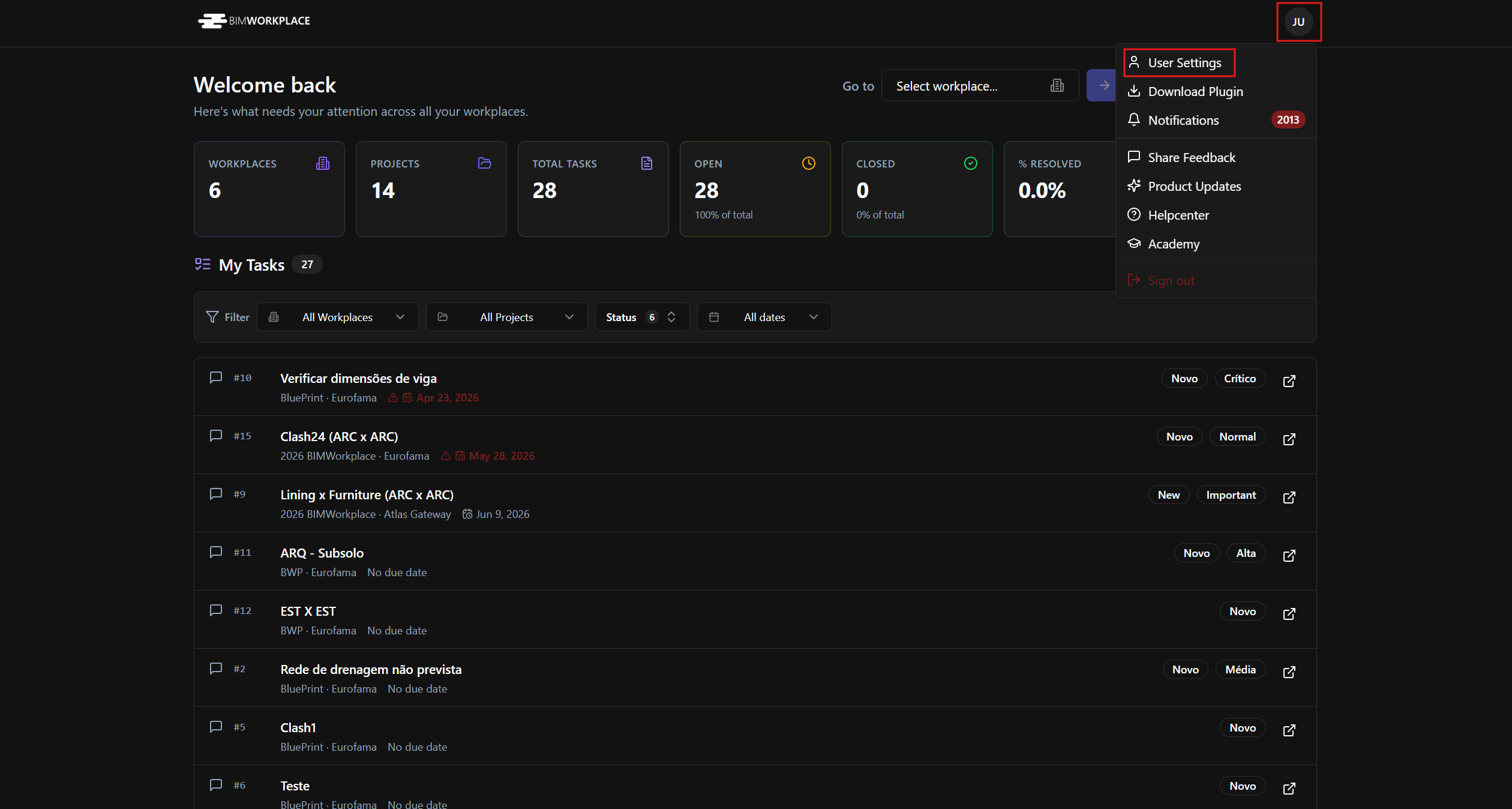
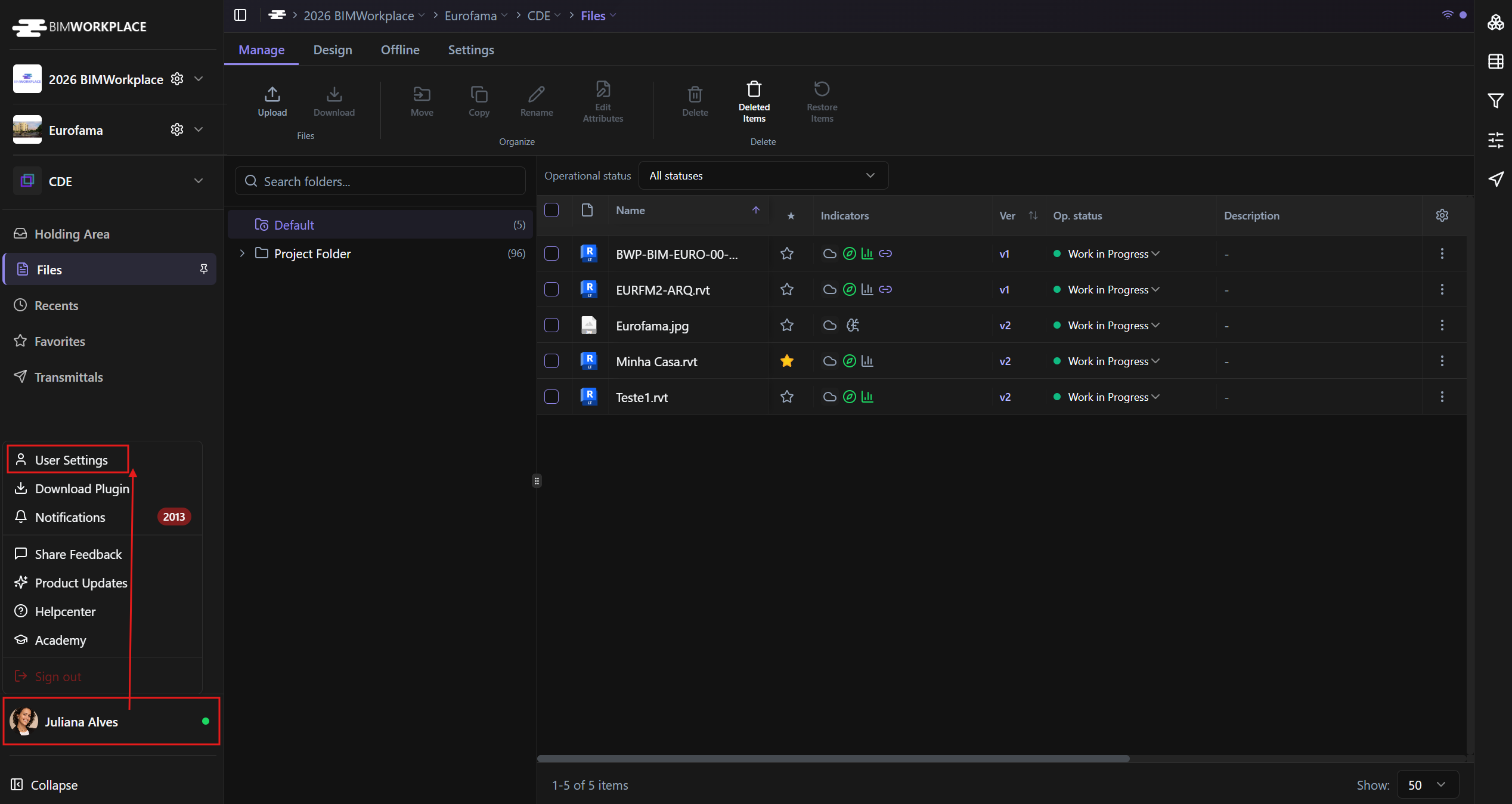
When you register on BIMWorkplace, you gain access to your personal area under User Settings.
This area is private and can only be managed by you. From User Settings, you can update your profile, adjust interface preferences, manage license relations, and review the licenses associated with your account.
My User
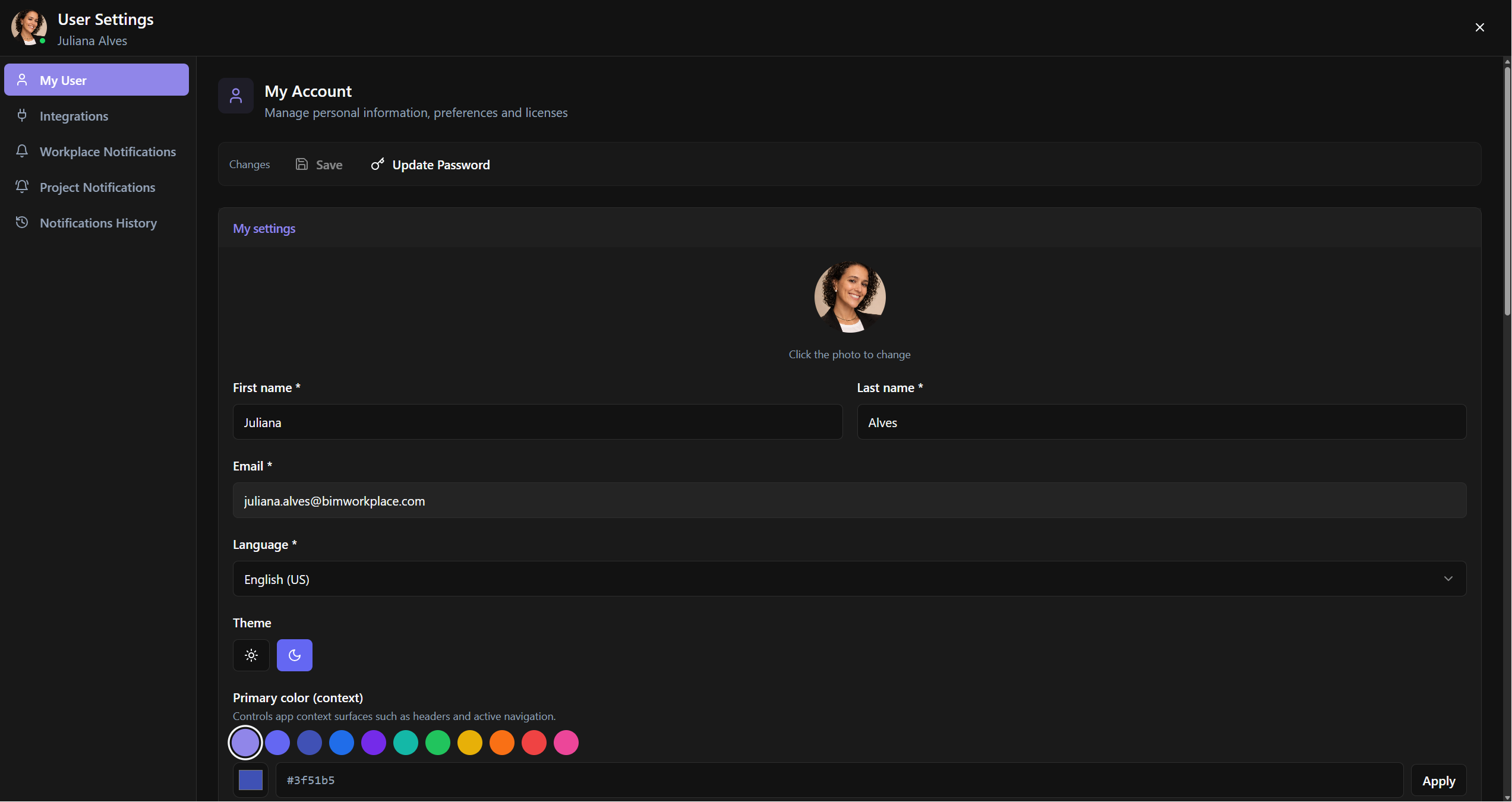
In My Account, you can manage your personal information, account security, and interface preferences.
You can:
o Update your personal details
o Change your password
o Upload or change your user photo
o Select your preferred language
o Choose the interface theme
o Select your preferred accent color
The selected language is applied across the BIMWorkplace platform.
Updating your password
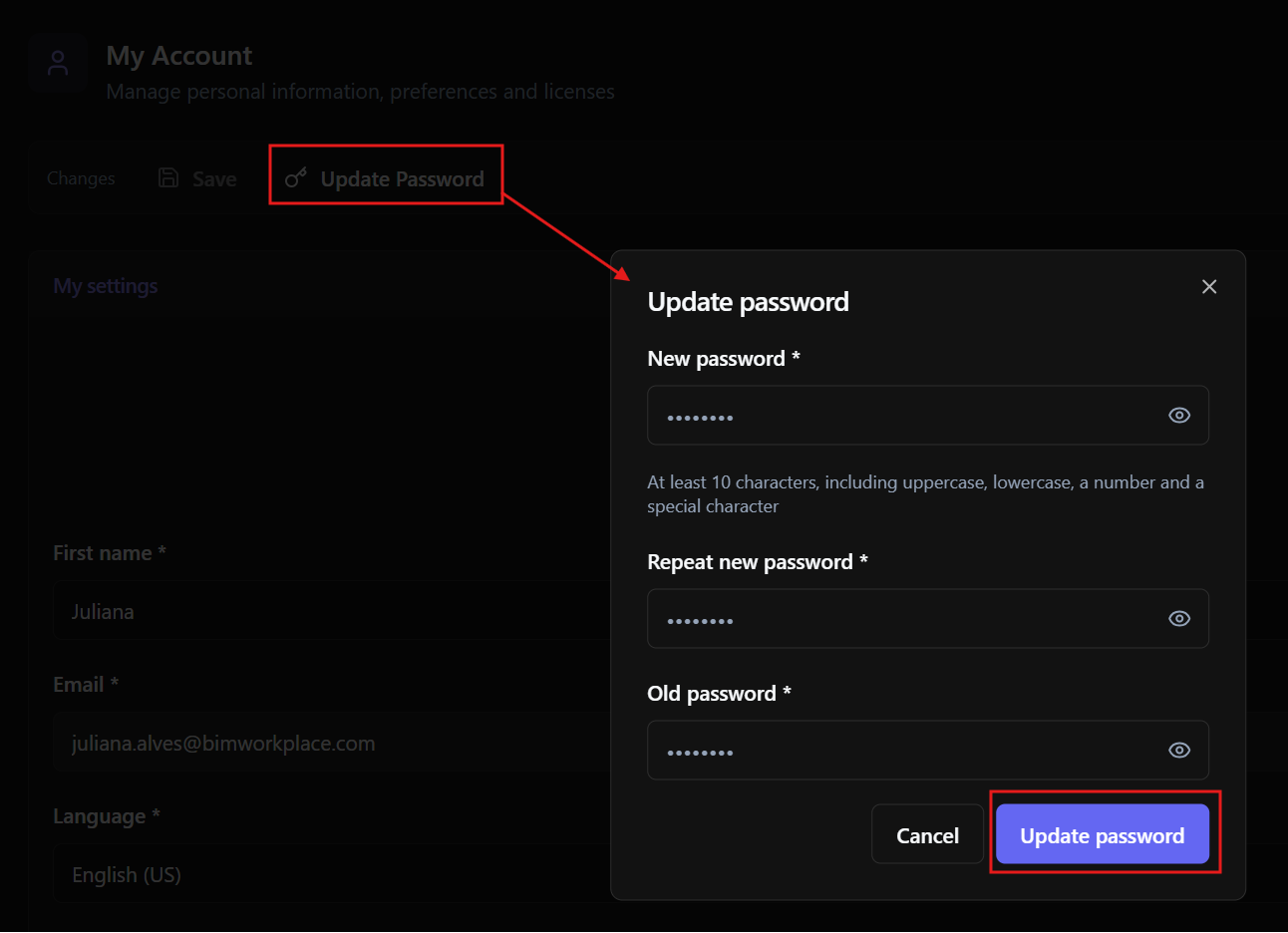
To change your account password:
Select Update Password.
Enter and confirm your new password
Enter your current password.
Save the changes.
After updating your password, you will use the new password the next time you log in to BIMWorkplace.
License Management
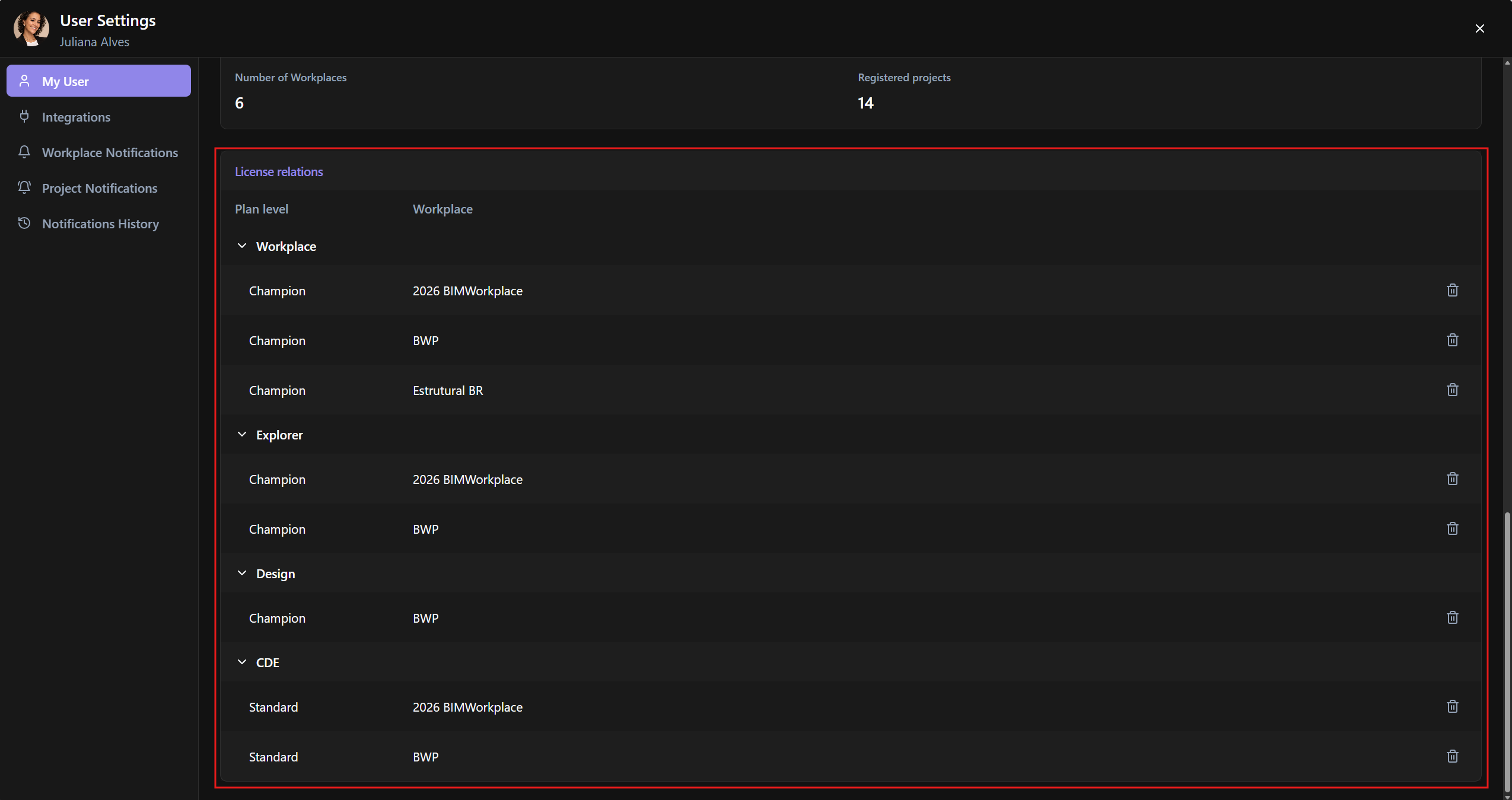
In License Relations, you can view and manage the licenses associated with your account.
You can:
o View all licenses linked to your user account
o Check which Workplaces are associated with your licenses
o Delete license relations linked to Workplaces you no longer use
This helps keep your account organized, especially if you participate in multiple Workplaces or projects.
How licenses work
BIMWorkplace uses a shared license system.
Each user must have at least one active license for each module they need to use.
A single active license for a module is enough for you to access that module across multiple projects and Workplaces, as long as you have been granted access.
For example, if you already have an active Explorer license from one Workplace and are invited to another Workplace, the second Workplace does not need to assign another Explorer license to you.
This helps avoid duplicate license assignment when users collaborate across different organizations or projects.
Important note
Access to a module depends on both license availability and permissions.
Having a license allows you to use the module, but your access to specific Workplaces, projects, folders, topics, views, or data still depends on the permissions assigned by the responsible managers.
Was this article helpful?