Connecting Autodesk Forma to a Workplace
Connect Autodesk Forma to a Workplace to allow BIMWorkplace projects in that Workplace to access Autodesk content.
The Autodesk account is connected at the Workplace level and shared by the projects in that Workplace. Each BIMWorkplace project can then be connected to a specific Autodesk Hub and project in Project Settings.
Before you start
Make sure that:
- You have access to Workplace Settings > Autodesk Forma.
- You have an Autodesk account that can be used for the Workplace connection.
- The Autodesk account has access to the Autodesk resources that BIMWorkplace needs to use.
- An Autodesk Hub Admin can add custom integrations to the relevant Autodesk account.
Before connecting the Autodesk account, BIMWorkplace App must be added as a custom integration in Autodesk.
Recommended: use a dedicated Autodesk integration account
We recommend creating a dedicated company Autodesk account for the BIMWorkplace integration instead of connecting an individual user's account.
The email address used for this account must be registered with Autodesk, and the account must have access to the Autodesk resources that BIMWorkplace needs to use.
The connected account determines the Autodesk access available through the Workplace integration. Using a dedicated account prevents the integration from depending on an individual employee's account, permissions, or continued access to the organization.
If a BIMWorkplace user does not have a corresponding Autodesk account registered with the same email address, actions performed in Autodesk through the integration may use the connected Workplace Autodesk account. For this reason, using an employee's personal Autodesk account for the Workplace connection is not recommended.
Allowing BIMWorkplace in Autodesk
Before connecting the Workplace Autodesk account, add BIMWorkplace App as a custom integration in Autodesk.
- Open Workplace Settings.
- Select Autodesk Forma.
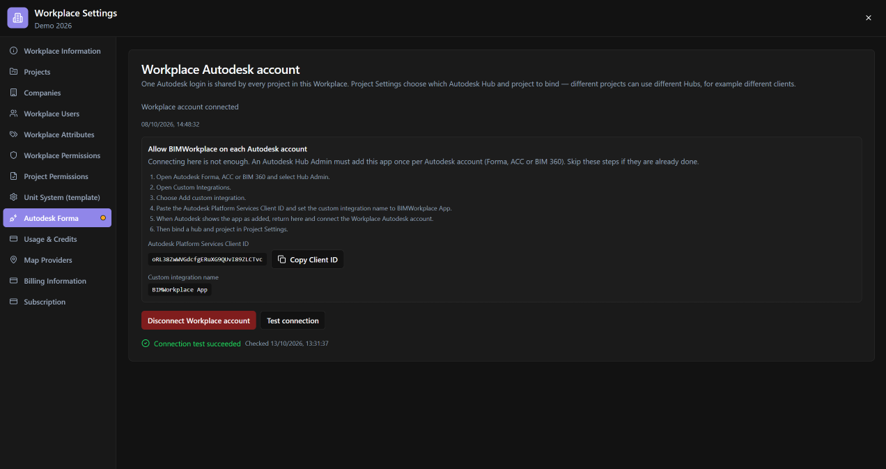
- Under Allow BIMWorkplace on each Autodesk account, locate the Autodesk Platform Services Client ID.
- Click Copy Client ID.
- Access your Autodesk Forma account and select Hub Admin.
- Open Custom Integrations.
- Select Add custom integration.
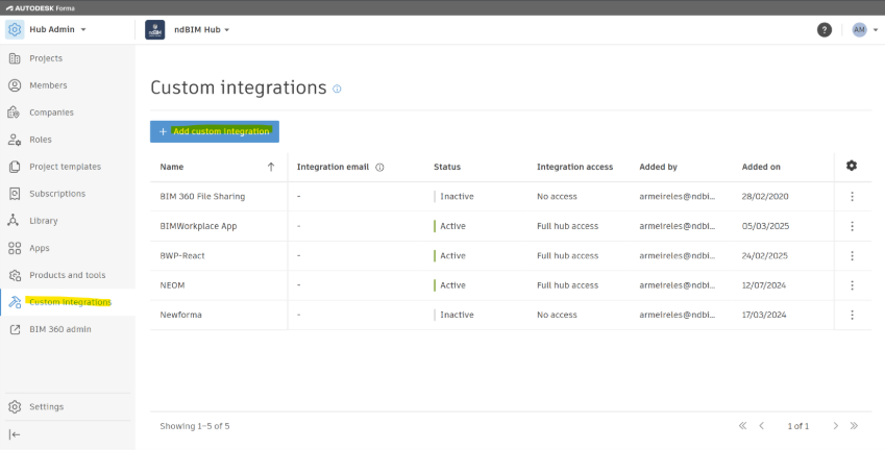
- Paste the Autodesk Platform Services Client ID copied from BIMWorkplace.
- Set the custom integration name to BIMWorkplace App.
- Add the integration.
- Return to BIMWorkplace.
If BIMWorkplace App has already been added to the relevant Autodesk account, you do not need to repeat this configuration.
Connecting the Workplace Autodesk account
After the custom integration is available in Autodesk:
- In Workplace Settings > Autodesk Forma, click Connect Autodesk for this Workplace.
- Sign in with the Autodesk account you want to use for the integration.
- Complete the Autodesk authorization.
- Return to BIMWorkplace.
The Workplace Autodesk account section shows that the account is connected.
This connection is shared by the projects in the Workplace. Connecting the account does not connect individual BIMWorkplace projects to Autodesk projects. The Autodesk Hub and project used by each BIMWorkplace project are configured separately in Project Settings.
Testing the connection
After connecting the account, verify that BIMWorkplace can communicate with Autodesk:
- Click Test connection.
- Wait for the test to complete.
- Confirm that the connection test is successful.
If the test fails, verify that the Autodesk account is still authorized and that BIMWorkplace App is correctly configured in Autodesk.
Disconnecting Autodesk Forma
To remove the Autodesk connection from the Workplace, click Disconnect Workplace account.
Disconnecting the account breaks the connection between the BIMWorkplace projects in that Workplace and their connected Autodesk Forma projects.
To use the Autodesk integration again, connect an Autodesk account to the Workplace and verify the required project connections.
Next step
After connecting Autodesk Forma to the Workplace, connect each BIMWorkplace project to the appropriate Autodesk Hub and project in Project Settings > Autodesk Forma.
For more information, see Connecting a Project to Autodesk Forma.
Was this article helpful?