Billing Information
Use Billing Information in Workplace Settings to view your subscription status, check your current plan and resource usage, and manage billing-related information.
From this page, you can also access the Billing Portal, view the Workplace owner, transfer ownership, or delete the Workplace.
Before you start
Make sure that:
- You have access to Workplace Settings > Billing Information.
- You have the required permissions to access billing information.
Some actions, such as changing the Workplace owner or deleting the Workplace, are available only to the current Workplace owner.
Checking your subscription status
- Open Workplace Settings.
- Select Billing Information.
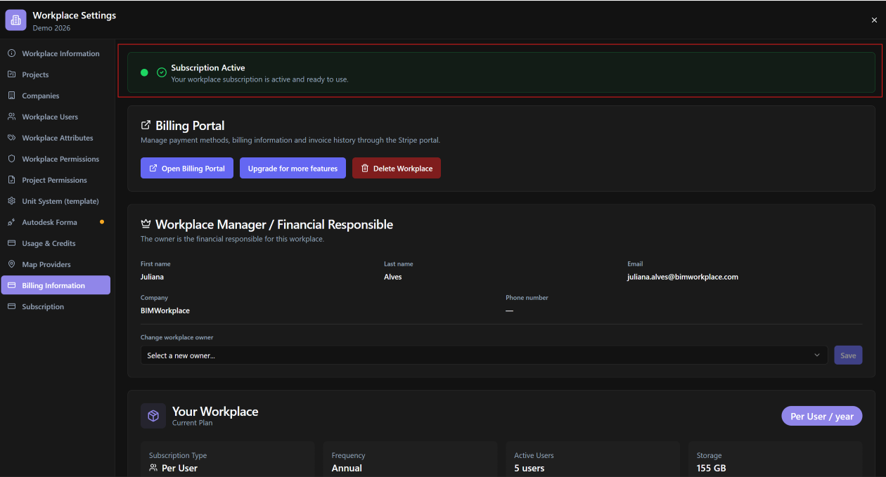
- Check the subscription status displayed at the top of the page.
Depending on your subscription, you may see:
- Subscription Active: Your subscription is active and ready to use.
- Payment Pending: A payment is still pending. Follow the instructions displayed to complete or verify the payment.
- Subscription Cancelled: Your subscription has been cancelled but may remain active until the indicated expiration date.
If your subscription has been cancelled but is still active, you can select Reactivate Subscription before the expiration date.
When a payment is pending, you may also use Refresh Status to check for updates.
Accessing the Billing Portal
The Billing Portal allows you to manage payment information and review your billing history.
To open it:
- Locate the Billing Portal section.
- Click Open Billing Portal.
- Use the portal to manage your payment methods, billing information, or invoice history.
The Billing Portal opens outside BIMWorkplace.
Note: For Enterprise subscriptions, billing and plan changes are managed directly with your BIMWorkplace account team. The Billing Portal may not be available.
Changing your subscription plan
To change your current plan or add more features to your Workplace:
- Click Upgrade for more features.
- You will be redirected to the Subscription page, where you can review and modify your subscription.
From the Subscription page, you can change your subscription type, billing frequency, module licenses, and other resources, such as additional storage and credits.
For detailed instructions, see Subscription.
Note: For Enterprise subscriptions, plan changes are managed directly with your BIMWorkplace account team.
Deleting a Workplace
The Delete Workplace action is available only to the current Workplace owner.
To delete a Workplace:
- Locate Delete Workplace in the Billing Portal section.
- Click Delete Workplace.
- Review the confirmation dialog and enter your password to confirm.
Warning: Deleting a Workplace is irreversible. This action removes the Workplace and can affect access to its projects and associated information. Make sure you no longer need the Workplace before confirming the deletion.
Changing the Workplace owner
The Workplace Manager / Financial Responsible section displays information about the current Workplace owner, including their name, email address, company, and phone number.
The current owner can transfer ownership to another Workplace user.
To change the owner:
- Locate Workplace Manager / Financial Responsible.
- Under Change workplace owner, click Select a new owner....
- Select the user who will become the new owner.
- Click Save.
The selected user becomes the new Workplace owner.
Important: This action changes Workplace ownership, not just the billing contact. Make sure you select the correct user before saving.
Viewing your current plan and usage
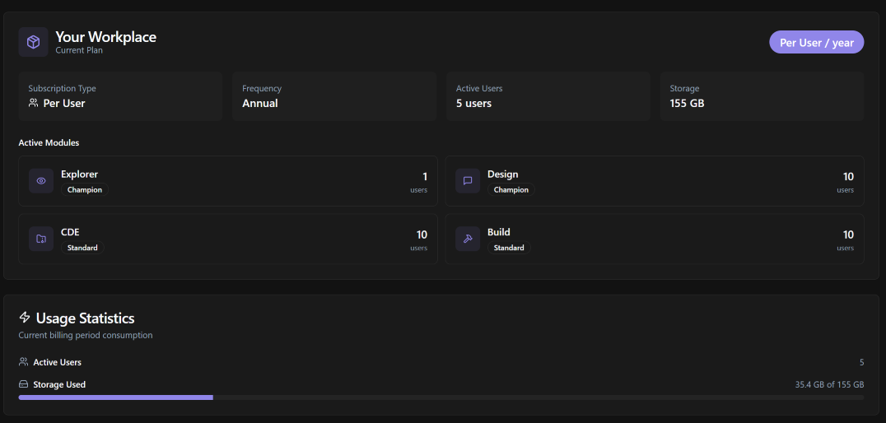
The Your Workplace section provides an overview of your subscription.
Depending on your subscription type, you can review:
- Subscription Type: Per User, Per Project, or Per Enterprise.
- Frequency: Monthly or Annual.
- Total Projects or Active Users: The project allowance or number of users with licenses, depending on your subscription type.
- Storage: The storage capacity available to your Workplace.
- Active Modules: The modules included in your subscription and their license levels.
The Usage Statistics section shows how your Workplace is using its available resources, including projects, users, and storage.
Use this information to understand your current capacity and determine whether you need to adjust your subscription.
For instructions on changing your plan, see Subscription.
Troubleshooting
I cannot access Billing Information.
Check whether your account has the required Workplace permissions.
My payment was completed, but the subscription is still pending.
Use Refresh Status, when available, to check whether the payment status has been updated. If the problem persists, contact us.
I cannot change the Workplace owner or delete the Workplace.
These actions are available only to the current Workplace owner.
Related articles
- Subscription — Manage your subscription, modules, and additional resources.
- Usage and Credits — View credit balances and usage history.
Was this article helpful?