Workplace Project Portfolio
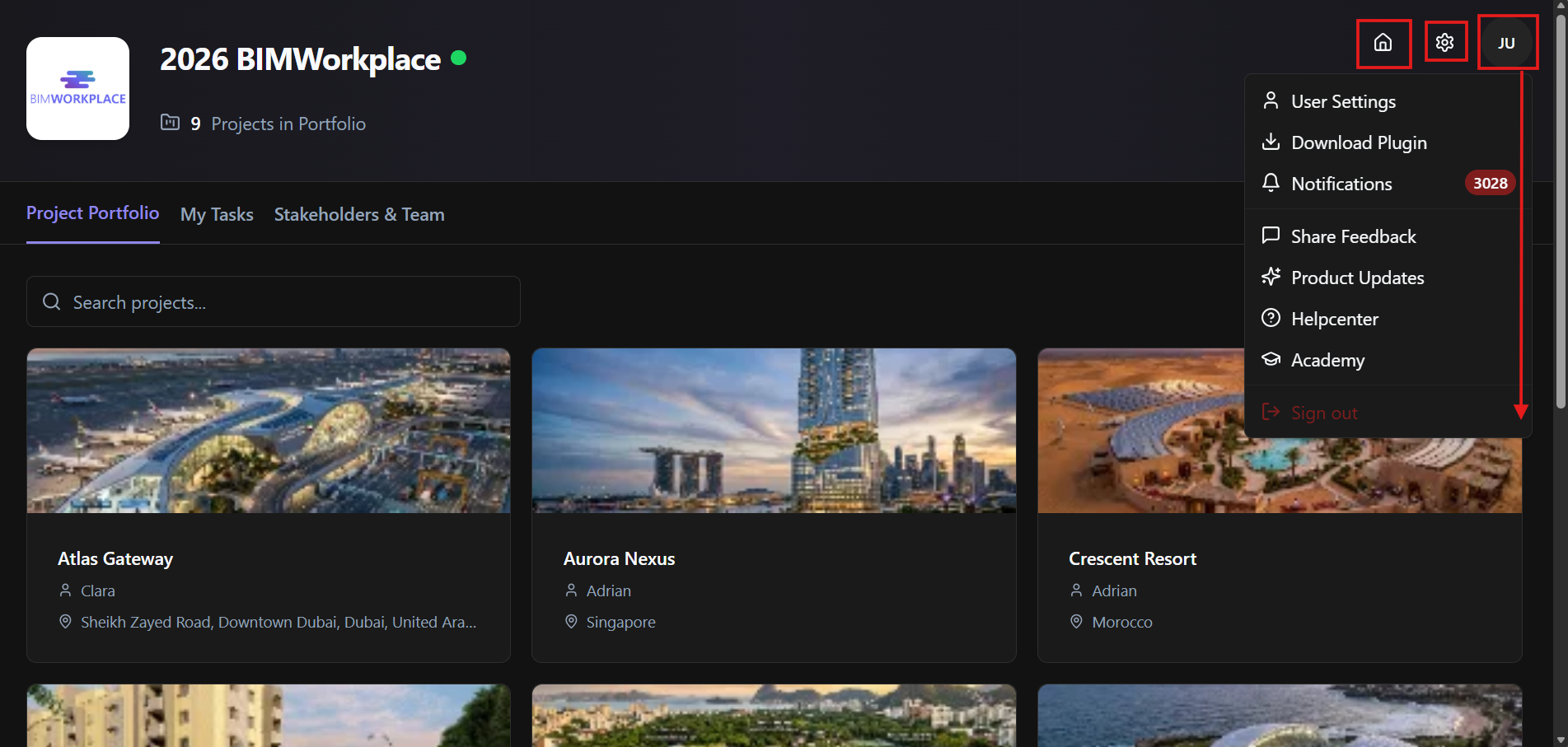
After selecting a Workplace from the Home Page, the Project Portfolio page is the first page displayed.
This page provides access to the projects inside the selected Workplace and gives you a workplace-level view of tasks, users, teams, and settings.
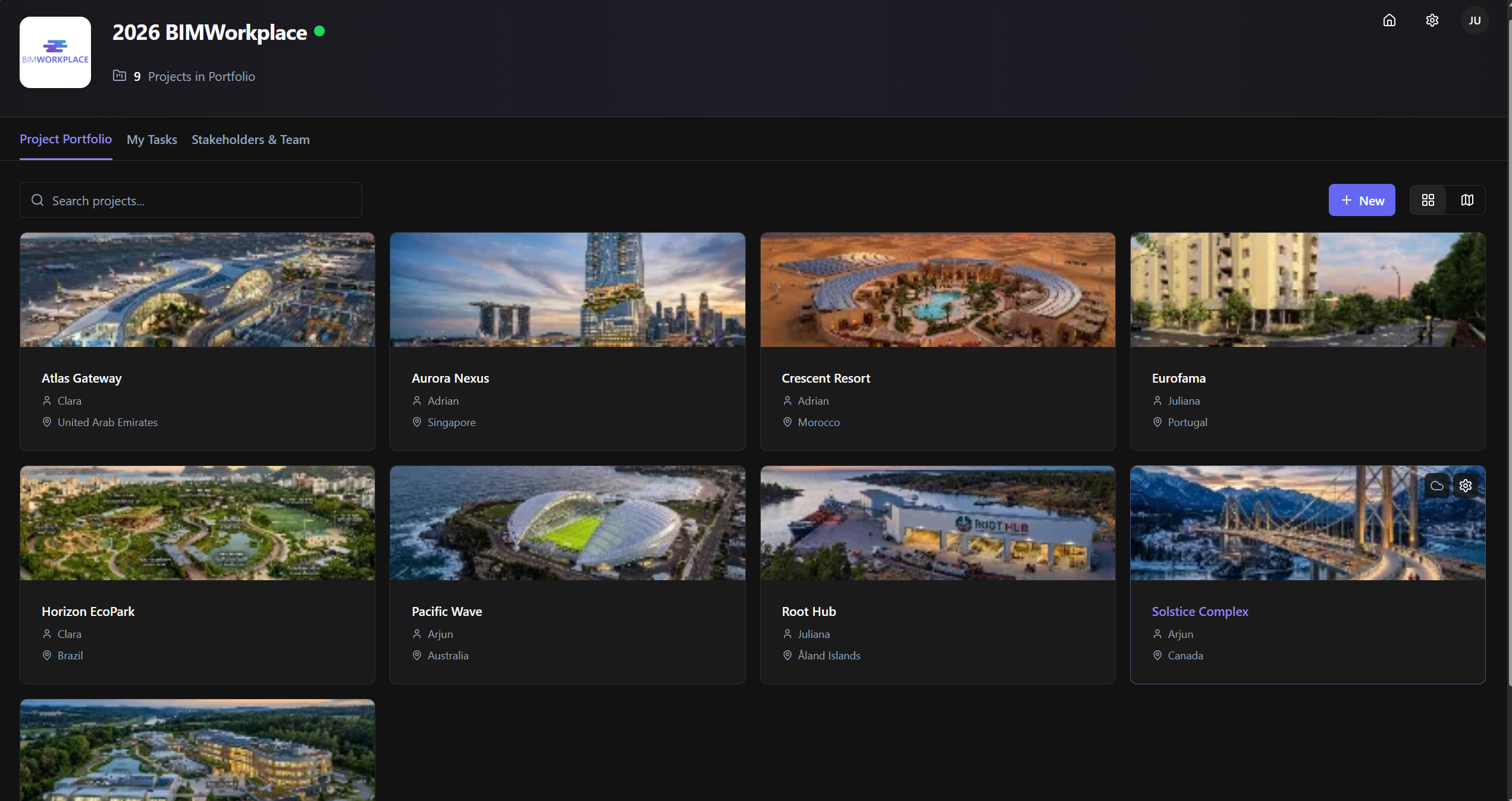
Project Portfolio
The Project Portfolio page shows all projects available in the selected Workplace.
Each project is displayed as a project card with key information, such as:
Project image
Project name
Project manager
Project location
Click a project card to open the project.
Search projects
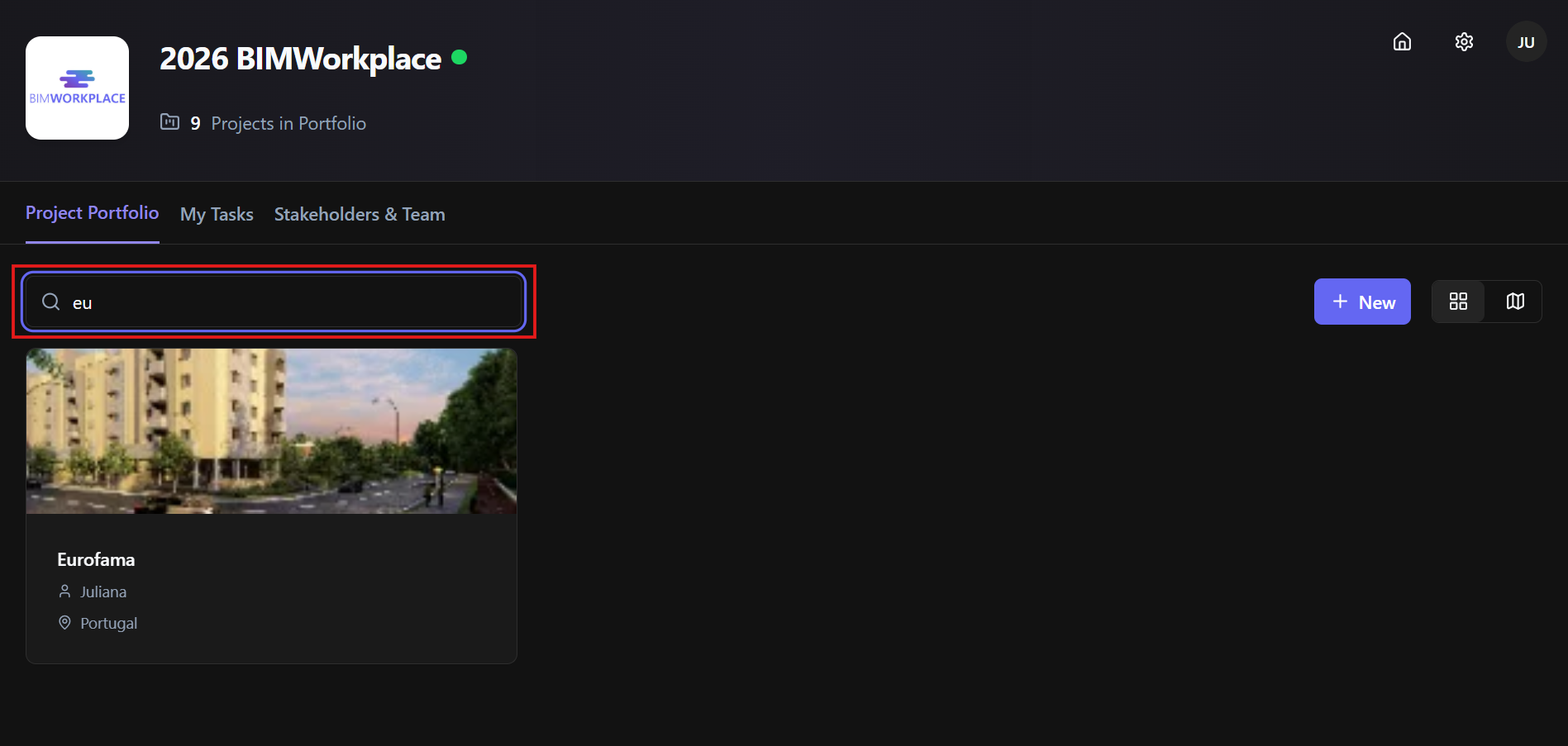
Use the search bar to find a project by name.
This is useful when the Workplace contains many projects and you need to access a specific one quickly.
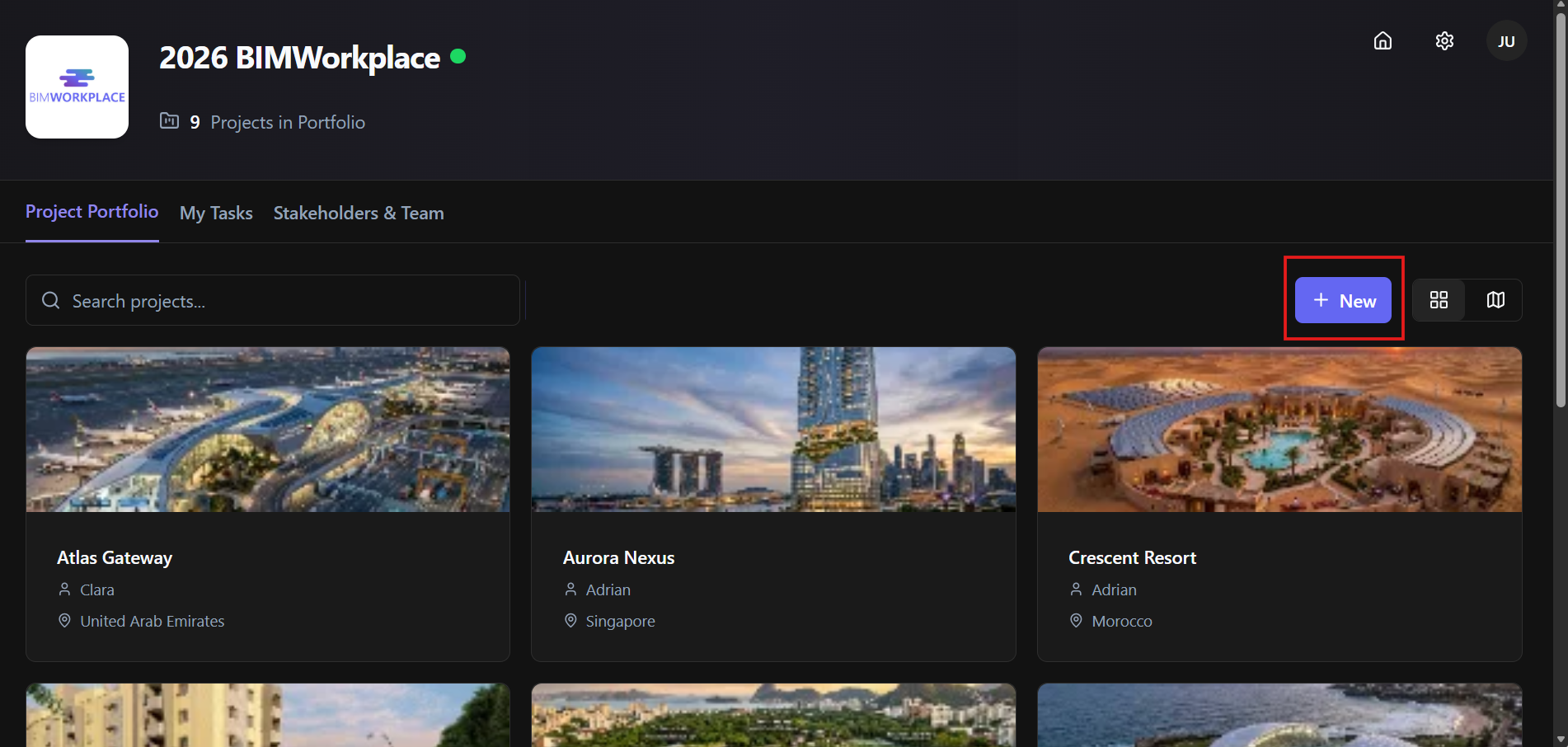
Create a new project
Use the New button to create a new project inside the Workplace.
Project creation depends on your permissions in the Workplace.
Change the project view
The Project Portfolio can be viewed in two different layouts.
Use the view buttons on the right side of the page to switch between them.
Card view
The first option is Card View (the default view).
This displays projects as cards with the project image, name, manager, and location.
Map view
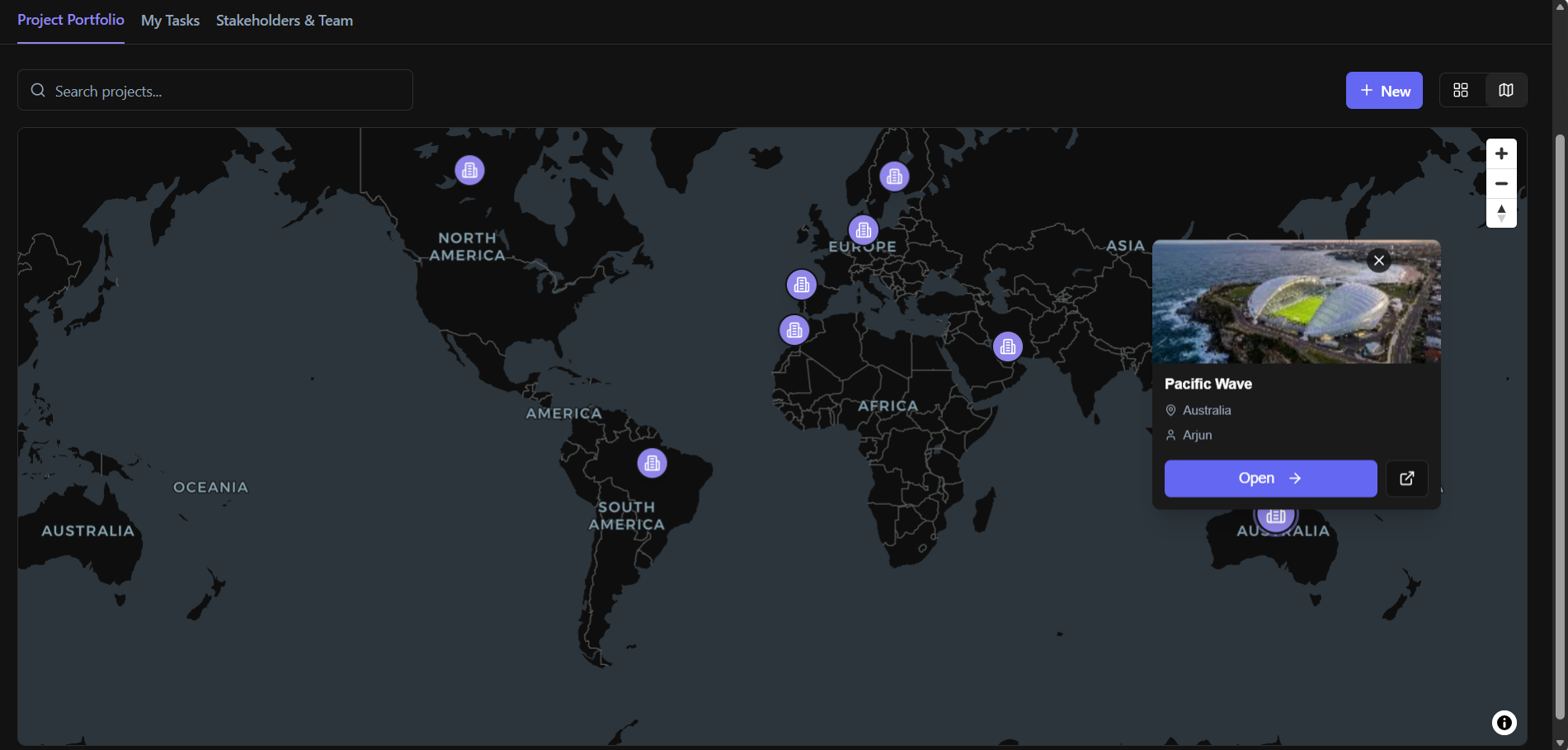
The second option is Map View.
This displays projects on a map based on their configured location.
Map View is useful when the Workplace includes projects in different cities, countries, or regions.
Access Project Settings
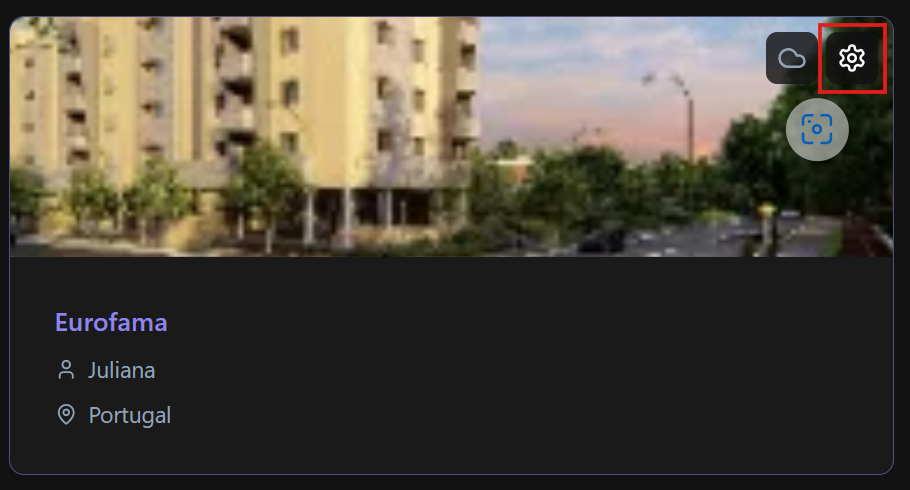
You can access Project Settings directly from a project card.
Hover over the project image and click the settings icon displayed on top of the project image.
Project Settings allow authorized users to manage project information, users, teams, attributes, naming standards, units, and other project-level configurations.
My Tasks
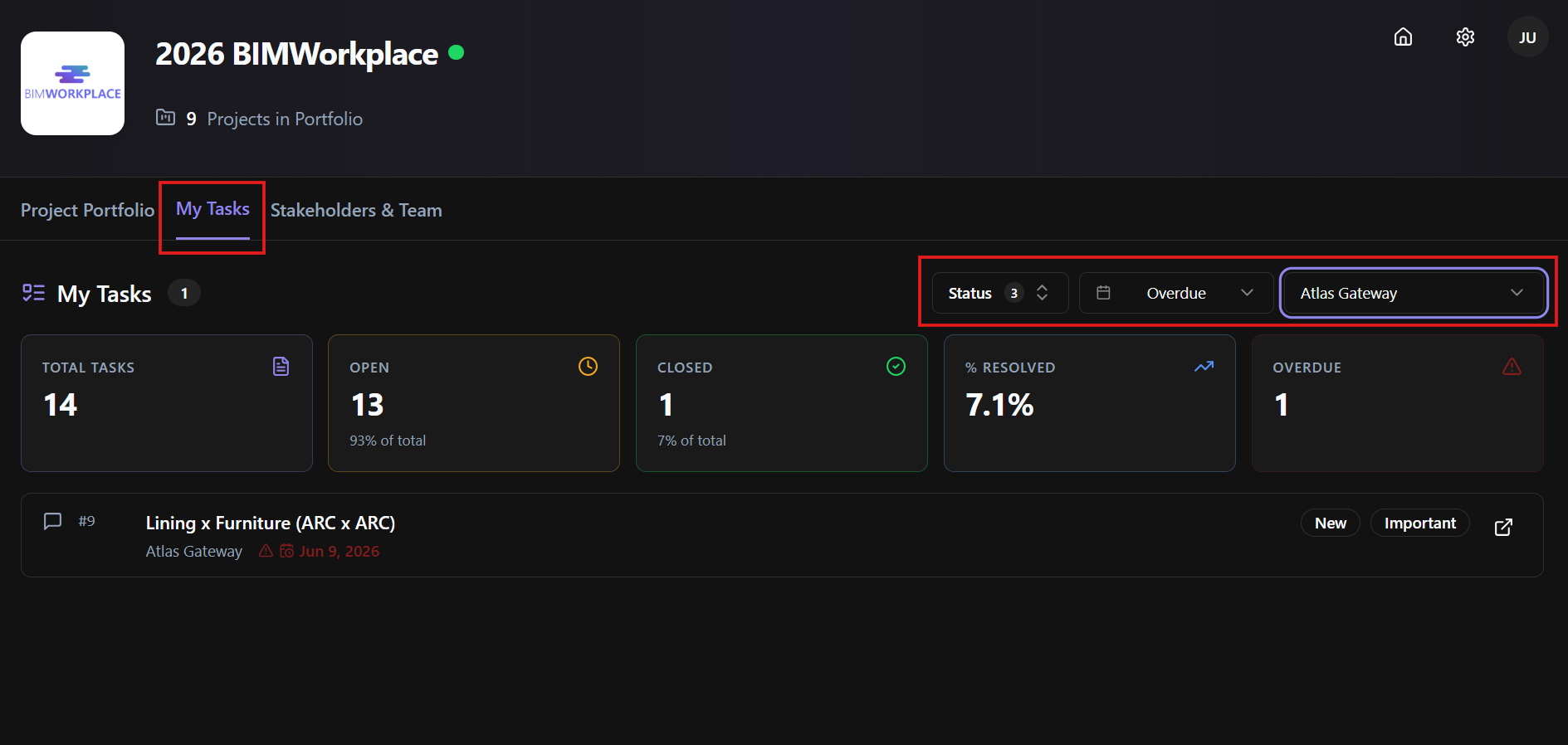
The My Tasks tab shows a workplace-specific task summary.
It works as a filtered view of the tasks shown on the Home Page, limited to the selected Workplace.
Use this area to review the items assigned to you within that Workplace.
You can filter tasks by:
· Task status
· Due date
· Project within the Workplace
This helps you focus on open, overdue, upcoming, or project-specific responsibilities.
Stakeholders & Team
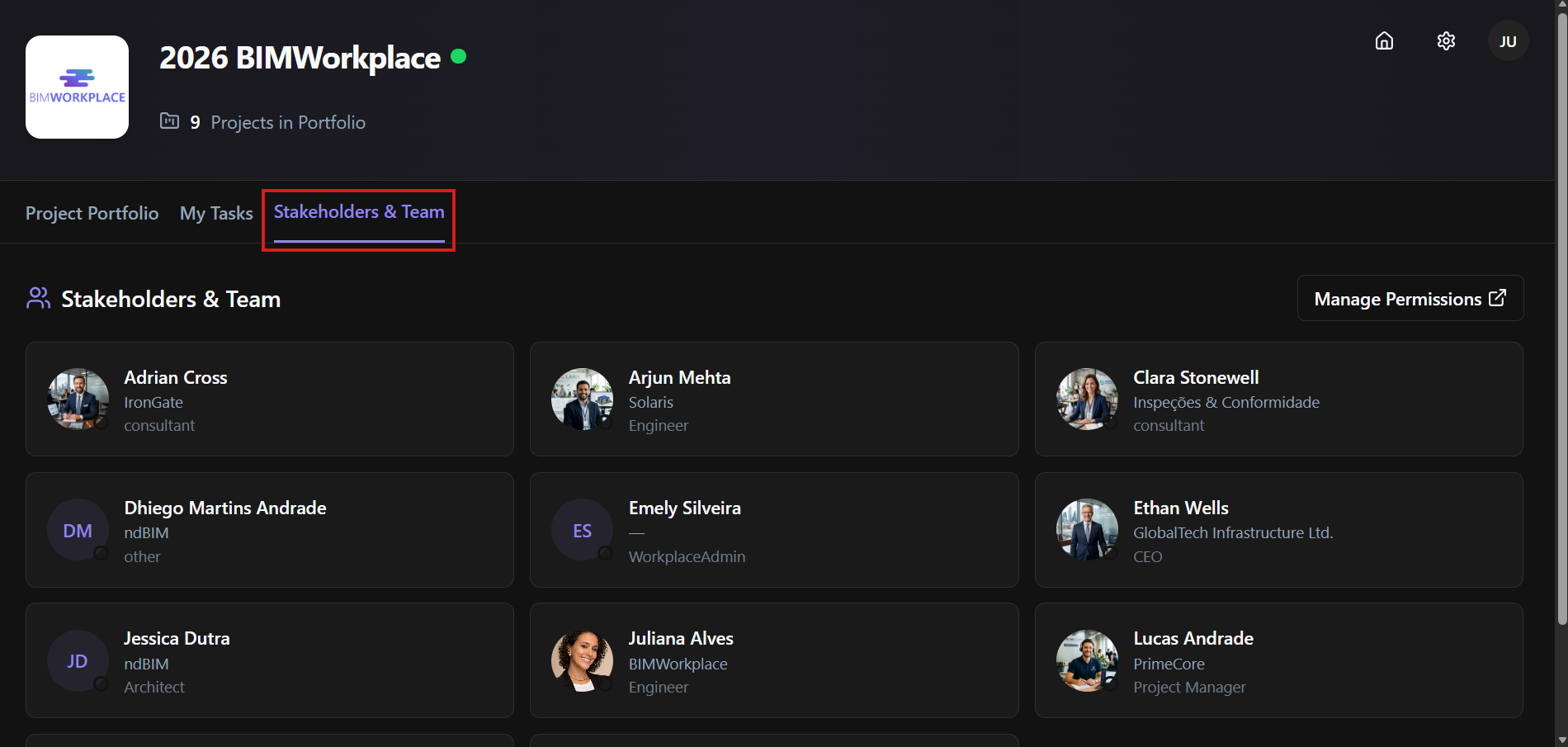
The Stakeholders & Team tab shows the users who are part of the Workplace.
Use this area to review the people involved in the Workplace and understand who has access to the environment.
Top-right options
The top-right area gives quick access to general navigation and settings.
From this area, you can:
· Return to the Home Page
· Access Workplace Settings
· Open user options, such as User Settings, plugin downloads, and other account actions
These options are available from the icons in the top-right corner of the page.
Was this article helpful?