Files
UI: Files
Module: CDE
Purpose
Navigate and manage the folders and files structure of the project CDE: upload, versions, locks, sharing, 3D federation and opening in the viewer.
Relevance
It is the daily repository of the project. Naming standards, approval and holding depend on this area. Without disciplined Files, the rest of the CDE (transmittals, reviews) starts from weak data.
Use example
The coordinator selects the folder 02_Models/Architecture, performs Upload of an IFC as New Model, Architecture discipline. If naming fails, the file falls into Holding Area; after correcting, it returns to Files, Federate / View 3D and opens in Explorer.
Who can use it
Members with CDE permission (read/write according to role). Context menu actions respect permissions and locks.
Screen anatomy
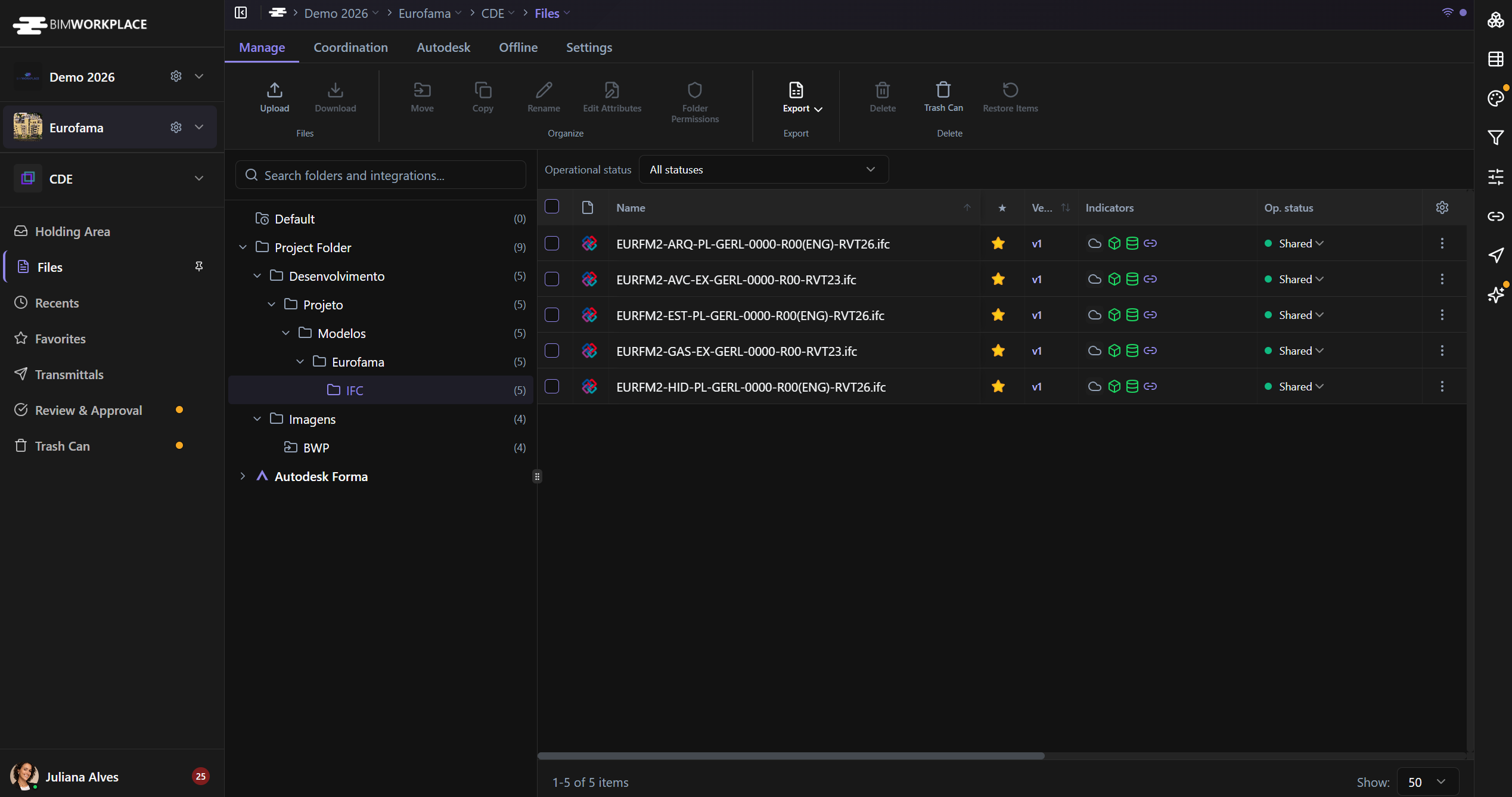
- Folder tree (left) — folders; naming standard applied; folder context menu.
- File list (center) — configurable columns + indicators.
- Ribbon — Manage / Design / Offline / Settings.
- Search & Filters — right side panel (no longer in the ribbon).
- Sheets/dialogs: Edit Attributes, Version History, File History, Comments, Share, 3D preview cart, Upload wizard.
Options and fields
Ribbon
| Group | Actions |
|---|---|
| Manage → Files | Upload · Download |
| Manage → Organize | Move · Copy · Rename · Edit Attributes · Folder Permissions |
| Manage → Delete | Delete · Deleted Items · Restore Items |
| Design → Communication | Comments · Version · History · Topic · Compare |
| Design → 3D Preview | View 3D · Add to 3D Basket |
| Design → Sharing | Federate · Unfederate · Optimize 3D · Share · Delete Share · Create Transmittal |
| Offline | Make Offline · Remove Offline |
| Settings | Attributes · Naming Standard · Configurations · Reset folder permissions |
Search & Filters (right panel)
Search files… · Apply · Reset · Save filter · Folder Options (Current folder / All folders / Subfolders) · File Types · Current Versions · Last updated · Operational status · Description · Project Attributes · Custom Attributes · tabs Filters / Saved CDE filters (Name · Visibility Public/Private).
List columns
Name · Version · Op. status · Description · Size · Modified · Added By · Last Modified By · Indicators · Path · ★ (favorite) · Offline (desktop) · folder dynamic attributes (Area, Label, Milestone, Status, Discipline, Phase, Zone, Level, Classification, Priority, custom).
Indicators: Federated · Has Comments · Locked · Review Pending · Approved · Rejected · Linked to Autodesk ACC · Publicly shared.
File context menu
Download · Lock (Soft) · Lock (Hard) · Unlock · Request unlock · Rename · Copy · Move · Delete · Comments · View Versions · History · Share · Federate · Optimize for 3D · Compare Versions · Add Version · Make Available Offline · Remove Offline · Add/Remove from 3D preview.
Folder context menu
Add Subfolder · Upload Files · Rename · Move · Copy · Download as ZIP · Delete · Permissions · Apply/Remove Naming Standard · Attribute Settings · Apply operational status to folder… · Add to AI / Disable automatic AI.
Edit Attributes / Version / Share (sheets)
| Sheet | Main fields / actions |
|---|---|
| Edit Attributes | Name · Extension · Description · Operational document status · Status comment · File Information (Version, Size, Created, Version By, Modified, Modified By) · Project Attributes |
| Version History | Current · Make current · Delete Version · Download source · Break Link and Add Version · Attributes |
| Share | Share with (Project members / Anyone with the link) · Link expires · Select version (Always latest / Only current) · Links / QR · Group or Individual links |
| 3D preview cart | Clear all · Open in 3D viewer |
Upload wizard
Select Files → Destination → Information → Upload
Select Files (drag-drop; IFC, RVT, NWC, NWD, SKP, …) · Destination folder · Per-file: New Model / Existing Model Version · Model Name · Discipline · Select Existing Model · Start Upload (Pending / Completed / Failed).
How to use
Open
- Module selector → CDE → Files.
Navigate and filter
- Expand folders in the tree.
- Open Search & Filters in the right panel; Apply.
- Adjust columns if you need attributes.
Upload
- Destination folder → ribbon Upload.
- Files → New Model or Existing Version → metadata → Start Upload.
- If validation fails → Holding Area.
3D / sharing
- Add to 3D Basket / Federate / View 3D → Explorer.
- Share or Create Transmittal as appropriate.
Links
Was this article helpful?