CDE Dashboard
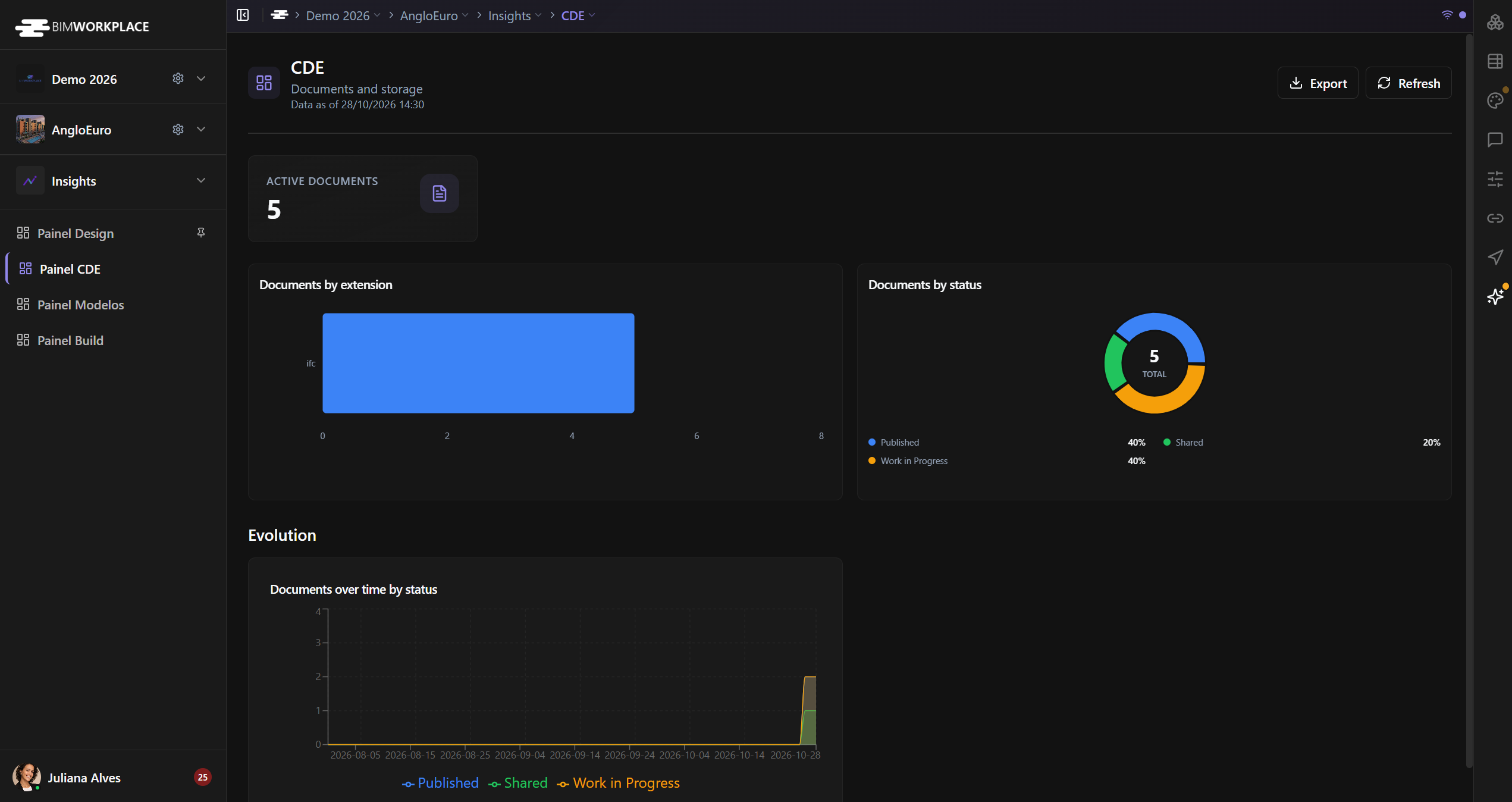
Use the CDE Dashboard in Insights to review document inventory and document status information for your project.
Before you start
Open Insights > CDE Dashboard. You need permission to access the dashboard. Document metrics also respect the access available to you in the CDE, so your totals may differ from those of another project member.
Understand the indicators
- Active Documents — count of documents considered active by the CDE metric.
- Documents by Extension — distribution of documents by file extension.
- Documents by Status — distribution of documents across their statuses.
- Document Status Over Time — historical view of document status information.
Use the distribution charts to identify the file types and statuses represented in the accessible document set. The historical chart depends on available records.
Refresh and export
Select Refresh to request updated data. If your permissions allow it, select Export and choose PNG or PDF.
If a metric is unavailable, check whether relevant documents exist and whether you can access their CDE folders.
See Using Dashboards for shared dashboard controls.
Was this article helpful?