Connecting a Project to Autodesk Forma
Connect a BIMWorkplace project to an Autodesk Forma project to access supported Autodesk content and use the available integration features.
Before connecting the projects, an Autodesk account must be connected to the Workplace. This account provides access to Autodesk Forma, while the project connection determines which Autodesk project is associated with each BIMWorkplace project.
Each BIMWorkplace project can be connected to an Autodesk project from a different Hub, provided that the connected Workplace Autodesk account has the required access.
Before you start
Make sure that:
- An Autodesk account is connected in Workplace Settings > Autodesk Forma.
- The connected Autodesk account has access to the Autodesk Hub and project you want to use.
- You have access to Project Settings > Autodesk Forma and the required permissions to manage the integration.
For instructions on connecting the Workplace account, see Connecting Autodesk Forma to a Workplace.
Connecting an Autodesk Forma project
- Open Project Settings.
- Select Autodesk Forma.
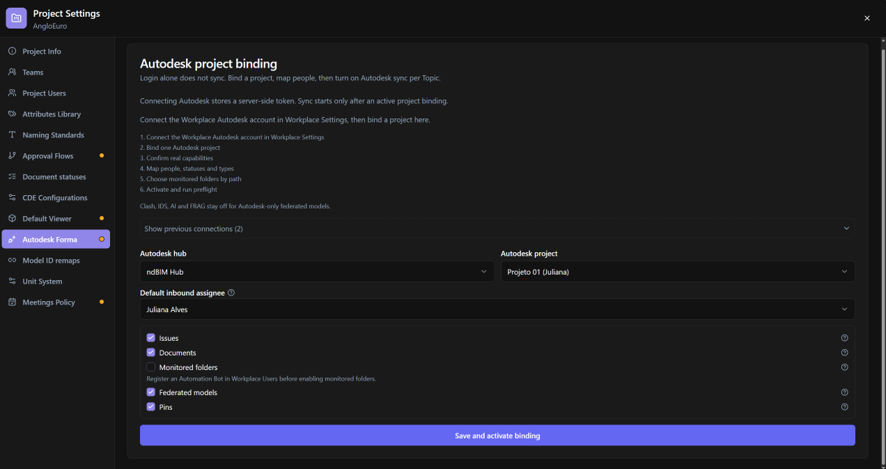
- Under Autodesk Hub, select the Hub containing the project you want to connect.
- Under Autodesk Project, select the desired project.
- Select a Default inbound assignee.
- Configure the integration capabilities you want to use, when available.
- Click Save and activate binding.
The selected Autodesk project is associated with the BIMWorkplace project and appears as Active.
BIMWorkplace automatically starts synchronization after saving and activating the connection.
Only one Autodesk Forma project can be active for synchronization with a BIMWorkplace project at a time.
If another Autodesk project was previously active, it is moved to Previous connections. No additional confirmation is displayed when you save and activate a new project connection.
Setting the Default inbound assignee
The Default inbound assignee determines who receives Autodesk Issues imported into BIMWorkplace as Topics when the original assignee cannot be identified.
When an Autodesk Issue is imported:
- If the Autodesk assignee can be matched to a BIMWorkplace user, the Topic is assigned to that user.
- If the Autodesk assignee cannot be matched, the Topic is assigned to the Default inbound assignee.
This ensures that imported Topics have an assigned BIMWorkplace user.
Choosing integration capabilities
Depending on the integration features enabled for your environment, Project Settings > Autodesk Forma may provide the following capabilities:
- Issues — supports synchronization between Autodesk Issues and BIMWorkplace Topics.
- Documents — makes supported files and folders from the connected Autodesk project available through the integration.
- Monitored folders — allows selected Autodesk folders to be monitored so that supported files can be automatically imported into the BIMWorkplace CDE.
- This capability requires an Automation Bot to be registered with the Workplace.
- Federated models — allows supported Autodesk models to be used as federated models in BIMWorkplace without first copying the original files to the BIMWorkplace CDE.
- Pins — enables supported integration functionality involving Autodesk issue locations.
Only enable the capabilities required for your workflows.
The available options depend on the integration features enabled for your BIMWorkplace environment.
Synchronizing the Autodesk project
After activating a connection, BIMWorkplace automatically starts synchronization.
You can also run synchronization manually whenever needed.
- Open Project Settings > Autodesk Forma.
- Locate the Active connection.
- Click Sync now.
- Wait for synchronization to complete.
- Check the displayed synchronization status.
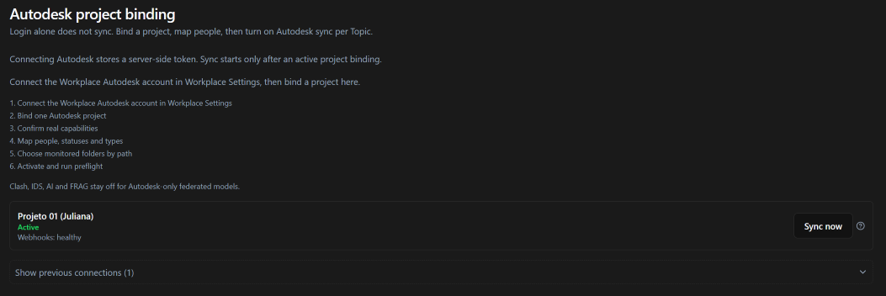
The synchronization result may indicate that the operation completed successfully, partially succeeded, or failed.
If synchronization fails, check the connection status and the displayed error information before trying again.
Changing the active Autodesk Forma project
A BIMWorkplace project can have multiple previously configured Autodesk project connections, but only one can be active at a time.
There are two ways to change the active connection.
Connecting another Autodesk project
To connect a different Autodesk project:
- Open Project Settings > Autodesk Forma.
- Select the required Autodesk Hub and Autodesk Project.
- Review the Default inbound assignee and integration capabilities.
- Click Save and activate binding.
The selected connection becomes Active, and synchronization starts automatically.
The previously active connection moves to Previous connections.
Important: This action does not display an additional confirmation before changing the active project.
Reactivating a previous connection
Previously configured Autodesk project connections remain available in Previous connections.
To reactivate one:
- Open Project Settings > Autodesk Forma.
- Locate the connection under Show previous connections.
- Click Reactivate.
- Review the confirmation message.
- Confirm the change.

The selected connection becomes Active, replacing the previously active connection.
BIMWorkplace starts synchronization for the reactivated project.
The connection that was previously active remains available in Previous connections.
Important: Changing the active connection stops synchronization with the previously active Autodesk project. Before making this change, consider whether the existing integration is being used for Issues, documents, monitored folders, or federated models.
Troubleshooting
BIMWorkplace indicates that an Autodesk account must be connected first
Open Workplace Settings > Autodesk Forma and connect an Autodesk account to the Workplace.
Return to Project Settings > Autodesk Forma after completing the connection.
The required Hub is not available
Verify that the connected Workplace Autodesk account has access to the required Autodesk Hub.
If necessary, update the connected Autodesk account in Workplace Settings.
The Autodesk project is not listed
Make sure you selected the correct Autodesk Hub.
Only Autodesk projects accessible through the connected Workplace Autodesk account can be selected.
Another Autodesk project is Active
Only one Autodesk project can be active for synchronization with a BIMWorkplace project at a time.
To switch projects, connect another project or reactivate an existing connection under Previous connections.
Synchronization does not complete successfully
Check the synchronization status and any error messages displayed in Project Settings > Autodesk Forma.
If BIMWorkplace indicates that the Autodesk connection needs to be restored, reconnect the account in Workplace Settings > Autodesk Forma.
Once the connection is available, use Sync now to try again.
Next step
After connecting the Autodesk project, you can configure and use the integration capabilities available for your environment.
For example, you can use supported Autodesk models as federated models in BIMWorkplace without first copying the original files to the CDE.
For more information, see Using Autodesk Forma Models in BIMWorkplace.
Was this article helpful?