Integrations
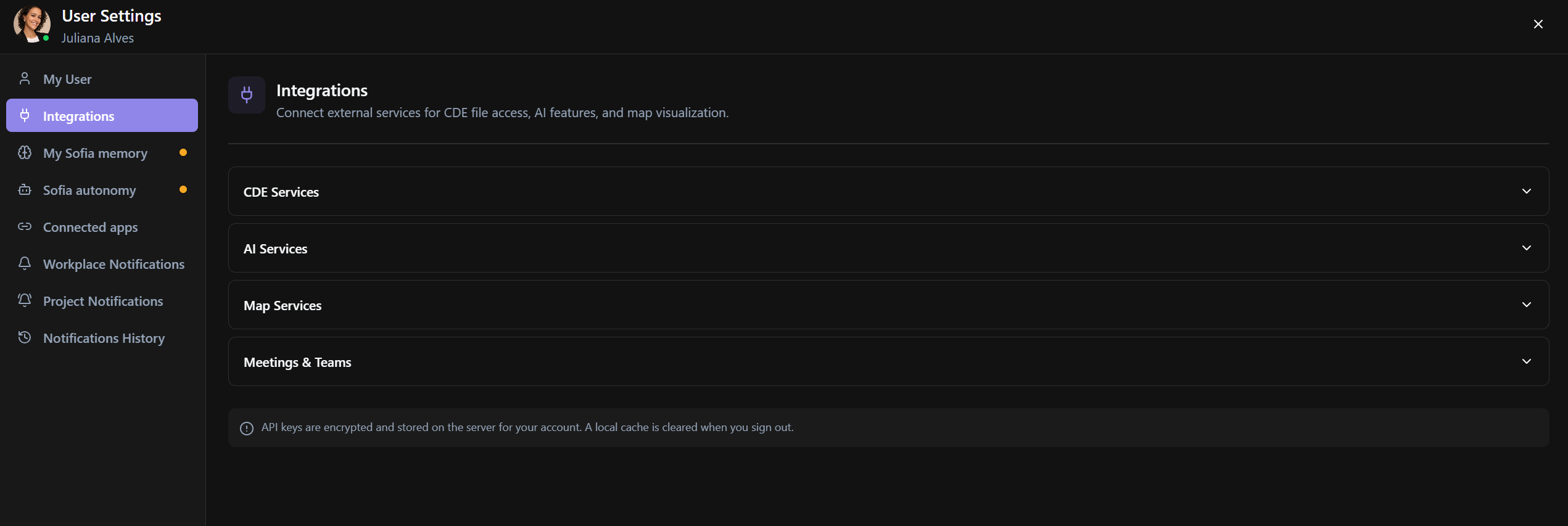
UI: Integrations / Integrações
Purpose
Connect external services to your account: CDE storage (OAuth), AI (API keys), maps, and calendars/Meetings.
Relevance
Without these connections, uploads/opening ACC/Drive, Chat LLM, maps, and Meeting sync will fail. This is a personal configuration, it does not replace project permissions.
Use Case Example
John is going to coordinate meetings with Outlook: in Meetings & Teams he connects Microsoft 365. Under Management → Meetings he can now see external events. For Clash in Chat, he saves a key in AI Services.
Who can use it
Authenticated user (personal integration permissions may apply).
Screen Anatomy
Page with accordions:
- CDE Services
- AI Services
- Map Services
- Meetings & Teams
Each provider shows status Connected / Not connected (or Configured) + Connect/Disconnect or Add Key.
Options and Fields
| Group | Provider | What it unlocks |
|---|---|---|
| CDE Services | Google Drive | Drive files |
| CDE Services | OneDrive | OneDrive files |
| CDE Services | SharePoint | SharePoint libraries |
| CDE Services | Dropbox | Dropbox files |
| AI Services | AI Providers + Default Provider | Chat / AI render / generate description |
| Map Services | Google Map Tiles | Maps |
| Map Services | Cesium Ion | 3D terrain/imagery |
| Meetings & Teams | Microsoft 365 | Teams + Outlook calendar (Meeting Intelligence) |
| Meetings & Teams | Google Calendar | Calendar / Meet |
Actions: Connect, Disconnect, Add Key, Save, Edit, Get Key.
Security note: keys are encrypted on the server; local cache is cleared on sign out.
How to use
- Avatar → User Settings → Integrations.
- Expand the group.
- Connect (OAuth) or paste API key → Save.
- Confirm Connected / Configured badge.
Links
Was this article helpful?